 By
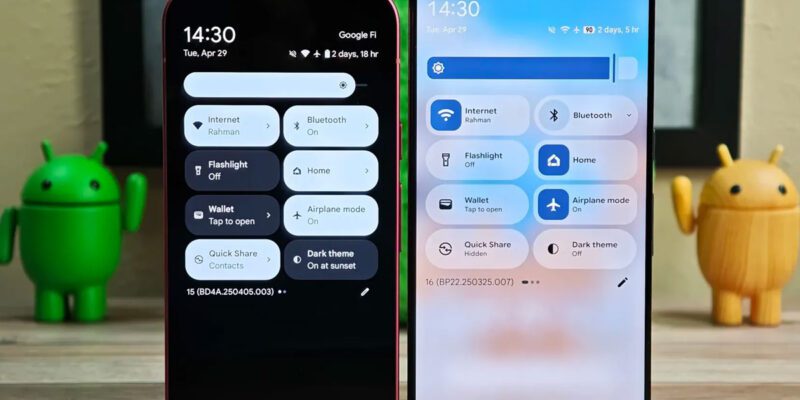
By The Quick Settings panel — accessed by swiping down from the top of your screen — is one of the most-used interfaces on Android. Most people use whatever tiles the manufacturer put there by default. Spending 10 minutes customizing it to match your actual usage patterns saves small amounts of time and friction dozens of times every day.
How to Access and Edit Quick Settings
Swipe down twice (or swipe with two fingers) to expand the full Quick Settings panel. Look for a pencil icon or Edit button — tap it to enter edit mode. In edit mode, you can drag tiles to rearrange them, drag from the inactive section above the line to add new tiles, and drag from the active section below the line to remove them. The first four to eight tiles are visible with a single swipe.
The Tiles Worth Prioritizing
For the single-swipe visible row, prioritize tiles you toggle multiple times a day. Common high-value tiles: Wi-Fi, Bluetooth, Silent/Sound mode, Flashlight, Screen Rotation. For the expanded panel: Mobile Data, Hotspot, DND, Battery Saver, Airplane Mode, NFC. Remove tiles you never use — Default apps from Samsung (like Samsung Pay) that you don’t use are just visual noise.
Samsung-Specific Quick Settings Features
Samsung’s One UI includes tiles not found on stock Android: DeX mode (for display connection), Samsung Pay, Samsung Link, and Smart View (screen mirroring). Also note that Samsung’s bright mode tile can cycle through display modes quickly without going into Settings. Add whichever are relevant to your workflow. The Link to Windows tile is particularly useful for Galaxy phones with Windows PCs.
Use the Brightness and Volume Controls
The Quick Settings brightness slider is faster than going into display settings for temporary brightness adjustments. Tap the brightness percentage number to lock at a specific value, or enable adaptive brightness from the same row. On Samsung, the expanded Quick Settings also gives you access to volume controls without pressing hardware buttons — useful when the phone is in a dock or mount.
Color Mode Quick Tile
Add the Eye Comfort Shield or Blue Light Filter tile (Samsung) or Night Mode equivalent to your Quick Settings. Toggling reduced blue light in the evening is something you’ll want as a one-tap action rather than navigating through Display settings. Same for Grayscale — useful as a distraction-reduction tool or for conserving battery on OLED screens.
Quick Settings Shortcuts With Long Press
Long-pressing most Quick Settings tiles opens the full settings screen for that feature. Long-press Wi-Fi to go directly to Wi-Fi settings. Long-press Bluetooth to go to Bluetooth device management. Long-press Location to go to location settings. These long-press shortcuts are faster than Settings > Connections for most per-feature adjustments.
The Media and Device Controls Area
The top section of expanded Quick Settings on recent Android versions shows media playback controls and nearby device controls (casting, smart home). These appear automatically when media is playing or when compatible devices are detected. You can control playback, switch audio output, and interact with nearby devices without unlocking your phone — making this section of Quick Settings genuinely useful throughout the day.
Views: 109

You may also like

How to Stop Your Kids From Spending Money on Your Phone by Accident

How to Use Your Phone to Manage Your Time When You Work From Home
How to Use Your Phone Camera to Spot Things You’d Otherwise Miss
More in:Apps

How to Use Your Phone to Build Better Habits That Actually Stick

How to Use Your Phone to Help You Through a Difficult Life Transition

How to Use Your Phone to Manage Your Mental Load and Stop Forgetting Things

TecRounder is a blog that shares New Technology news from around the world (hence the name TecRounder), including the most recent mobile and gadget information: smartphone features, specifications, and more. You can find the latest technology updates here, including the most recent information on smartphones, laptop computers, and other electronic devices.