How to Use Your Phone to Work More Productively When You’re Away From Your Desk

 By
By The modern work reality involves time away from a desk that isn’t necessarily downtime — waiting for appointments, commuting, traveling, working from temporary locations. The difference between that time being lost and that time being productive often comes down to whether your phone is set up to support real work or just to allow you to check email and move on.
Here’s how to use your phone as a genuine work tool.
Voice Notes for Ideas and Dictation
The fastest way to capture thoughts on a phone isn’t typing — it’s talking. Set up a voice notes workflow:
Otter.ai transcribes voice notes to text automatically with surprisingly good accuracy. Speak a complete thought and have a text record seconds later. Excellent for capturing meeting notes, brainstorming, or dictating drafts.
Apple’s Voice Memos and Google Recorder (Pixel phones) record audio with transcription. They’re built-in and require nothing extra.
For quick capture without unlocking your phone, set up a voice shortcut — “Hey Google, create a note” or “Hey Siri, create a note” adds to your notes app hands-free.
Document Editing on the Go
Microsoft Office apps (Word, Excel, PowerPoint) and Google Docs/Sheets/Slides are fully functional on mobile for editing. They’re not ideal for creating documents from scratch, but reviewing, commenting, and making targeted edits work well.
For PDF annotation — reviewing documents, signing, marking up — Adobe Acrobat Reader’s free mobile app is capable and integrates with cloud storage. On iPhone, the built-in Files app with markup tools handles PDF annotation directly.
Cloud Storage as Your Mobile Workspace
If your working files live in Google Drive, OneDrive, or Dropbox, they’re accessible from your phone. The key setup is enabling offline access for documents you work with regularly — this makes them available even when connectivity is unreliable.
In Google Drive: open a file, tap the three dots, enable “Available Offline.”
In OneDrive and Dropbox: similar per-file offline availability options exist.
Email and Communication Management
Mobile email is often handled reactively — you respond to what comes in. A more productive approach: use flagging/starring consistently to create a mobile action list. When you read an email that requires a response longer than you can comfortably give on mobile, flag it and handle it at your desk. Use quick, immediate responses for the ones you can handle easily.
Set up keyboard shortcuts in your email app for common responses. Gmail on mobile lets you use canned responses — templates for replies you send frequently.
Focus and Timer Techniques
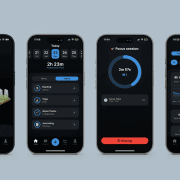
The Pomodoro technique (25 minutes focused work, 5 minutes break) transfers well to mobile work. Focus To-Do, or simply your phone’s built-in clock timer, can run Pomodoro sessions. The constraint of working for a defined time block is often more effective on mobile where distractions are more present than at a desk.
Use your phone’s Focus Mode (Digital Wellbeing) or Focus (iPhone) to block non-work apps during work blocks. Having Instagram and social media inaccessible for 25 minutes is much easier to commit to than telling yourself you won’t check it.
The Physical Setup
A portable stand for your phone (collapsible stands cost $5–10) makes reading on a phone significantly more comfortable for extended periods. A compact Bluetooth keyboard makes typing on a phone for extended text work much more practical.
A battery pack ensures you’re not managing battery anxiety during a productive session.
These small investments make mobile work significantly more comfortable and extend how long you can productively work from a phone without needing a desk.
Views: 37

You may also like
How to Use Your Phone Camera to Spot Things You’d Otherwise Miss

How to Use Your Phone to Build Better Habits That Actually Stick

How to Use Your Phone to Help You Through a Difficult Life Transition
More in:Gadgets

How to Use Your Phone to Manage Your Mental Load and Stop Forgetting Things
How to Use Your Phone to Reduce Your Environmental Impact
How to Use Your Phone to Make Better Decisions

TecRounder is a blog that shares New Technology news from around the world (hence the name TecRounder), including the most recent mobile and gadget information: smartphone features, specifications, and more. You can find the latest technology updates here, including the most recent information on smartphones, laptop computers, and other electronic devices.