How to Get the Best Signal on Your Android Phone in Weak Coverage Areas
 By
By Weak cellular signal is frustrating — slow data, dropped calls, texts that fail to send. While you can’t change the infrastructure, several phone settings and habits meaningfully affect how well your phone maintains and uses whatever signal is available. Here’s how to optimize your Android for weak signal areas.
Choose the Right Network Type
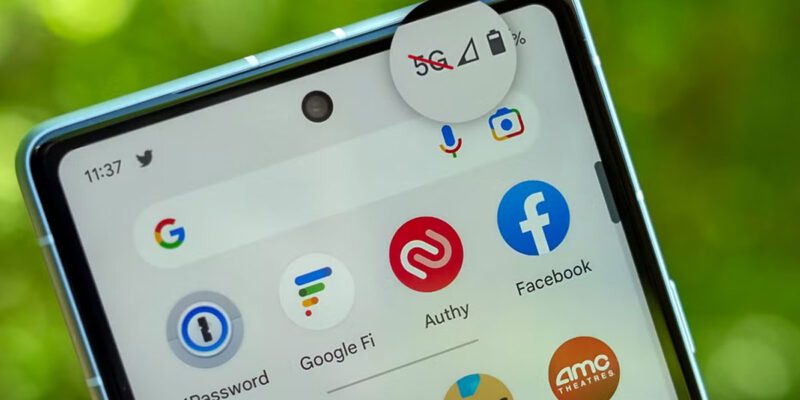
Settings > Connections > Mobile Networks > Network Mode. In weak coverage areas, selecting LTE/4G only (removing 5G) can improve connection stability. 5G uses different frequencies that have shorter range than 4G — in areas where 5G signal is marginal, the phone wastes energy reaching for a weak 5G signal when a stronger 4G connection is available on the same tower.
Enable VoLTE and Wi-Fi Calling
Settings > Connections > Mobile Networks > VoLTE Calls > enable. Settings > Connections > Wi-Fi Calling > enable. VoLTE (Voice over LTE) provides better call quality on 4G networks. Wi-Fi Calling routes phone calls through your Wi-Fi connection when cellular signal is weak or absent — this is one of the most impactful improvements for users in buildings with poor indoor cellular coverage.
Remove Your Phone Case Near the Antenna
Some thick metal-backed cases or cases with metal elements can partially interfere with antenna reception. This is typically minor but in already-weak signal areas, every bit helps. Metal popsockets positioned directly over the antenna area are more impactful — move them away from the phone’s antenna bands (typically the edges and back) if signal is important.
Reset Your Network Settings
Settings > General Management > Reset > Reset Network Settings. This resets carrier configuration profiles that sometimes get corrupted and cause poor signal performance on otherwise adequate networks. After the reset, reconnect to your Wi-Fi networks and verify your APN settings are configured correctly for your carrier if data stops working.
Update Carrier Settings
Carriers push updates to your phone’s carrier configuration that affect how your phone connects to their network — antenna preferences, data settings, call routing. On Android, these come through the system update process. Check for pending system updates if you haven’t updated recently — carrier profile updates are sometimes bundled with security patches.
Position the Phone Strategically
In weak signal areas, physical position matters significantly. Moving near a window typically improves signal indoors. Higher elevation improves signal (going to an upper floor of a building often shows measurably better reception). Facing toward the direction of a known cell tower improves signal in fringe areas. The signal bar indicator in your status bar updates as you move, so you can actively navigate toward better reception.
Consider a Wi-Fi Calling Device or Signal Booster
For genuinely poor coverage areas that software fixes can’t address, hardware solutions exist. Your carrier may offer a femtocell (a small device that creates a mini cell tower in your home using your broadband connection). Signal boosters from manufacturers like weBoost are legal in both the US and UK and can provide significant indoor coverage improvement. Both require an initial investment but permanently solve the coverage problem for a fixed location.
Views: 125

You may also like

How to Stop Your Kids From Spending Money on Your Phone by Accident

How to Use Your Phone to Manage Your Time When You Work From Home
How to Use Your Phone Camera to Spot Things You’d Otherwise Miss
More in:Gadgets

How to Use Your Phone to Build Better Habits That Actually Stick

How to Use Your Phone to Help You Through a Difficult Life Transition

How to Use Your Phone to Manage Your Mental Load and Stop Forgetting Things

TecRounder is a blog that shares New Technology news from around the world (hence the name TecRounder), including the most recent mobile and gadget information: smartphone features, specifications, and more. You can find the latest technology updates here, including the most recent information on smartphones, laptop computers, and other electronic devices.