 By
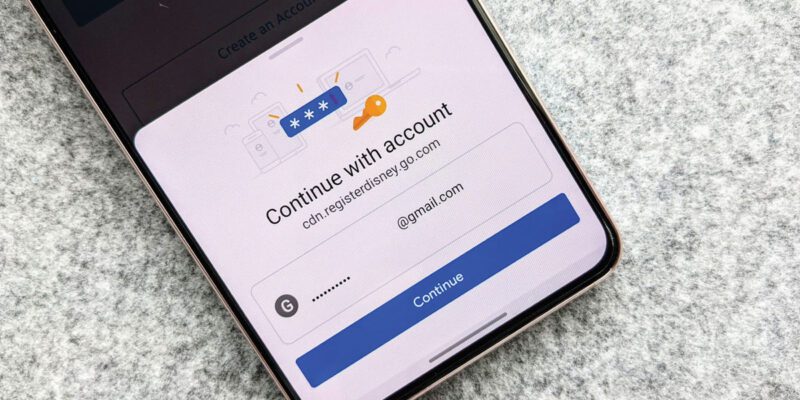
By Using the same password for multiple accounts is one of the most common security mistakes people make. When one service gets breached (and breaches happen constantly), every other account with that password is immediately at risk. A password manager solves this by generating and storing unique, complex passwords for every account — and you only have to remember one master password.
Here’s how to set one up properly on your phone.
Choosing a Password Manager
Bitwarden is the best recommendation for most people: it’s free for everything you need, open source (so the security is independently verifiable), and works across all platforms. Premium is $10/year for extras most people don’t need.
1Password is the premium option at $3/month — excellent design, great family sharing, useful for people who want the most polished experience.
Apple Keychain (iCloud Keychain) is built into iPhone and free, and has improved significantly. It’s a reasonable option for iPhone-only users. The limitation is Android and cross-platform.
Google Password Manager is built into Android and Chrome, free, and works across platforms where you’re logged into your Google account.
Setting Up Bitwarden on Your Phone
Download Bitwarden from the App Store or Google Play. Create an account with a strong master password — this is the one password you actually need to remember. Use something memorable to you but complex: a phrase of four or five unrelated words works better than a short complex string.
Enable two-factor authentication for your Bitwarden account (Settings > Two-step Login). Use an authenticator app rather than SMS.
Enabling Autofill
On iPhone: Settings > Passwords > AutoFill Passwords > select Bitwarden (and deselect iCloud Keychain if you’re moving to Bitwarden entirely). When you tap a password field in any app or browser, Bitwarden will offer to fill it.
On Android: Settings > General Management > Passwords and Autofill > select Bitwarden. Same result — any password field in any app offers Bitwarden autofill.
Actually Using It: The Transition
The best approach to transitioning is opportunistic: don’t try to move all your passwords at once. Instead, whenever you log into an account, let Bitwarden save the existing password. When you next change a password (or if Bitwarden flags that a password has been used elsewhere), generate a new unique password and save it.
Over 2-3 months of normal account use, your important accounts will organically transition to unique passwords without a big one-time project.
Generating Strong Passwords
When creating a new account or changing a password: in the password field, tap Bitwarden’s autofill > Generator. Set length to at least 16 characters with upper, lower, numbers, and symbols. Copy and save it. You never need to memorise it — Bitwarden stores and fills it for you.
What Happens If You Forget Your Master Password
This is the critical warning: your master password is only stored in your head, not anywhere in Bitwarden’s system. If you forget it, you lose access. There is no “forgot password” for password managers — that’s the point.
Write your master password down (clearly, precisely) and store the paper somewhere secure — a home safe, or with important documents. This is the one piece of analog backup that matters.
Browser Extension for Desktop
Install the Bitwarden browser extension on your computer too. Your password database syncs across devices. Everything saved on your phone is available on your computer and vice versa, creating one unified password management system.
Views: 58

You may also like

How to Stop Your Kids From Spending Money on Your Phone by Accident

How to Use Your Phone to Manage Your Time When You Work From Home
How to Use Your Phone Camera to Spot Things You’d Otherwise Miss
More in:Apps

How to Use Your Phone to Build Better Habits That Actually Stick

How to Use Your Phone to Help You Through a Difficult Life Transition

How to Use Your Phone to Manage Your Mental Load and Stop Forgetting Things

TecRounder is a blog that shares New Technology news from around the world (hence the name TecRounder), including the most recent mobile and gadget information: smartphone features, specifications, and more. You can find the latest technology updates here, including the most recent information on smartphones, laptop computers, and other electronic devices.