How to Use Bluetooth Headphones With Your Phone Without Connection Problems
 By
By Bluetooth headphones are one of those technologies that work beautifully when they work and are genuinely infuriating when they don’t. The connection drops at the worst moment. They connect to your laptop instead of your phone. The audio delays noticeably during video. The microphone doesn’t work for calls.
Most of these problems have specific solutions.
The Pairing Clear and Re-Pair Method
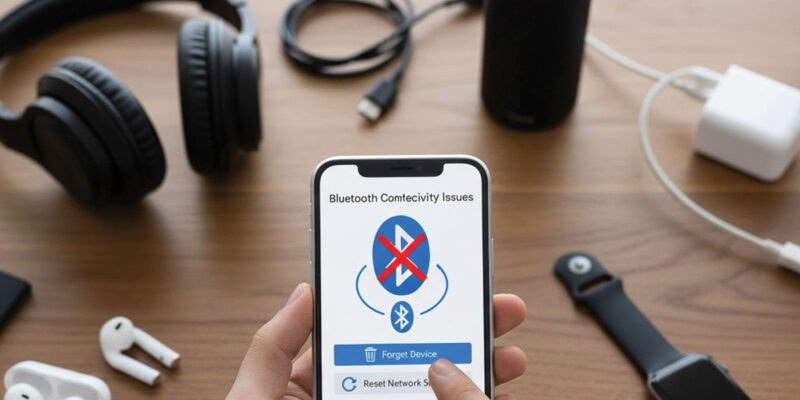
When a connection is misbehaving, the most reliable first fix is to remove the pairing from both devices and start fresh. On your phone, go to Bluetooth settings, find the headphones, and select Forget or Unpair. On the headphones themselves, enter the reset/factory reset mode (usually by holding the power button for 10+ seconds — check the manual for your specific model). Then pair fresh.
Stale pairing records accumulate connection history data that can become corrupted, especially after software updates on either device. Starting fresh gives you a clean connection profile.
Active Connections to Multiple Devices
Many modern Bluetooth headphones support multipoint connection — staying paired to two or three devices simultaneously and switching between them. This is useful but can also cause unexpected behavior. If your headphones are paired to your laptop, your phone, and your tablet, audio might start playing on the laptop when you expect it on the phone.
Check your headphones’ companion app (most premium headphones have one) for device priority settings. Some let you set a default device. Others let you disable multipoint if you only need one connection at a time.
Codec Mismatch and Audio Delay
If audio is consistently delayed — visible during video where the sound doesn’t match the lip movement — it’s often a codec issue. Bluetooth audio codecs include SBC (oldest, most latency), AAC (better for Apple), aptX/aptX Low Latency (better for Android), and LDAC (best quality, more latency).
On Android, go to Developer Options > Bluetooth Audio Codec and try different options. SBC has high latency. aptX Low Latency is specifically designed for video sync if your headphones support it.
For watching video specifically, many streaming apps (Netflix, YouTube) have audio sync adjustment settings to compensate for Bluetooth latency.
Microphone Not Working for Calls
When Bluetooth headphones connect to a phone for calls, they switch from stereo audio mode to headset mode, which enables the microphone but reduces audio quality to a narrowband sound. If your headphone microphone isn’t working, check that your phone has selected the headphones as the audio output for calls (not just music).
During a call, tap the speaker icon and ensure headphones are selected. If the microphone works for calls but the audio sounds lower quality than music playback, that’s normal Bluetooth headset behavior — the microphone requires a different audio profile.
Range and Interference Issues
Standard Bluetooth has a range of about 10 meters without obstacles. Walls, especially concrete, and other wireless devices operating on 2.4GHz (including Wi-Fi routers, microwaves) can reduce range and cause dropouts.
If you experience consistent dropouts in specific locations, interference is likely. Moving the phone closer, or moving away from sources of interference (like a Wi-Fi router), often resolves it.
Battery on Both Ends
Low battery on either device — your phone or your headphones — can cause connection instability. The Bluetooth radio operates at reduced power when the battery is low, reducing range and connection stability. If you’re experiencing dropouts, check the battery level on your headphones (most have voice announcements or LED indicators) and on your phone.
When It’s a Phone Software Issue
Bluetooth driver issues in Android or iOS sometimes cause widespread connection problems that affect all Bluetooth devices, not just one pair of headphones. If problems appeared suddenly after a phone update, check for reports from other users with your phone model — there may be a known issue and a patch coming. In the meantime, clearing Bluetooth cache (Settings > Apps > Bluetooth > Clear Cache on Android) or resetting network settings (which resets Bluetooth as well) often helps.
Views: 53

You may also like
How to Use Your Phone to Learn About Nutrition Without Getting Confused
How to Use Your Phone to Document and Share Your Creative Work
How to Use Your Phone to Prepare for a Job Interview
More in:Gadgets

How to Use Your Phone to Manage Your Pet’s Health Records and Vet Visits

How to Use Your Phone to Deal With Information Overload
How to Use Your Phone to Learn Basic First Aid You Might Actually Need

TecRounder is a blog that shares New Technology news from around the world (hence the name TecRounder), including the most recent mobile and gadget information: smartphone features, specifications, and more. You can find the latest technology updates here, including the most recent information on smartphones, laptop computers, and other electronic devices.