How Location Services Quietly Drain Your Android Battery
 By
Your phone is sitting in your pocket, screen off, and yet the battery keeps sliding. You have not opened any heavy apps. One of the quiet culprits could be something you rarely think about: location services. It works in the background, and it does so more often than most people realize.
The good news is that you do not have to turn location off completely and lose useful features like maps and weather. You just need to manage it smartly. This guide explains how location drains the battery, how to see which apps are using it, and the exact settings that give you the best balance.
How location tracking uses battery
To work out where you are, your phone can use GPS satellites, Wi-Fi networks, Bluetooth signals and mobile towers. GPS is accurate but power hungry, since the phone must keep a radio running and process the signal. Wi-Fi and Bluetooth scanning use less power, but they add up when they run constantly.
Now imagine many apps asking for your location again and again. Maps, weather, social media, shopping and delivery apps often check where you are. Each check uses a small amount of energy, and together they can make a real difference over a day.
Why location drain often goes unnoticed
Location use does not always show up clearly in battery usage. It may be spread across the system, or counted under Google Play services or Android System. So you may see a high battery percentage for something you do not recognize, without realizing it is location related.
Step 1: See which apps use your location
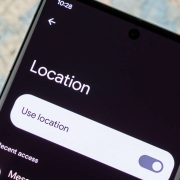
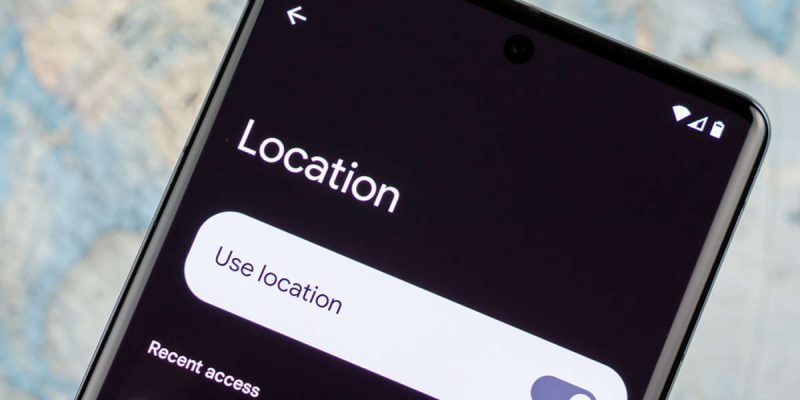
Open Settings, then Location, and look for App location permissions or a similar option. You will see which apps can access your location, and many phones show whether it is always, only while using the app, or denied. Some Android versions also show recent location requests, so you can see which apps asked for it lately.
Take a few minutes to scroll through the list. You will probably find apps with access that you had forgotten about, or that have no real reason to track you.
Step 2: Change permissions to the minimum needed
For each app, choose the least access that still allows it to do its job. Here is a simple way to decide.
- Allow only while using the app for maps, weather, rideshare and food delivery.
- Choose Ask every time for apps you use rarely.
- Deny location for apps that do not need it, such as games, calculators or photo editors.
- Only give all the time access to an app that truly needs it, like a safety or family locator app you trust.
Also consider turning off precise location for apps that only need your general area, if your phone offers that option. A weather app, for example, does not need your exact street.
Step 3: Check Wi-Fi and Bluetooth scanning
In the location settings, some phones have an option for Wi-Fi scanning and Bluetooth scanning, which lets the system look for nearby networks and devices even when Wi-Fi or Bluetooth is off. This improves location accuracy, but it uses extra battery. If you do not need that, switching it off can help. Keep in mind it may reduce accuracy indoors.
Step 4: Choose a sensible accuracy setting
On many phones, you can adjust location accuracy or use a feature such as Google Location Accuracy. This improves precision by using Wi-Fi, mobile networks and sensors, and it is generally efficient. If your location is wrong or jumpy, leave it on. If you rarely use location, and you want to save power, you can turn it off or use it only when needed.
Step 5: Turn location off when you do not need it
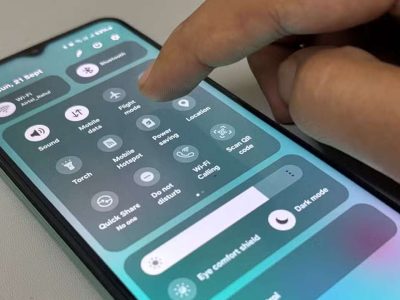
You can toggle location from your quick settings panel. If you are at home or at a desk for hours, switching it off can save a little power. Just remember to turn it back on when you need maps, since the apps will not be able to find you.
Common apps that use location heavily
- Navigation and map apps.
- Weather apps that update frequently.
- Social media apps that tag locations or suggest nearby content.
- Delivery and ride-hailing apps, even when you are not using them.
- Fitness and running trackers.
- Shopping apps that offer nearby store alerts.
What about privacy?
Limiting location is good for privacy as well as battery. Fewer apps knowing where you are means less data collected about your habits. Reviewing permissions every few months is a good habit, and many people are surprised by what they find.
Will limiting location break my apps?
In most cases no. Apps that need location will ask for it when you open them, and you can allow it only while using the app. A few apps, like geofenced reminders, need background access to work. If something stops working, you can always change that app’s permission back.
How much battery can you save?
It depends on your habits and how many apps are using location. For some people the difference is small. For others, especially those with many location hungry apps, the difference can be noticeable, perhaps an hour or more of extra use in a day. The best approach is to try the changes and watch your battery over a couple of days.
A realistic example
Picture a typical phone with twenty apps on it. Five of them have permission to use your location all the time, including a weather app, a shopping app, a social network, a food delivery app and a game that you opened once. Throughout the day each of them checks where you are, some every few minutes. Change four of those to while using the app and deny the game, and you remove most of that background activity in under two minutes. That is the kind of quiet win that makes a difference.
How to check if it worked
After you change your permissions, give it a full day, then open the battery usage screen. Look at Google Play services and Android System, since those often carry location activity. If their share has dropped, your changes are helping. If not, move on to other causes such as signal strength, brightness and background apps.
Final thoughts
Location services are useful, but they are easy to forget and easy to overuse. A few minutes spent reviewing app permissions can cut hidden drain, improve privacy and keep your phone going longer. You do not need to give up maps or weather. You just need to decide who gets to know where you are, and when.
Frequently asked questions
Does location use a lot of battery?
It can, especially GPS and frequent background checks from many apps. Managing permissions reduces the impact.
Should I turn off location services completely?
Not usually. Many apps need it. It is better to limit access to only while using the app for most apps.
What is the difference between precise and approximate location?
Precise location pinpoints where you are, while approximate gives a general area. Many apps only need approximate.
Why does location show under Google Play services in battery usage?
Many apps use Google’s location system, so the activity is grouped under that service rather than each app.
Views: 0

You may also like
Does Factory Reset Make Android Faster? What to Know First.
Does Closing Apps Really Save Android Battery? The Truth
Do Cleaner and Booster Apps Work on Android? The Honest Truth
More in:Gadgets
Dark Mode and Battery Life: How Much Does It Really Save
Android Storage Almost Full? What to Delete First
Android Screen Lag and Touch Delay: Causes and Quick Fixes

TecRounder is a blog that shares New Technology news from around the world (hence the name TecRounder), including the most recent mobile and gadget information: smartphone features, specifications, and more. You can find the latest technology updates here, including the most recent information on smartphones, laptop computers, and other electronic devices.