Android Screen Lag and Touch Delay: Causes and Quick Fixes
 By
You tap an icon, and nothing happens. You tap again, and now it opens twice. You swipe, and the screen follows a half second late. Or it ignores you completely, then reacts all at once. Touch problems are maddening because the screen is how you do everything on your phone.
The cause may be software, a small physical issue or, less often, real hardware trouble. This guide helps you work out which, and gives you quick fixes in a sensible order, from the free and easy ones to the ones that need a repair.
How to tell what kind of problem you have
Notice how the lag behaves, because it points to the cause.
- Lag everywhere, in every app: usually a system-wide issue, such as low storage, overheating or a software glitch.
- Lag in one app: that app is the likely culprit.
- Lag in one part of the screen: more likely a hardware or protector problem.
- Lag only when charging: the charger or cable may interfere with the touch sensor.
- Lag only when your hands are wet or sweaty: normal for many screens.
Fix 1: Clean the screen and your hands
It sounds basic, but dirt, grease and moisture all disturb touch sensing. Wipe the screen with a soft, slightly damp microfiber cloth, dry it, and make sure your fingers are clean and dry. Try again.
Fix 2: Remove the screen protector or case
A thick, cracked or badly fitted screen protector can block or distort touches. Tempered glass with air bubbles and cheap film are common causes. Peel it off and test. If the screen feels better, replace it with a good quality protector. Some cases with raised edges can also interfere near the corners.
Fix 3: Restart the phone
A restart clears stuck processes and temporary glitches. If touch lag appeared suddenly, this fixes many cases.
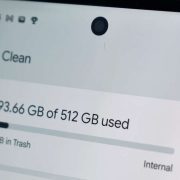
Fix 4: Free up storage and memory
A phone that is nearly full or short on memory responds slowly, including to touch. Delete unused files and apps, and aim to keep 10 to 15 percent of storage free. Close apps you are not using, and restart again if needed.
Fix 5: Check for overheating
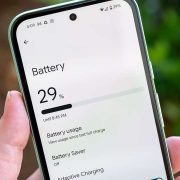
When the processor gets hot, the phone slows itself down, and the screen can feel sluggish. If the phone is warm, remove the case, let it cool, avoid heavy apps and keep it out of the sun. Check battery usage for an app that is working too hard.
Fix 6: Update your software and apps
Touch bugs are sometimes fixed in updates. Install any pending system update, and update your apps in the Play Store. If the lag began after an update, look for a follow-up patch.
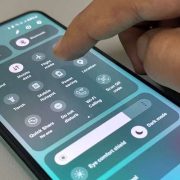
Fix 7: Adjust display and touch settings
Check your display settings for options that affect touch. Some phones have touch sensitivity, glove mode or a high touch sampling option. If your phone has a variable refresh rate, try switching between standard and high refresh to see whether it feels better. Also check that adaptive features are not set to extreme power saving, which can reduce responsiveness.
Fix 8: Look for a problem app
If the lag happens in one app, clear its cache, update it or reinstall it. If it happens everywhere, boot into safe mode, which disables third-party apps. If the screen feels normal there, an app you installed is the cause. Remove recently installed apps one by one until the problem stops.
Fix 9: Try a different charger
Some cheap or faulty chargers create electrical noise that disrupts the touch sensor, causing ghost touches or lag only while charging. If the problem happens only when plugged in, test with the original charger and cable.
Fix 10: Test the screen with a diagnostic tool
Many phones include a built-in test for the touch screen in a diagnostics menu or support app. These show where touches register and whether any part of the screen is dead. This helps you tell whether the problem is software or hardware. Check your manufacturer’s official instructions, and avoid random codes from unreliable sources.
Fix 11: Reset settings or do a factory reset
If nothing helps, reset app preferences in Settings, then System, then Reset options. If the lag is severe and appears in every part of the phone, back up your data and consider a factory reset. Test it with very little installed. If the lag disappears, reinstall apps gradually.
When it is a hardware problem
If the screen is slow or unresponsive even after a reset, or if the problem is limited to one area, it may be a hardware fault. Signs include the following.
- A dead zone where taps do nothing.
- Phantom touches, where the screen taps itself.
- Lag that began after a drop or water exposure.
- Lines, flickering or discoloration on the display.
- A cracked screen or one that feels loose.
These need repair. A service center can check the display and digitizer, and replace them if needed. Replacing a screen is usually cheaper than buying a new phone.
Phantom touches and ghost taps
If your phone seems to press things by itself, the causes are similar: moisture, a bad protector, a faulty charger, a damaged screen or a software bug. Clean and dry the phone, remove accessories and test again. If it continues, seek repair.
How to avoid touch problems in the future
- Use a good quality screen protector and keep it clean.
- Keep the phone away from moisture and extreme heat.
- Use reliable chargers and cables.
- Keep storage free and software updated.
- Avoid dropping the phone, and use a sturdy case.
Why cold and wet weather affect touch
Touch screens work by sensing tiny electrical changes from your finger. Water droplets, sweat and very cold hands change those signals, which can cause missed taps or odd behavior. If your phone only acts up in the rain or at the gym, this is likely the reason. Dry the screen and your hands, and avoid using the phone in heavy rain. Some phones have a glove or wet-touch mode that can help.
What to tell a repair shop
If you do need a repair, you will get a faster and fairer answer if you describe the problem clearly. Say when it started, whether it happens in every app, whether it appears only in some parts of the screen, and what you have already tried. This helps the technician test the right parts, and it makes you less likely to pay for work you did not need.
Final thoughts
Touch lag is stressful, but it is rarely the end of your phone. Start with the free fixes, such as cleaning the screen, removing the protector and restarting. Move step by step, and you will probably find the cause. If it turns out to be hardware, you will at least know what to tell the repair shop.
Frequently asked questions
Why is my Android touch screen delayed?
Common causes include dirt, a bad screen protector, low storage, overheating, a software glitch or a hardware fault.
Why does my screen work only when it is not charging?
A faulty or cheap charger can interfere with the touch sensor. Try the original charger and cable.
Can a screen protector cause touch lag?
Yes. Thick, cracked or poorly fitted protectors can cause delays and missed touches.
When should I replace my phone screen?
If you have dead zones, phantom touches or lag that persist after a reset, have the screen checked by a service center.
Views: 0

You may also like
Android Phone Slow After Months of Use: Here Is the Real Reason
Android Battery Health Check: How to See How Worn Yours Is
Why Your Phone Loses 20 Percent Battery Just Sitting There
More in:Gadgets
Android Battery Draining While Using Mobile Data: What to Do
Wireless Charging Not Working on Android? Easy Fixes That Work
Is Your Android Battery Calibration Off? How to Fix Wrong Percentages

TecRounder is a blog that shares New Technology news from around the world (hence the name TecRounder), including the most recent mobile and gadget information: smartphone features, specifications, and more. You can find the latest technology updates here, including the most recent information on smartphones, laptop computers, and other electronic devices.