Android Storage Almost Full? What to Delete First
 By
You try to take a photo and the phone tells you storage is full. An update will not install. Apps crash for no reason. And every time you check, the storage bar is a big, angry block of color. It is stressful, especially when you are not sure what is safe to delete.
Take a breath. You can free up a lot of space without losing anything you care about. This guide shows you where to look, what to delete first, what to leave alone, and how to keep your storage from filling up again.
Why a full phone becomes a slow phone
Your phone does not only use storage for your files. It also needs free room to run apps, install updates, save temporary data and swap information in and out of memory. When storage gets close to full, the phone has little room to work with, and everything slows down. Apps may freeze, the camera may lag and updates may fail.
A good target is to keep at least 10 to 15 percent of your storage free. On a 128 GB phone, that is roughly 13 to 19 GB.
Step 1: See what is using your space
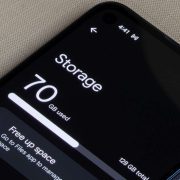
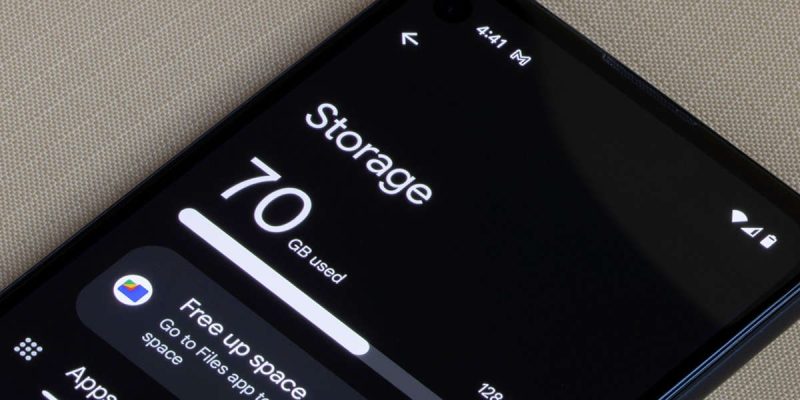
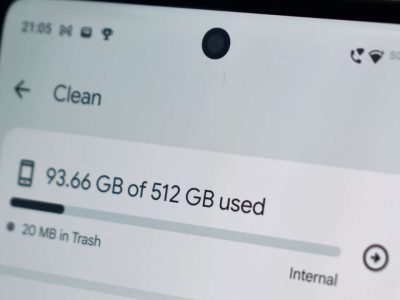
Open Settings, then Storage. You will see a breakdown by category, such as Images, Videos, Audio, Apps and Other or System. Tap on each category to see the biggest items. On many phones you can also see which apps take the most space, with a size next to each.
This view takes the guesswork out. You might find that a single messaging app is holding 12 GB of videos, or that a game you forgot about has grown enormous.
Step 2: Delete the easy wins first
Duplicate and blurry photos
Most of us take several shots of the same thing. Go through your gallery and delete duplicates, blurry shots and screenshots you no longer need. Many gallery apps suggest cleanup items, which makes this quicker.
Large videos
Videos are the biggest space hogs. Sort by size and look at the top ones. Move the ones you want to keep to cloud storage or your computer, then delete them from the phone.
Downloaded files
Open your Files app and check the Downloads folder. It often contains old PDFs, installers, voice notes and forgotten files. Delete what you no longer need.
Messaging app media
WhatsApp, Telegram and similar apps can hold gigabytes of photos, videos and voice notes. Open each app’s storage settings, and clear media from busy group chats you no longer need. Do it carefully, and back up chats first if you want to keep them.
Step 3: Remove apps you do not use
Look through your app list and sort by size or last used. Apps you have not opened in months are good candidates. Uninstalling a big game can free several gigabytes in one go. You can always reinstall it later from the Play Store.
Step 4: Clear cache
Cache is temporary data that apps store. Clearing it from big apps, such as your browser, social media and streaming apps, can free up space quickly and safely. Remember to tap Clear cache, not Clear data.
Step 5: Offload photos and videos to the cloud or a computer
If you want to keep your memories but not on your phone, back them up. Cloud storage services, or a simple cable transfer to a computer, will do. After confirming the files are safely copied, delete them from the phone. Check that the backup is complete before deleting anything.
Step 6: Use a memory card, if your phone supports it
Some Android phones have a microSD card slot. You can move photos, videos and music to the card, and you can often set the camera to save there. Many phones no longer have this slot, so check your model.
What not to delete
- System files or folders you do not recognize, especially under Android folders. Deleting them can cause problems.
- Photos you have not backed up anywhere.
- Apps or data you need for work or banking.
- Anything you are unsure about. If in doubt, leave it.
What is Other or System storage?
This category includes the Android system itself, plus cached files, app data and miscellaneous items. System files cannot be deleted, but the rest can shrink when you clear cache and remove unused apps. If System seems unusually large, a restart and an update sometimes help. If it stays huge, a service center may be able to look at it.
Keep your storage from filling up again
- Turn on automatic cloud backup for photos and enable free up space options.
- Review storage once a month.
- Avoid installing apps you will use once.
- Set messaging apps to not auto-download all media.
- Delete screenshots and downloads regularly.
A simple 30-minute cleanup plan
If you want a plan you can follow without thinking, set a timer for half an hour and work through this order. Spend the first ten minutes on photos and videos, since they save the most space. Spend the next ten on apps and downloads. Use the last ten to clear cache and check your storage again. Most people recover several gigabytes in this one short session, and it feels good to see the bar shrink.
Why photos and videos fill up so fast
Modern phone cameras are excellent, and that has a cost. A minute of high quality video can use hundreds of megabytes, and a single photo can use several. If you shoot in the highest settings, or record in 4K, your storage fills quickly. If you rarely need that quality, lowering the video resolution or choosing a smaller photo size can slow the filling a lot. Save the highest settings for moments that really matter.
What about cloud storage costs?
Most services give a small amount of free space and then charge a modest monthly fee. If you hate deleting memories, a small paid plan may be worth it. Compare options, and check that you can download your files later if you leave the service. A one-off backup to a computer or an external drive is another low-cost way to keep everything safe.
Check your phone before big events
Storage tends to run out at the worst moments, such as at a wedding, on a holiday or during a trip. If you know you will be taking lots of photos and videos, clear some space the day before. Having a few gigabytes free also helps the camera save quickly, so you never miss the shot because the phone was busy.
Final thoughts
A full phone is annoying, but it is one of the most fixable problems out there. Start with the biggest files, clear cache, remove what you do not use and back up what you love. In about half an hour, you can turn a clogged phone into one that feels much lighter. And your next photo will save without a fuss.
Frequently asked questions
What should I delete first when my Android storage is full?
Start with large videos, duplicate photos, unused apps and downloads. Then clear cache from big apps.
Is it safe to delete Other or System storage?
You cannot delete system files directly. You can reduce related cache and app data by clearing cache and removing unused apps.
How much free storage should I keep?
Aim for 10 to 15 percent free to keep the phone running smoothly.
Will deleting photos from my phone delete them from the cloud?
It can, depending on your sync settings. Check how your backup app works before deleting.
Views: 0

You may also like
Android Screen Lag and Touch Delay: Causes and Quick Fixes
Android Phone Slow After Months of Use: Here Is the Real Reason
Android Battery Health Check: How to See How Worn Yours Is
More in:Gadgets
Why Your Phone Loses 20 Percent Battery Just Sitting There
Android Battery Draining While Using Mobile Data: What to Do

Wireless Charging Not Working on Android? Easy Fixes That Work

TecRounder is a blog that shares New Technology news from around the world (hence the name TecRounder), including the most recent mobile and gadget information: smartphone features, specifications, and more. You can find the latest technology updates here, including the most recent information on smartphones, laptop computers, and other electronic devices.