Do Cleaner and Booster Apps Work on Android? The Honest Truth
 By TecRounder
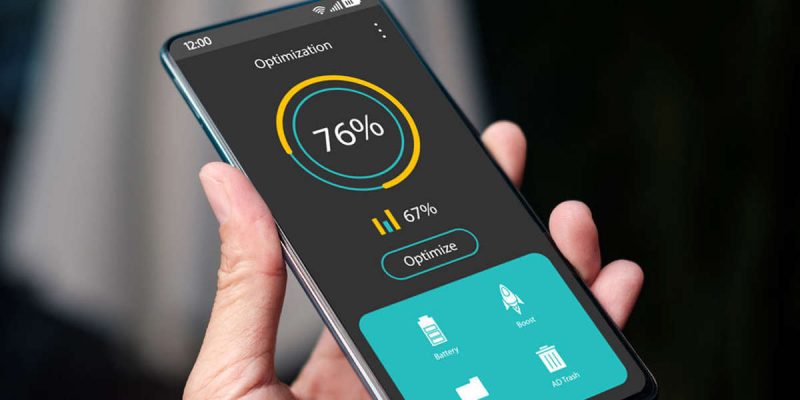
You have seen the ads. A scary warning pops up on a website: Your phone is slow, 38 percent of junk found, clean now. Or you see an app in the store with millions of downloads promising to boost speed, save battery and cool down your phone with one tap. When your phone is slow, the temptation is real.
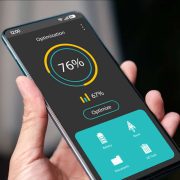
But do these apps actually work? The honest answer is that most of them do very little, a few do more harm than good, and some are outright risky. This guide explains what cleaner and booster apps claim, what they really do, how to spot the bad ones and what to do instead.
What cleaner and booster apps promise
They usually offer a mix of the following.
- Junk file cleaning, to free up storage.
- RAM boosting, to speed up the phone.
- Battery saving, by closing background apps.
- CPU cooling, to lower temperature.
- Antivirus scanning and security features.
It all sounds sensible. But the details matter.
What do they actually do?
Clearing junk files
This is the one claim that is partly true. These apps can clear cache and temporary files, and that does free some space. But you can do the same yourself, for free, in your phone’s settings. And Android rebuilds cache automatically, so the benefit is often short-lived.
RAM boosting
This is mostly a myth. These apps force background apps to close, which makes the memory number look better. But free RAM is not the goal. Android keeps recently used apps in memory so they open faster. When a booster kills them, the phone has to reload them, which uses more power and makes things feel slower. Many apps also restart themselves right away.
Battery saving
Force closing apps rarely saves battery, as covered in our guide on closing apps. The booster itself also runs in the background, and often shows ads, which can use more power than it saves.
CPU cooling
An app cannot cool your phone. It can close some apps, which may reduce heat for a moment, but it cannot change the hardware. If your phone is hot, the fix is to rest it, remove the case and find the app causing the load.
Antivirus claims
Some cleaner apps include security scans, but the Play Store already includes Google Play Protect, which scans apps built into your phone. A scan that always finds scary problems is usually trying to sell you something.
The risks of cleaner apps
Beyond not working, these apps can cause real trouble.
- Ads and pop-ups, sometimes outside the app itself.
- Aggressive notifications that constantly nag you.
- Requests for broad permissions, such as access to your files, notifications or accessibility, which can be misused.
- Fake scan results meant to frighten you into upgrading or paying.
- Data collection about your apps and habits.
- In the worst cases, malware disguised as a cleaner.
Be especially careful with apps from outside the Play Store, or with fake alerts that appear in your browser claiming your phone is infected. Those are scams, and the right response is to close the page.
Why they seem to work
Right after a booster closes apps, your phone may feel a bit lighter for a minute, because it just cleared memory. The apps then reload and everything returns to normal. It is a short-lived effect that makes the app seem helpful.
How to spot a bad cleaner app
- It promises one tap miracles.
- It shows a scary scan result right away.
- It asks for permissions that make no sense for cleaning.
- It is packed with ads or constant upgrade offers.
- It has a generic name, strange reviews or an unknown developer.
What to use instead
You already have most of what you need, built into your phone.
Use built-in storage tools
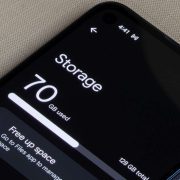
Open Settings, then Storage, and review what takes up space. Many phones have a built-in cleaning feature, such as Files by Google or a device care tool, that suggests safe items to delete.
Clear cache manually
Go to Settings, Apps and clear cache for big apps like your browser and social media. This is safe and free.
Uninstall apps you do not use
This is the best cleanup of all. Fewer apps mean less storage use and less background activity.
Use battery settings, not battery savers
Check your battery usage screen, and restrict background activity for apps that waste power. Use your phone’s built-in battery saver when needed.
Keep the phone updated, and restart it weekly
Updates fix bugs, and a restart clears out build-up. Both cost nothing.
Rely on Google Play Protect
This is built into Android and scans apps for harmful behavior. Make sure it is turned on in the Play Store settings.
Are there any good cleaner apps?
A few reputable tools, such as Files by Google, help you find large and unused files, and they do not make wild promises. The difference is honesty. A good tool shows you what you can delete and lets you decide. A bad one claims to fix everything with a tap.
If you already installed one
You can usually remove it with no problem. Go to Settings, Apps and uninstall it. Then check your notification and permission settings for anything it changed, and restart your phone.
A fake warning is not a real warning
Many people end up installing cleaner apps after seeing a pop-up that says their phone has a virus, is overheating or has too much junk. These warnings appear on websites and in ads, and they are not coming from your phone. They are designed to scare you into tapping. If you see one, close the tab, and do not install anything it offers. Your phone’s real alerts come from the system settings or the Play Store, not from a random web page.
What the experts recommend
Both Google and most phone makers advise against third-party boosters. Android is designed to manage memory and background apps on its own. Interfering with that process generally makes performance worse. A little knowledge, plus a few built-in tools, will do more for your phone than any one-tap fix.
A simple rule to remember
If an app promises to do something your phone already does for free, treat it with suspicion. Your phone already clears cache, manages memory, saves battery and scans for harmful apps. An extra layer on top rarely adds value, and it often adds ads, permissions and risk. When in doubt, skip it, and ask whether the same task can be done in your settings.
Final thoughts
Cleaner and booster apps are one of the most common traps in the Android world. They offer a quick fix for a problem that usually has a simple, free answer already on your phone. Skip them, use the built-in tools and habits, and you will get better results with fewer risks.
Frequently asked questions
Do phone cleaner apps really work?
Most do very little. They can clear some cache, but their other claims, such as RAM boosting and battery saving, rarely hold up.
Are cleaner apps safe?
Some are harmless, but many show aggressive ads, collect data or ask for excessive permissions. Be selective.
Does Android need an antivirus app?
For most people, Google Play Protect and sensible habits, such as installing from the Play Store only, are enough.
What is the best way to speed up my phone without apps?
Free storage, uninstall unused apps, clear cache, update, restart and check battery health.
Views: 1

You may also like
Dark Mode and Battery Life: How Much Does It Really Save
Android Storage Almost Full? What to Delete First
Android Screen Lag and Touch Delay: Causes and Quick Fixes
More in:Gadgets
Android Phone Slow After Months of Use: Here Is the Real Reason
Android Battery Health Check: How to See How Worn Yours Is
Why Your Phone Loses 20 Percent Battery Just Sitting There

TecRounder is a blog that shares New Technology news from around the world (hence the name TecRounder), including the most recent mobile and gadget information: smartphone features, specifications, and more. You can find the latest technology updates here, including the most recent information on smartphones, laptop computers, and other electronic devices.