Does Closing Apps Really Save Android Battery? The Truth
 By
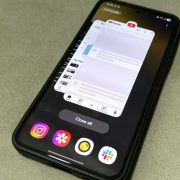
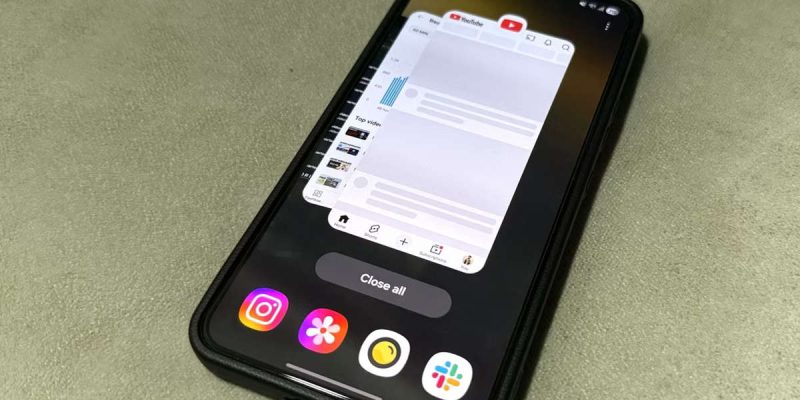
Almost everyone does it. You open the recent apps screen and swipe every app away, convinced it will save your battery and speed up your phone. It feels responsible and tidy. But is it actually helping, or are you wasting your time, and perhaps even making things worse?
The honest answer may surprise you. For most apps, closing them does little to save battery, and constant swiping can use more power in the long run. This guide explains what really happens when apps sit in the background, when closing them does help, and what to do instead if you want better battery life.
What happens to apps in the background
When you leave an app, Android usually does not keep it fully running. It puts the app into a frozen or low-activity state, keeping its data in memory so it can reopen quickly. An app in this state uses little or no processor power, and almost no battery.
If the phone needs more memory for something else, Android closes the least recently used apps automatically. In other words, the system is already managing this for you, and generally does it well.
Why swiping apps away can backfire
When you force close an app and open it again later, it has to load everything from scratch. That takes more processor work, more memory activity and more energy than resuming it from the background. Do this many times a day, and you may use more battery than if you had left apps alone.
It can also make your phone feel slower, because reopening apps takes longer. And some apps restart themselves in the background after being closed, so you have gained nothing.
So is it ever worth closing an app?
Yes, in some cases. If an app is misbehaving, closing it makes sense. Look out for these situations.
- An app is frozen, glitchy or not responding.
- An app is using a large share of battery in the usage screen.
- An app is running something you want to stop, such as navigation, music or a workout tracker.
- An app keeps a notification active that you did not expect.
In those cases, close the app, or go into its settings and use Force stop. If it keeps coming back, restrict its background activity or consider removing it.
What actually drains battery in the background
Not all background activity is equal. Most idle apps use very little. The real culprits are apps that do things while in the background.
- Apps that play audio or video, or keep a media session going.
- Navigation and fitness apps that track location continuously.
- Apps that sync constantly, like social, email or cloud storage.
- Apps with bugs that keep the processor busy.
- Apps that receive many notifications and wake the phone.
These are the ones to check in your battery usage screen, rather than closing everything at random.
What to do instead of closing all apps
1. Check your battery usage
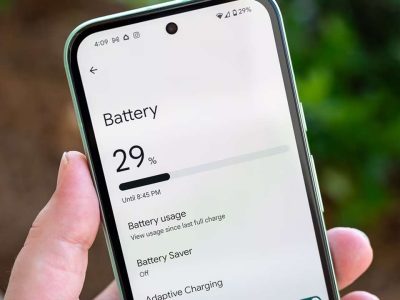
Go to Settings, then Battery, and see which apps use the most power. Focus on any app that has high usage with little screen time.
2. Restrict background activity for problem apps
In the app’s settings, you can often limit background use. Choose the optimized or restricted option for apps you do not need running constantly.
3. Turn off unnecessary notifications and sync
Each notification wakes the phone for a moment. Turn off alerts from apps that do not matter to you, and reduce automatic refresh where you can.
4. Control location and permissions
Set location to only while using the app for most apps. Review other permissions that let apps run in the background.
5. Uninstall what you do not use
Apps you never open can still wake up for updates or notifications. Removing them reduces clutter and background tasks.
6. Keep the phone and apps updated
Updates often include battery and performance fixes. Install them when you can.
What about task killer and booster apps?
Apps that promise to clean memory and extend battery life by killing background processes usually do more harm than good. They force apps to reload, use power themselves, and may show ads or ask for broad permissions. Android already manages memory. A good rule is to avoid any app that claims to boost your phone with one tap.
Does this apply to iPhones too?
The idea is similar. Apps in the background are generally suspended, and force closing them is not needed for battery. This guide focuses on Android, and details vary by phone and software version.
A simple routine for better battery life
- Once a week, check your battery usage screen.
- Restrict or remove any app that uses power unusually.
- Close apps only when they are stuck or you want them to stop.
- Use Wi-Fi where possible and lower screen brightness and timeout.
- Restart your phone now and then to clear build-up.
A closer look at how Android manages memory
Modern Android is designed to keep recent apps ready, and to remove them only when it needs room. This is why your phone can jump back into a game or a chat in an instant. The system tracks which apps you use most and keeps them available, while quietly clearing the ones you rarely open. Interfering with that process by swiping everything away usually just forces your phone to start over.
There is one more reason the habit persists. Seeing a clean, empty recent apps screen feels satisfying, and it gives a sense of control. But a tidy screen does not equal a healthy battery. The numbers in your battery usage settings are what really count, so trust those over how the screen looks.
Where low RAM phones are different
If your phone has very little memory, such as 2 or 3 GB, it may struggle with lots of apps open at once. In that case, you might notice lag, and closing a heavy app can help the phone feel smoother. Even then, the better long-term fix is to remove apps you do not need, free up storage and restrict background activity, rather than swiping away everything every time you finish using your phone.
One quick test you can try yourself
If you are not sure, run a simple experiment. For one day, stop swiping apps away and just use your phone normally, then check your battery usage that evening. The next day, go back to closing everything and compare. Most people see little or no difference in battery life, and many notice the phone feels quicker when apps are left alone. Let your own results decide.
Final thoughts
Swiping away apps feels productive, but for most apps it is not the battery saver people think it is. The system already handles background apps efficiently. Save your effort for the few apps that really cause trouble, and change a few settings instead. You will probably get better battery life, and a smoother phone, with less effort.
Frequently asked questions
Does closing apps save battery on Android?
Generally not. Apps in the background use little power, and reopening them uses more energy than resuming them.
Is it bad to close all my apps?
It is not harmful, but it is usually pointless and can slow things down and use more battery.
When should I force stop an app?
When it is frozen, misbehaving or draining a lot of battery. Otherwise, leave it alone.
Do RAM cleaner apps help?
Usually not. Android manages memory itself, and cleaner apps can cause apps to reload and use extra power.
Views: 0

You may also like
Do Cleaner and Booster Apps Work on Android? The Honest Truth
Dark Mode and Battery Life: How Much Does It Really Save
Android Storage Almost Full? What to Delete First
More in:Gadgets
Android Screen Lag and Touch Delay: Causes and Quick Fixes
Android Phone Slow After Months of Use: Here Is the Real Reason
Android Battery Health Check: How to See How Worn Yours Is

TecRounder is a blog that shares New Technology news from around the world (hence the name TecRounder), including the most recent mobile and gadget information: smartphone features, specifications, and more. You can find the latest technology updates here, including the most recent information on smartphones, laptop computers, and other electronic devices.