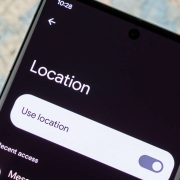
How to Find Which App Is Draining Your Android Battery
 By
Your phone was at 100 percent this morning, and by lunch it is already below 40. You have not been gaming or streaming. Somewhere in the background, something is quietly eating your battery, and you cannot tell what.
The good news is that your phone already keeps track. With a few minutes and a little know-how, you can find the guilty app, decide what to do with it, and get your battery life back. This guide shows you how to read the battery screen properly, avoid common misunderstandings, and deal with apps that use too much power.
Why one app can drain so much battery
Most apps behave well. But some keep running when you are not looking. They refresh feeds, check your location, sync data, play sounds, send notifications or keep the screen awake. Each of these uses a bit of power, and together they add up quickly.
Sometimes the cause is a bug, such as an app stuck in a loop. Sometimes it is just how the app is designed, like a social network that constantly updates. Either way, the first step is knowing which app is responsible.
Step 1: Open your battery usage screen
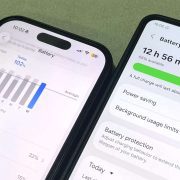
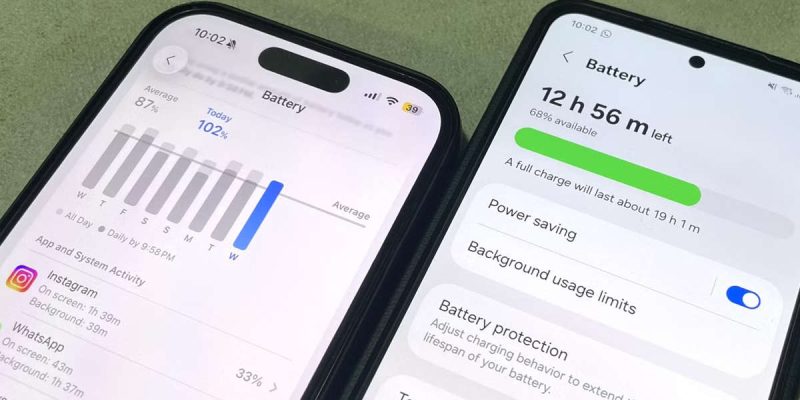
The exact path depends on your phone, but on most Android devices you can go to Settings, then Battery, and look for Battery usage or App usage. On Samsung phones it is under Battery and device care. On Pixel phones, look under Battery, then Battery usage.
You will see a list of apps with percentages. Make sure you are viewing a full day, or since the last full charge, rather than just a few hours. A longer window gives a more reliable picture.
Step 2: Learn how to read the list
A high percentage does not automatically mean an app is misbehaving. If you spent two hours on a video app, it will naturally sit at the top. What matters is whether the usage matches what you actually did.
Look at the breakdown, if your phone shows one. Many phones separate screen-on time from background usage. The suspicious ones are apps that show high usage with little or no screen time. That suggests they are running in the background when you are not using them.
Also look for the system category. Items such as Android System, Screen, Mobile network or Wi-Fi can be large without being apps you can delete. If Screen is at the top, brightness and screen time are the issue. If Mobile network is high, weak signal may be forcing your phone to work hard.
Step 3: Watch for the usual suspects
- Social media apps, which refresh feeds and play videos automatically.
- Navigation and map apps that keep your location active.
- Games that run ads and background services.
- Streaming apps with downloads or background playback.
- Shopping and delivery apps that track location and send many notifications.
- Apps you do not recognize, which could be unwanted software.
Step 4: Check for background activity and permissions
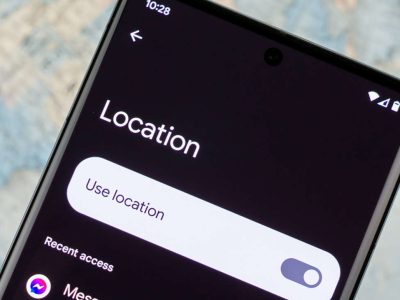
Open the app’s settings, usually through Settings, then Apps. Look at battery usage and the option to restrict background activity. Check its permissions as well. If an app has always-on access to your location when it does not need it, change it to While using the app or Ask every time.
Turn off features you do not need, such as autoplay for videos, background refresh and unnecessary notifications. These small switches often cut battery use dramatically.
Step 5: Clear cache, update or reinstall
If one app uses far more power than it should, try clearing its cache first. This removes temporary files without deleting your data. Next, update it in the Play Store, because the developer may have fixed a drain problem. If it still misbehaves, uninstall and reinstall it.
Step 6: Restrict or remove the app
If an app keeps draining power and you do not really need it, restrict its background use or remove it. Many social apps also have lighter versions or work well in a mobile browser, which can use less power. If you rely on an app, consider alternatives that do the same job more efficiently.
A deeper check: use safe mode
If you cannot tell which app is the problem, boot the phone into safe mode, which temporarily turns off third-party apps. If the battery behaves normally in safe mode, an installed app is the cause. Then remove or disable recently installed apps one at a time until the drain stops.
Common misunderstandings about battery usage
Many people blame a single app when the real cause is connectivity or the screen. Weak signal, high brightness and high refresh rates affect everything. Do not assume that a high percentage means the app is bad. Also, battery saver and cleaner apps are not a fix, and often add to the drain themselves.
Simple habits to prevent battery-hungry apps
- Review your battery usage once a week.
- Remove apps you have not used in months.
- Set location access to only while using for most apps.
- Keep apps and the system updated.
- Install apps only from the official store.
An example of how this works in real life
Imagine your battery screen shows a shopping app at 18 percent, even though you opened it for two minutes. That is a red flag. You open its settings and see it has permission to use your location all the time and is allowed to run freely in the background. You change the location permission to only while using the app, restrict background activity and turn off promotional notifications. The next day, its share drops to 3 percent, and your phone lasts noticeably longer. This is the kind of small, practical change that makes the biggest difference.
What if nothing stands out?
Sometimes no single app is to blame. The drain may be spread across many small things, such as a bright screen, a high refresh rate, weak signal and lots of notifications. In that case, look at the bigger settings. Lower your screen timeout, use adaptive brightness, switch to a standard refresh rate and use Wi-Fi when possible. Together, these changes often add an hour or two to your day, even without finding a single guilty app.
Final thoughts
You do not need a special tool to find an app that is wasting your battery. Your phone already tells you, if you know how to read the screen. Take five minutes today to look through your battery usage, restrict anything suspicious and watch the difference over the next day or two. It is one of the easiest wins for better battery life.
Frequently asked questions
How do I see which app is using the most battery on Android?
Go to Settings, then Battery, then Battery usage. You will see a list of apps and their share of power use.
Why does an app drain battery when I am not using it?
It may be refreshing data, tracking location, syncing or running a background service, or it may have a bug.
Is it safe to force stop a battery-draining app?
Yes, but the app may restart. For a lasting fix, restrict its background activity, update it or remove it.
Do battery saver apps help?
Usually not. Built-in battery settings are more effective, and many third-party saver apps use power themselves.
Views: 6

You may also like
How Much RAM Does Your Android Really Need in 2026
How to Clean Your Android Charging Port Without Damaging It
How to Clear Cache on Android Without Losing Anything
More in:Gadgets
Why Your Android Phone Stops Charging at 80 Percent
How Location Services Quietly Drain Your Android Battery
Does Factory Reset Make Android Faster? What to Know First.

TecRounder is a blog that shares New Technology news from around the world (hence the name TecRounder), including the most recent mobile and gadget information: smartphone features, specifications, and more. You can find the latest technology updates here, including the most recent information on smartphones, laptop computers, and other electronic devices.