How to Clear Cache on Android Without Losing Anything
 By
Your phone has started to feel sticky. Apps take a beat too long to open, scrolling stutters, and a browser page that used to load instantly now hangs. Someone tells you to clear your cache. You nod, but a small voice asks: will I lose my photos, my logins, my chats?
Good news. Clearing cache is one of the safest things you can do on an Android phone, and it often makes a visible difference. This guide explains what cache really is, how to clear it for one app or many, what stays safe, and the few cases where you should hold back.
What is cache, in plain words?
Cache is a collection of temporary files that apps save so they can load faster next time. A social app might store thumbnails of pictures you have seen. A browser stores parts of websites. A map app stores bits of the map. It is like a kitchen counter where you leave the ingredients you use most often, so you do not walk to the pantry every time.
The trouble is that the counter gets cluttered. Over weeks and months, cache grows large, and sometimes files get corrupted. When that happens, the thing meant to speed up your phone starts to slow it down, and apps may freeze or misbehave.
Will clearing cache delete my data?
No. Clearing cache removes temporary files only. Your photos, messages, accounts, saved games and settings are stored somewhere else, in what Android calls app data or storage. As long as you tap Clear cache and not Clear data, you keep everything.
The one thing you may notice afterward is that the app opens a little slower the first time, because it has to rebuild its temporary files. After that, it should feel normal or better.
Clear cache versus clear data: do not mix them up
This is the part worth reading twice. Clear cache is safe. Clear data, sometimes labeled Clear storage, resets the app to its fresh state. It can log you out, delete downloaded files and wipe local settings or game progress that is not backed up. Use it only when you really want to start over with that app.
How to clear cache for one app
- Open Settings and tap Apps, or Apps and notifications on some phones.
- Pick the app that is acting up. Start with the one you use the most.
- Tap Storage, or Storage and cache.
- Tap Clear cache. Do not tap Clear data.
- Open the app again and see whether it behaves better.
The wording and menu order can differ by brand and Android version, but the idea is always the same.
How to clear the cache for your browser
Browsers are among the biggest cache holders, since they save so many website files. In Chrome, tap the three dots, then Settings, then Privacy and security, then Delete browsing data. Choose Cached images and files. If you also tick cookies and site data, you will be signed out of websites, so untick those unless you want that.
Can you clear all apps’ cache at once?
This depends on your phone. Some older Android versions had a single button for clearing all cached data in Storage settings. Many newer versions removed it, so you clear app by app. Some manufacturers add a cleaner tool in their own settings, such as device care or storage cleaner features, which can clear temporary files in bulk. Use the built-in one, not a third-party app, since many third-party cleaners add little and can be intrusive.
What about system cache or cache partition?
Older phones let you wipe the system cache from recovery mode, which sometimes helped after a big update. Many modern phones no longer have this option, since they handle it automatically. If you want to try it, search for the exact steps for your phone model, and be careful not to choose Wipe data or Factory reset by mistake.
When clearing cache helps the most
- An app keeps crashing or freezing.
- An app shows old or wrong content, such as a feed that will not refresh.
- Your phone feels slow after a big app or system update.
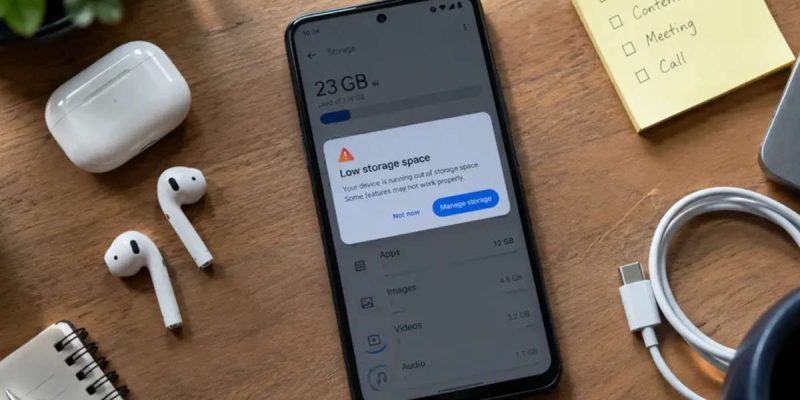
- Storage is nearly full, and you need a quick bit of space.
- A web page will not load properly, but works on another device.
When it will not help much
Do not expect clearing cache to fix everything. If your phone is slow because storage is almost full of photos and videos, because it has old hardware, or because a worn battery is limiting performance, cache will give only a small boost at best. Think of it as a good first step, not a cure-all.
How often should you clear it?
You do not need to do it daily or weekly. Android manages cache on its own, and clearing it constantly just makes apps rebuild it again. A good rule is to clear it when you notice a problem, or every few months for the apps that grow large, such as your browser, social media and streaming apps.
Which apps usually hold the most cache?
Check Settings, then Storage, then Apps, and sort by size. Social media apps, streaming services, browsers, maps and messaging apps with lots of media often sit at the top. If one of them holds several gigabytes of cache, clearing it can free a surprising amount of space.
Protect what matters before you clean
Even though clearing cache is safe, it is a good habit to back up your photos and chats before touching your phone’s storage settings. That way, if you tap the wrong button by accident, nothing important is lost.
A quick example of what changes after clearing cache
Say your browser has been slow and keeps showing old versions of pages. You open its storage settings and see 1.8 GB of cache. You clear it, reopen the browser, and the first page loads a touch slowly while the browser rebuilds what it needs. After that, pages load fresh and scrolling feels lighter. You also have almost 2 GB back, and you did not lose a single bookmark or saved password. That is the typical result, and it is why this is a good first fix.
If clearing cache does not help
If an app is still misbehaving, try updating it, restarting your phone or reinstalling the app. If many apps are slow, look at the bigger picture: free storage, background apps and battery health. Cache is one tool in the toolbox, not the whole toolbox.
Final thoughts
Clearing cache is simple, free and safe when you do it right. It will not delete your photos, messages or accounts, and it often cures odd behavior in a single app. Try it on the app that is bothering you first, and keep Clear data for emergencies. You may be surprised how much lighter your phone feels afterward.
Frequently asked questions
Is it safe to clear cache on Android?
Yes. It only removes temporary files. Your accounts, photos and messages stay safe.
Will I get logged out if I clear cache?
Usually not. Logouts happen when you clear data or cookies, not when you only clear cache.
Does clearing cache make my phone faster?
It can, especially if cache is large or corrupted. The effect is usually modest, and temporary.
How often should I clear cache on my phone?
Only when you have a problem or every few months for big apps. Android handles routine cache management itself.
Views: 2

You may also like
How to Find Which App Is Draining Your Android Battery
Why Your Android Phone Stops Charging at 80 Percent

How Location Services Quietly Drain Your Android Battery
More in:Gadgets

Does Factory Reset Make Android Faster? What to Know First.

Does Closing Apps Really Save Android Battery? The Truth
Do Cleaner and Booster Apps Work on Android? The Honest Truth

TecRounder is a blog that shares New Technology news from around the world (hence the name TecRounder), including the most recent mobile and gadget information: smartphone features, specifications, and more. You can find the latest technology updates here, including the most recent information on smartphones, laptop computers, and other electronic devices.