 By
By Your phone contains your banking apps, emails, passwords, photos, messages, and potentially your work documents. Losing it to theft or compromise is a genuinely serious problem. Most people’s phones are significantly less secured than they could be with about 20 minutes of configuration.
Use a Strong Lock Screen
A six-digit PIN is minimum. A strong alphanumeric password is better. Fingerprint recognition is both convenient and secure for daily use. Avoid face unlock on Android unless your phone uses 3D face scanning (most use 2D which can be spoofed). Go to Settings > Lock Screen > Screen Lock Type and configure appropriately.
Enable Find My Device
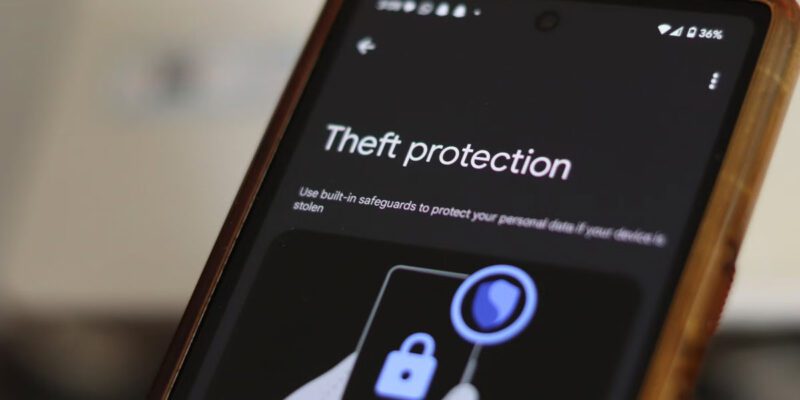
Go to Settings > Security > Find My Device and make sure it’s enabled. This allows you to locate, lock, and erase your phone remotely from android.com/find. Also enable Theft Protection under Security settings on newer Android versions — it uses on-device AI to detect theft motions and immediately lock the device.
Set Up Google Account Two-Factor Authentication
Your Google account is the master key to your Android phone. Enable 2FA on it via myaccount.google.com > Security > Two-Step Verification. Use an authenticator app rather than SMS for codes, as SIM swapping attacks can intercept SMS codes. This ensures that even if someone gets your password, they can’t access your account.
Review App Permissions Aggressively
Go to Settings > Privacy > Permission Manager and review which apps have access to location, microphone, camera, contacts, and storage. Revoke access for any app that doesn’t have a clear reason to need it. Flashlight apps don’t need location. Games don’t need microphone access. Permission abuse is how many malicious apps operate.
Only Install Apps From Google Play
Sideloading apps from outside the Play Store (APK files from websites or messaging apps) bypasses Google’s malware scanning. Unless you specifically know what you’re doing, keep Settings > Install Unknown Apps disabled for all sources. This prevents the majority of Android malware infections.
Keep Android and Apps Updated
Security patches close known vulnerabilities that attackers actively exploit. Monthly Android security updates are specifically designed to address newly discovered attack vectors. Install them promptly. The risk of a recent update causing problems is far lower than the risk of running a phone with unpatched security vulnerabilities.
Use a Password Manager
Reusing passwords across multiple services means a single data breach can compromise everything. A password manager like Bitwarden (free, open source) or 1Password generates and stores unique strong passwords for every service. With Android’s autofill integration, using it is as convenient as using saved passwords in Chrome.
Views: 70

You may also like

How to Use Your Phone to Stay Financially Organised During a Life Event

How to Use Your Phone to Stay Motivated When You Feel Like Giving Up

How to Use Your Phone to Get More From Your Doctor’s Appointments
More in:Apps

How to Use Your Phone to Find a Therapist or Mental Health Support

How to Keep Kids Safe Online When They’re Using Your Phone

The Best Free Apps That Replace Paid Subscriptions You’re Probably Wasting Money On

TecRounder is a blog that shares New Technology news from around the world (hence the name TecRounder), including the most recent mobile and gadget information: smartphone features, specifications, and more. You can find the latest technology updates here, including the most recent information on smartphones, laptop computers, and other electronic devices.