 By
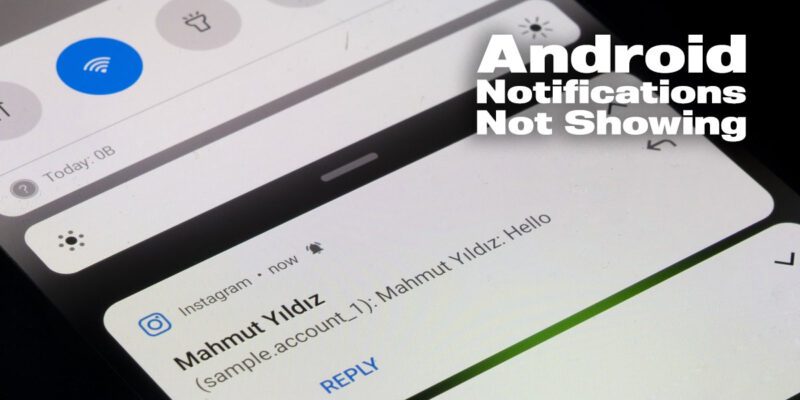
By You miss an important message because the notification never appeared. You find texts and emails hours after they arrived. Your phone is silent even when apps are supposedly sending alerts. Missing notifications are a real problem and they’re almost always caused by one of a handful of settings — here’s how to track down the specific culprit.
Check the App’s Notification Permission
Go to Settings > Notifications > App Notifications. Find the affected app and make sure notifications are enabled. After Android 13, apps require explicit permission to send notifications — permission that may not have been granted during setup. If it’s toggled off, turn it on and check whether individual notification categories within the app are also enabled.
Check Do Not Disturb Settings
Do Not Disturb can silence notifications without you realizing it’s active. Go to Settings > Notifications > Do Not Disturb and check whether it’s on or set to a schedule. Also look at DND Exceptions — certain apps or contacts may be blocked. Bedtime Mode and Focus Mode can also suppress notifications without being obviously labeled as DND.
Samsung-Specific: Remove Apps From Sleeping App List
This is the most common cause of missing notifications on Samsung phones. One UI puts inactive apps to sleep, which prevents them from delivering notifications. Go to Settings > Battery > Background Usage Limits. Check Sleeping Apps and Deep Sleeping Apps. Remove any app that needs to deliver notifications. This is the fix for the vast majority of Samsung notification problems.
Disable Adaptive Battery for Problem Apps
Go to Settings > Battery > Adaptive Battery. While keeping this enabled generally, go to individual apps that are missing notifications and set them to Unrestricted under Settings > Apps > [App] > Battery. This overrides Adaptive Battery’s decisions for specific apps while still applying optimization to everything else.
Check Background Data Restrictions
If an app can’t connect to the internet in the background, it can’t receive push notifications. Go to Settings > Apps > [App] > Data Usage and ensure Allow Background Data Usage is enabled. Also check that Data Saver isn’t blocking the app — go to Settings > Network > Data Saver and add the app to the Unrestricted list.
Re-enable Sync for Messaging Apps
For email and sync-dependent apps, go to Settings > Accounts and verify that sync is enabled for the relevant account. Tap the account and toggle individual sync categories. Gmail specifically: ensure Background Sync is enabled in Gmail’s own settings (Gmail > Settings > [Account] > Sync Gmail).
Reinstall the App if All Else Fails
Sometimes notification permission corruption is deep enough that reinstalling is the cleanest fix. Uninstall the app, restart the phone, reinstall, and grant notification permission explicitly during first launch. For messaging apps like WhatsApp, ensure you have a recent backup before uninstalling
Views: 147

You may also like

How to Use Your Phone to Stay Financially Organised During a Life Event

How to Use Your Phone to Stay Motivated When You Feel Like Giving Up

How to Use Your Phone to Get More From Your Doctor’s Appointments
More in:Apps

How to Use Your Phone to Find a Therapist or Mental Health Support
How to Keep Kids Safe Online When They’re Using Your Phone

The Best Free Apps That Replace Paid Subscriptions You’re Probably Wasting Money On

TecRounder is a blog that shares New Technology news from around the world (hence the name TecRounder), including the most recent mobile and gadget information: smartphone features, specifications, and more. You can find the latest technology updates here, including the most recent information on smartphones, laptop computers, and other electronic devices.