How to Stop Your Phone From Constantly Interrupting You With Notifications
 By
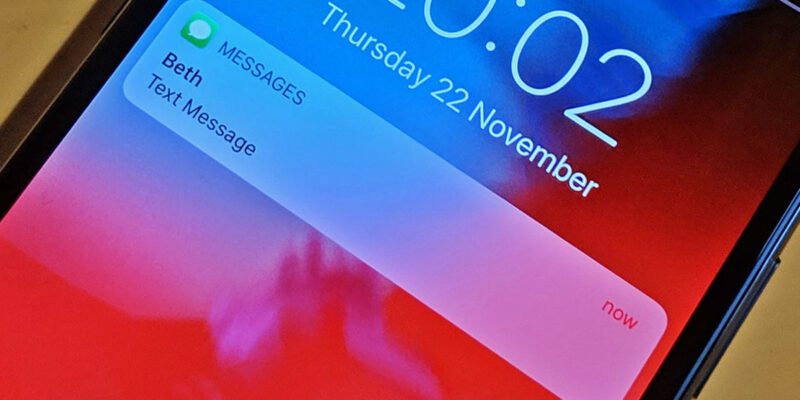
By The average smartphone user gets somewhere between 65 and 80 notifications per day. That’s an interruption roughly every 12 minutes during waking hours. Every one of those pings pulls your attention away from whatever you were doing, and research consistently shows that it takes significantly longer than most people realize to return to full concentration after an interruption.
If your phone is constantly buzzing, pinging, and flashing for your attention, the problem isn’t your phone — it’s that you’ve never actually sat down and configured it to work for you rather than against you. Here’s how to fix that in about half an hour.
The Real Cost of Notification Overload
Before getting into the fixes, it’s worth being clear about what these interruptions are actually costing you. It’s not just the 2 seconds it takes to glance at a notification. Studies on task switching show that after a notification interruption, it takes an average of 23 minutes to fully return to the same depth of focus. If you’re getting multiple notifications per hour, you may never actually achieve deep focus during the day at all.
Notifications also create a kind of ambient anxiety — the feeling that there might be something urgent you’re missing, which keeps you mentally checking in even when your phone is silent. The solution isn’t just fewer notifications. It’s the right notifications, from the right sources, at the right times.
Start With a Full Audit
On Android, go to Settings > Notifications > App Notifications. Turn on the option to sort by “Most Recent” and scroll through every app. You’ll almost certainly find apps you’d forgotten about that are set to send notifications you’ve been silently ignoring for months. Those are easy wins — turn them off completely.
On iPhone, go to Settings > Notifications. Tap each app and review its settings. Pay attention to the “Allow Notifications” toggle and the “Alerts” style — many apps default to persistent banners when a simple badge count is all you actually need.
Ask yourself for each app: “Do I need to know about this immediately, or can it wait?” Be honest. You don’t need to know immediately when a game is offering a sale. You don’t need to know immediately when a news app has published a new article. You probably do need to know immediately when someone messages you directly.
Create a Three-Tier System
Think about notifications in three categories. Emergency tier: calls from important people, direct messages from family, alarm alerts. These get sound and screen alerts. Priority tier: direct personal messages, calendar reminders, banking alerts. These get silent badges or a brief notification with no sound. Background tier: social media, news, promotions, app updates. These either get turned off entirely or get batch-delivered once a day via scheduled summaries.
Use Notification Schedules and Summaries
iPhone’s Scheduled Summary (Settings > Notifications > Scheduled Summary) bundles non-urgent notifications and delivers them twice a day rather than in real time. This is genuinely useful for news apps, social media, and promotional notifications — you still see them, just on your schedule rather than the app’s schedule.
Android’s Notification Channels (in individual app settings) let you fine-tune which specific types of notifications you allow from each app. Many apps break their notifications into logical categories — direct messages, comments, promotions, reminders — and you can allow the first while blocking everything else.
The Focus Mode Approach
Both iOS and Android have Focus Modes that let you create profiles for different parts of your day. A Work Focus that only allows notifications from work contacts and calendar reminders. A Sleep Focus that silences everything except your alarm. A Personal Focus that allows family messages but mutes work apps.
Setting these up once and having them run on a schedule means your phone configuration automatically matches what you’re doing without you remembering to change anything manually.
Don’t Let Apps Guilt You Into Accepting More
Apps frequently ask permission to send notifications at their most persuasive moments — right after you’ve had a good experience with them. They frame it as a favor: “Stay informed about [thing you care about].” They don’t mention that they’re also going to send you promotional content, engagement nudges, and app update announcements mixed in with the useful stuff.
You can always add a notification permission later if you decide you want it. The default for any new app should be “no notifications” until you’ve actually determined that you want them. Being stingy with notification permissions from the start is much easier than cleaning up the mess afterward.
Views: 48

You may also like
How to Use Your Phone to Learn Basic First Aid You Might Actually Need
How to Use Your Phone to Create a Morning Routine That Actually Works

How to Handle Phone Anxiety and the Constant Pressure to Be Available
More in:Gadgets
How to Use Your Phone to Plan and Track Your Garden or Allotment

How to Stop Your Kids From Spending Money on Your Phone by Accident

How to Use Your Phone to Manage Your Time When You Work From Home

TecRounder is a blog that shares New Technology news from around the world (hence the name TecRounder), including the most recent mobile and gadget information: smartphone features, specifications, and more. You can find the latest technology updates here, including the most recent information on smartphones, laptop computers, and other electronic devices.