 By
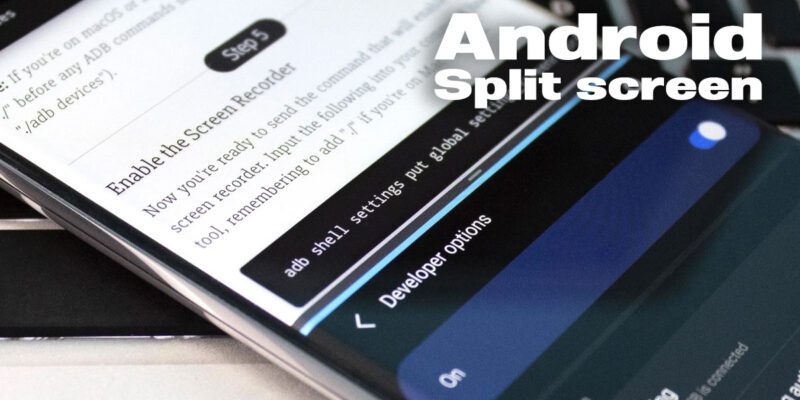
By Running two apps side by side on your Android phone is more useful than most people realize — watching a video while messaging, reading a document while taking notes, or browsing the web while filling in a form. Here’s how to use split screen properly on Android.
Basic Split Screen: How to Activate It
Open the first app you want to use. Tap the Recent Apps button (the square icon) or swipe up and hold. Find the app’s icon at the top of its card in the recents view and tap it. Select Split Screen or Open in Split Screen View. The first app locks to the top half. Now tap any other app from your recents or home screen to fill the bottom half.
Adjusting the Split Ratio
The divider between the two apps can be dragged up or down to give more space to either app. This is useful when one app needs more real estate — like giving 70% of the screen to a document you’re reading and 30% to a notes app. Release the divider and both apps resize accordingly.
Samsung DeX and Multi-Window on Galaxy Phones
Samsung One UI has particularly powerful multi-window features. You can run apps in floating windows (long-press Recent Apps, then App Pair or Pop-Up View), create App Pairs (two apps that open side by side as a unit from the home screen), and use a taskbar for quick app switching on larger screens. These go significantly beyond stock Android.
Not All Apps Support Split Screen
Some apps declare themselves as non-resizable and block split screen use. This is common in banking apps, some games, and certain streaming services. Samsung’s One UI includes a Force Resizable Apps option in Developer Options that forces many of these apps into split screen mode anyway, though some may behave imperfectly when forced.
Drag and Drop Between Split Screen Apps
While in split screen, many app combinations support drag and drop. You can drag a photo from your gallery into a message, drag text from a document into an email, or drag a link from one browser tab to another. Long-press the item you want to move, start dragging it, and drop it in the other app.
Exiting Split Screen
Drag the center divider all the way to one edge to close split screen and make one app full screen. Alternatively, tap the divider and select Full Screen for either app. On Samsung, there’s an X button in the middle of the divider that exits split screen entirely.
When Split Screen Actually Saves Time
The most practical use cases are: comparing products or prices side by side, taking notes while watching a video tutorial, responding to messages while keeping reference material visible, and filling out forms while referencing a document. On larger-screen phones (6.5 inches and above), split screen becomes genuinely comfortable for extended use.
Views: 76

You may also like

How to Use Your Phone to Stay Financially Organised During a Life Event

How to Use Your Phone to Stay Motivated When You Feel Like Giving Up

How to Use Your Phone to Get More From Your Doctor’s Appointments
More in:Apps

How to Use Your Phone to Find a Therapist or Mental Health Support

How to Keep Kids Safe Online When They’re Using Your Phone
The Best Free Apps That Replace Paid Subscriptions You’re Probably Wasting Money On

TecRounder is a blog that shares New Technology news from around the world (hence the name TecRounder), including the most recent mobile and gadget information: smartphone features, specifications, and more. You can find the latest technology updates here, including the most recent information on smartphones, laptop computers, and other electronic devices.