How to Use Your Phone as a Mobile Hotspot Without Destroying Your Data
 By
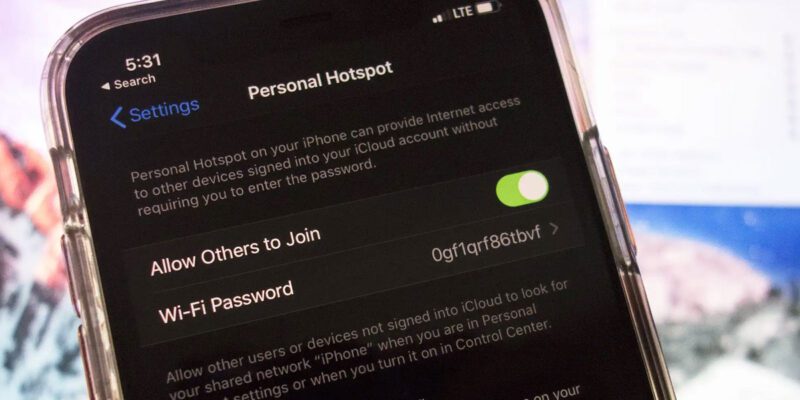
By The phone hotspot feature is one of those genuinely useful capabilities that most people either never use or use without thinking about the data consequences. Connecting a laptop to your phone’s hotspot and forgetting about it is a reliable way to blow through a month’s data allowance in an afternoon.
Here’s how to use hotspot intelligently.
Understanding How Hotspot Data Works
When you use your phone as a hotspot, every byte your laptop, tablet, or other device downloads comes from your phone’s mobile data allowance. There’s no separation — your hotspot uses the same data pool as your phone’s own browsing, streaming, and apps. If you connect a laptop that starts downloading updates, streaming HD video, or syncing to cloud services, the data usage can be dramatic.
First Step: Check Your Plan
Some carriers throttle hotspot data separately from general data, even on “unlimited” plans. You might have true unlimited data on your phone but only 10–15GB of full-speed hotspot before throttling kicks in. Read your plan details or check the carrier’s app for your hotspot-specific allowance. Knowing this number determines how careful you need to be.
Configure the Device You’re Connecting
The device connecting to your hotspot often doesn’t know it’s on limited data — it thinks it’s on Wi-Fi. This means it will happily do all the things it does on Wi-Fi: auto-update apps, sync cloud storage, index photos, stream video at maximum quality.
On a Windows laptop, go to Settings > Network & Internet and click on your hotspot connection. Toggle “Set as metered connection” to On. This tells Windows to treat the connection as limited data, which reduces many background processes that would otherwise consume bandwidth freely.
On Mac, you can’t set a connection as metered, so you need to manually manage what’s running: pause any cloud syncing (iCloud Drive, Dropbox, Google Drive), disable automatic updates in System Preferences > Software Update, and close applications you don’t need.
Pause or Disable Cloud Syncing
Before connecting a device to your hotspot, pause or disable whatever cloud storage services are running. Dropbox, Google Drive, iCloud Drive, OneDrive — these will sync any pending files as soon as they see a connection, sometimes consuming gigabytes silently in the background.
Lower Video Quality If You Need to Stream
If you’re streaming video, every quality level represents a dramatically different amount of data. Netflix at 1080p uses about 3GB per hour. At 480p it’s about 0.7GB per hour. Set video quality to standard definition (SD) for hotspot use. The difference looks fine on a laptop screen at typical viewing distances, and the data saving is significant.
In Netflix, YouTube, and most streaming apps, you can find video quality settings in the account or playback settings.
Set a Hotspot Data Limit Warning
On Android, go to Settings > Connections > Mobile Hotspot and Tethering > Mobile Hotspot > Data Limit. Set a limit and a warning threshold. When you approach the limit, the phone will alert you.
On iPhone, you can monitor hotspot usage under Settings > Cellular but there’s no built-in limit-setting function — you have to check manually or use your carrier’s app.
Auto-Disconnect When Not in Use
On Android, look for “Turn Off Hotspot Automatically” in your hotspot settings. Enable this — it shuts off the hotspot after a period of no active connections, preventing devices from staying connected and running background processes when you’ve forgotten the hotspot is on.
The Most Data-Efficient Use Pattern
Connect what you need. Do your task. Disconnect. Don’t leave the hotspot running as a fallback connection while you’re doing other things. Treat it like the limited resource it is rather than as substitute home broadband.
Views: 91

You may also like
How to Use Your Phone to Learn Basic First Aid You Might Actually Need
How to Use Your Phone to Create a Morning Routine That Actually Works

How to Handle Phone Anxiety and the Constant Pressure to Be Available
More in:Gadgets
How to Use Your Phone to Plan and Track Your Garden or Allotment

How to Stop Your Kids From Spending Money on Your Phone by Accident

How to Use Your Phone to Manage Your Time When You Work From Home

TecRounder is a blog that shares New Technology news from around the world (hence the name TecRounder), including the most recent mobile and gadget information: smartphone features, specifications, and more. You can find the latest technology updates here, including the most recent information on smartphones, laptop computers, and other electronic devices.