How to Set Up Fingerprint Unlock on Any Android Phone
 By
By Fingerprint unlock is one of those features that either works seamlessly or drives you slightly mad every time you try to use your phone. When it’s well set up, unlocking takes half a second. When it’s poorly set up, you’re pressing your finger repeatedly and giving up to enter your PIN.
The difference usually comes down to how you initially set it up and some maintenance habits.
The Initial Setup: Do It Right the First Time
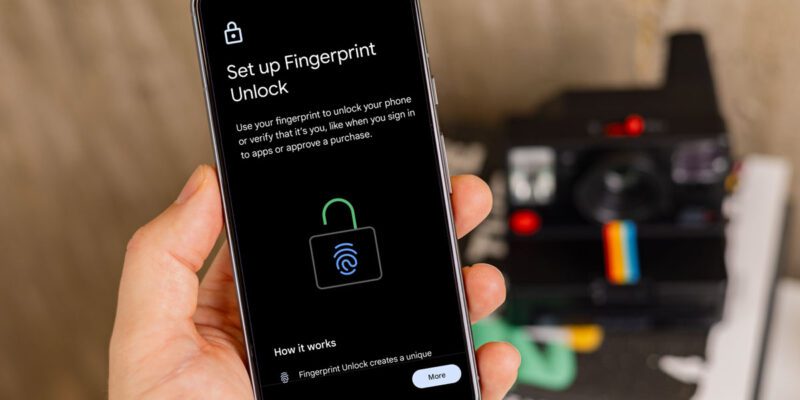
Go to Settings > Security > Fingerprint (exact path varies by manufacturer). You’ll be asked to set a backup PIN or password first — this is required and it’s good practice. Then you’ll see the fingerprint scanning interface.
Here’s what most people get wrong: they hold their finger perfectly still in exactly one position during setup. Real-world unlocking involves approaching the sensor from slightly different angles, with different amounts of pressure, at different temperatures. The setup process is supposed to capture this variation.
Move your finger around during enrollment. Keep repositioning between each scan — lift and replace, tilt slightly left, tilt slightly right, try the edge of your finger, try when pressed more firmly. The sensor needs 20–30 successful scans to build its model. The more variation you include during enrollment, the more reliable it will be in actual use.
Which Finger to Register
Register your thumb and at least one finger. Register the thumb on the hand you normally pick up your phone with. If you’re right-handed, that’s usually the right thumb. But think about the actual moment of unlocking — if you pull your phone from your pocket with your right hand, you’re probably pressing with your right thumb or index finger.
Register multiple fingers. This is particularly useful if you have a case that shifts how you hold the phone, or if you want to be able to unlock with either hand in different situations.
Add the Fingerprint Multiple Times
Most Android phones let you add the same finger multiple times as separate entries. Do this. Add your primary finger two or three times, each time focusing on a slightly different positioning. This creates a richer model of that fingerprint and improves recognition rates significantly.
Troubleshooting: Why Fingerprint Fails
Wet fingers fail consistently. The optical scanner reads the pattern of your fingerprint and moisture blurs that pattern. Dry your fingers before using fingerprint unlock if you’ve been washing dishes, swimming, or it’s a humid day.
If you have a glass screen protector added after initial setup, and the fingerprint sensor is under-display (common in Samsung phones), the screen protector may be interfering. Add your fingerprint again with the screen protector in place — it changes the optical path and the sensor needs a new calibration.
Skin condition changes — dry skin in winter, cuts, calluses from physical work — can reduce fingerprint recognition. If your recognition rate has dropped, delete the fingerprint entries and re-register.
In-Display vs Side-Mounted Sensors
Side-mounted fingerprint sensors (built into the power button) are generally faster and more reliable than in-display optical sensors. If your phone has a side-mounted sensor, make sure you’re pressing the entire pad of your finger against it, not just the tip.
In-display optical sensors need the screen to light up and illuminate the finger. If your phone has a case that makes it hard to press the screen fully, or if the screen protector is thick or textured, this can reduce accuracy.
If Fingerprint Keeps Telling You “Too Many Attempts”
This security feature kicks in after several consecutive failed attempts. Your phone defaults to PIN/password for a period. Wait it out, enter your PIN, and when fingerprint becomes available again, don’t try it immediately — check whether your finger is dry and clean, then try once deliberately.
Views: 56

You may also like

How to Use Your Phone to Learn Basic First Aid You Might Actually Need

How to Use Your Phone to Create a Morning Routine That Actually Works

How to Handle Phone Anxiety and the Constant Pressure to Be Available
More in:Gadgets

How to Use Your Phone to Plan and Track Your Garden or Allotment

How to Stop Your Kids From Spending Money on Your Phone by Accident

How to Use Your Phone to Manage Your Time When You Work From Home

TecRounder is a blog that shares New Technology news from around the world (hence the name TecRounder), including the most recent mobile and gadget information: smartphone features, specifications, and more. You can find the latest technology updates here, including the most recent information on smartphones, laptop computers, and other electronic devices.