How to Use Google Maps More Effectively on Android
 By
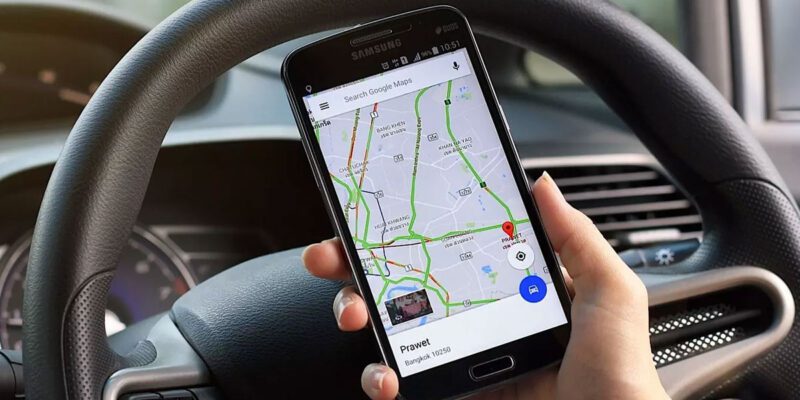
By Google Maps is one of the most feature-rich apps on Android and one of the most used. Most people only use directions and the occasional restaurant search. There’s a whole layer of features underneath that make it significantly more useful for travel, planning, and daily navigation.
Download Offline Maps Before You Need Them
Tap your profile picture > Offline Maps > Select Your Own Map. Draw a box around your region or city and download it. Offline maps allow full navigation functionality without mobile data — useful in areas with poor coverage, when traveling internationally on a roaming SIM, or any time you want to save mobile data. Update downloaded maps monthly to keep them current.
Use the Timeline to Review Your Location History
If you have Location History enabled, Maps keeps a detailed record of everywhere you’ve been. Tap your profile picture > Your Timeline. This is useful for remembering which restaurant you went to on a specific date, tracking past trips, or logging locations for expense reports. You can delete specific days or turn off Location History entirely in your Google account privacy settings.
Share Your Real-Time Location for Meetups
Tap your profile picture > Location Sharing > Share Location. Choose a contact and a duration (1 hour, until you turn it off, etc.). Your contact sees your real-time position in their Google Maps. Invaluable for meeting someone in a busy area, letting someone know you’re on your way, or family coordination. Much better than texting location updates manually.
Street View and Exterior Preview Before You Arrive
Before navigating to an unfamiliar address, drop into Street View by long-pressing the location, tapping the photo thumbnail, then selecting Street View. You can see exactly what the entrance looks like, which side of the building the address is on, and what landmarks are nearby. This prevents the ‘walking past it three times’ problem in unfamiliar areas.
Add Multiple Stops to a Route
While in navigation, tap the three dots menu and select Add Stop. You can add multiple waypoints to a journey — stop for petrol, pick someone up, make a detour — with the full route optimized to include all stops. You can also rearrange stops by dragging. This is far more useful than running multiple separate navigation sessions.
Save Places and Build Custom Lists
Long-press any location and tap Save. Create custom lists: Restaurants to Try, Places Visited, London Trip. These lists are accessible offline, shareable with friends, and visible on your map. Building a list before a trip means your recommendations and must-visits are organized and ready without needing to search for them again.
Live View AR Navigation for Walking
In pedestrian navigation mode, tap the Live View button to switch to AR navigation that overlays direction arrows on your camera view. This is particularly useful in unfamiliar city centers where it’s hard to know which way you’re facing when you emerge from a metro station. Point your camera at the surroundings and the arrows appear directly on what you see.
Views: 45

You may also like

How to Use Your Phone to Build Better Habits That Actually Stick

How to Use Your Phone to Help You Through a Difficult Life Transition

How to Use Your Phone to Manage Your Mental Load and Stop Forgetting Things
More in:Apps

How to Use Your Phone to Reduce Your Environmental Impact

How to Use Your Phone to Make Better Decisions

How to Use Your Phone to Manage Your Children’s Screen Time Without Constant Conflict

TecRounder is a blog that shares New Technology news from around the world (hence the name TecRounder), including the most recent mobile and gadget information: smartphone features, specifications, and more. You can find the latest technology updates here, including the most recent information on smartphones, laptop computers, and other electronic devices.