 By
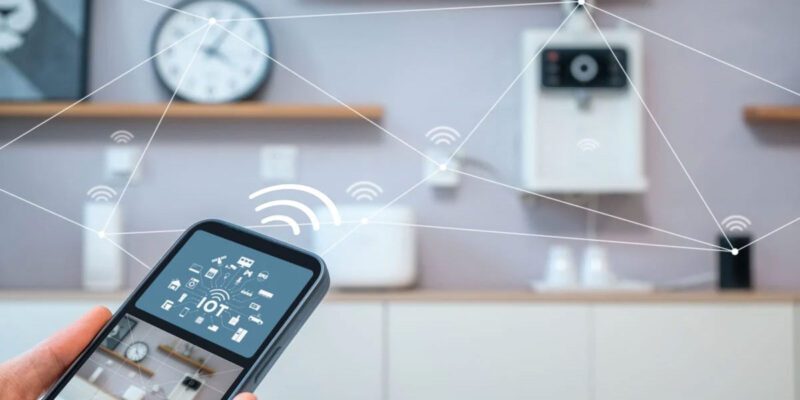
By Smart home devices promise to make life more convenient. In reality, the setup process often involves three different apps, two factory resets, one moment where you’re convinced none of it will ever work, and eventually a configuration that works for six months until a firmware update breaks something.
This guide won’t make that experience perfect, but it’ll make it significantly less frustrating.
Plan Before You Buy
The most important smart home advice is one that comes before opening any boxes: decide on an ecosystem before purchasing devices.
The three main options are Google Home, Amazon Alexa, and Apple HomeKit. Each has its own app (Google Home, Amazon Alexa, Apple Home) and works best with devices certified for that platform. Mixing ecosystems — some devices working with Google, others with Alexa — is possible but creates the fragmentation that makes smart home management complicated.
If you have Android and use Google services heavily: Google Home ecosystem. If you use iPhones and are privacy-conscious: Apple HomeKit (which has stricter security requirements for device certification). If you have an Echo device and are in the Amazon ecosystem: Alexa.
Picking one and staying consistent makes setup much smoother.
The Setup Sequence That Works
Install the hub app first (Google Home, Amazon Alexa, or Apple Home). Sign in. Set up any physical hub devices (Echo, Google Nest Hub) before starting on individual devices.
Position devices near the router during initial setup. Even if a device will eventually live in a different room, configure it when it’s close to the router with strong signal. Moving it after it’s paired is usually simple.
Add devices one at a time. Don’t unbox everything and try to configure simultaneously. Add one device, confirm it’s working and appearing correctly in the app, then move to the next.
Name devices clearly and specifically at the outset. “Living room ceiling light,” not “light 1.” Good naming makes voice commands and automation obvious and correct. Bad naming creates the situation where “turn off the lights” doesn’t work because the device names don’t match what you say.
When the App Can’t Find the Device
The most common setup failure is the app not finding the device during initial pairing. Almost always this is a network issue.
Check that your phone is connected to 2.4GHz Wi-Fi, not 5GHz. Most smart home devices only support 2.4GHz and the pairing process requires your phone to be on the same band. If your router broadcasts a single network name for both bands, temporarily disable the 5GHz band during setup (in your router admin panel), pair the device, then re-enable 5GHz.
Make sure Bluetooth is enabled on your phone during setup. Many devices use Bluetooth for initial discovery before switching to Wi-Fi.
If the app still can’t find the device, factory reset it (usually by holding the reset button for 10+ seconds until an LED flashes). Start the pairing process fresh.
Routines and Automation: Where the Value Actually Is
Individual smart switches are mildly convenient. Automations change daily life.
“Good morning” routine: at 7am on weekdays, turn on the kitchen lights to 50%, turn on the kettle, start the morning playlist.
“Leaving home” routine: when you say “leaving” or the last phone leaves the Wi-Fi network, turn off all lights, lock smart locks, turn down the thermostat.
“Movie time” routine: dim all living room lights to 10%, turn on the TV, close smart blinds.
Set these up once and they pay dividends daily. The routines are where smart home stops feeling like a tech novelty and starts actually improving your daily experience.
The Privacy Consideration
Smart home devices — particularly microphone-enabled ones like Echo and Google Nest — are always listening for wake words. This is a genuine privacy consideration. Review the privacy settings in each device’s app to see what data is stored and how to delete it. Most platforms let you auto-delete voice recordings on a rolling basis.
Views: 19

You may also like
Is Your Android Battery Calibration Off? How to Fix Wrong Percentages
Why Your Android Phone Charges So Slowly and What Actually Fixes It
How to Use Your Phone to Learn About Nutrition Without Getting Confused
More in:Apps

How to Use Your Phone to Build Better Habits That Actually Stick

How to Use Your Phone to Help You Through a Difficult Life Transition

How to Use Your Phone for Better, More Meaningful Travel Experiences

TecRounder is a blog that shares New Technology news from around the world (hence the name TecRounder), including the most recent mobile and gadget information: smartphone features, specifications, and more. You can find the latest technology updates here, including the most recent information on smartphones, laptop computers, and other electronic devices.