How to Fix Samsung Galaxy S24 Battery Drain Problems
 By
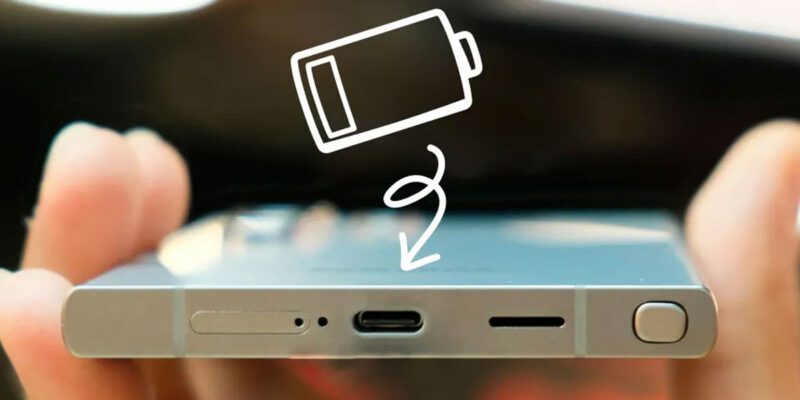
By The Galaxy S24 series is a powerful phone and with that power comes a battery that can drain faster than expected if settings aren’t configured properly. Several One UI settings interact in ways that hit the S24 battery harder than they did on previous models. Here’s what’s specific to fixing battery drain on the S24.
Turn Off Always On Display or Schedule It
The S24’s large AMOLED display running AOD continuously is one of the biggest battery consumers. Go to Settings > Lock Screen > Always On Display. Either disable it or set it to Show as Scheduled and limit it to waking hours only. On the S24’s 6.2-inch display, AOD has a noticeably higher power draw than on smaller screens from previous Galaxy generations.
Set Display Resolution to FHD+
The S24 can run at either FHD+ (1080p) or QHD+ (1440p). QHD+ looks marginally sharper but uses significantly more GPU and display power. For daily use — reading, messaging, browsing — the difference is imperceptible. Settings > Display > Screen Resolution > FHD+. This change alone can add 30-60 minutes of screen-on time per charge.
Manage Galaxy AI Features
Samsung Galaxy AI features — Circle to Search, Live Translate, Chat Assist, Generative Edit in Gallery — all process data, some locally. If you don’t use specific features regularly, disable them. Settings > Advanced Features > Galaxy AI. Each feature you leave active has a background footprint. Disable the ones you tried once and never returned to.
Fix the Adaptive Refresh Rate Setting
The S24’s 120Hz refresh rate is adaptive — it should drop to lower rates when static content is displayed. Sometimes this adaptation doesn’t work correctly, leaving the display running at 120Hz even when showing a still page. Go to Settings > Display > Motion Smoothness and confirm Adaptive is selected rather than Standard or High. Correct adaptive behavior significantly extends battery life during reading and static content viewing.
Audit Background App Activity
One UI on the S24 is particularly aggressive at allowing Samsung’s own apps to run background processes that drain battery. Settings > Battery > Background Usage Limits. Check Sleeping Apps and add any app that doesn’t genuinely need background activity. Samsung’s own apps — Galaxy Store, Samsung Daily, Bixby — consume background resources you can safely restrict without losing meaningful functionality.
Disable Continuous Scanning Features
Location-based features including Nearby Device Scanning, Wi-Fi Scanning, and Bluetooth Scanning remain active in the background. Settings > Location > Wi-Fi and Bluetooth Scanning — disable both. Settings > Connections > More Connection Settings > Nearby Device Scanning — disable if you don’t use it. These continuous scans have a cumulative battery cost even when you’re not actively using location features.
Use Charging Limits to Protect Long-Term Battery Health
Settings > Battery > Battery Protection. Enable it and set the limit to 85%. This prevents the S24 from charging past 85% during overnight charging, which significantly reduces lithium battery degradation over time. The trade-off is a slightly smaller usable charge per day, but the battery health protection means it stays at higher capacity for much longer — worth it for users who keep phones for two or more years.
Views: 73

You may also like

How to Stop Your Kids From Spending Money on Your Phone by Accident

How to Use Your Phone to Manage Your Time When You Work From Home
How to Use Your Phone Camera to Spot Things You’d Otherwise Miss
More in:Gadgets

How to Use Your Phone to Build Better Habits That Actually Stick

How to Use Your Phone to Help You Through a Difficult Life Transition

How to Use Your Phone to Manage Your Mental Load and Stop Forgetting Things

TecRounder is a blog that shares New Technology news from around the world (hence the name TecRounder), including the most recent mobile and gadget information: smartphone features, specifications, and more. You can find the latest technology updates here, including the most recent information on smartphones, laptop computers, and other electronic devices.