 By
By Your Android home screen is the interface you see and interact with more than any other part of your phone. Most people leave it at whatever the manufacturer set up. Spending an hour building a home screen that actually works for you makes daily phone use noticeably better. Here’s how to do it from scratch.
Start With a Clear Philosophy
Before adding anything, decide what you want your home screen to do. A productivity-focused setup maximizes visible information and minimizes friction for key actions. A minimalist setup keeps distracting apps off-screen and reduces visual noise. An aesthetic setup prioritizes how it looks. Trying to be all three at once usually produces none of them. Pick a primary goal and design toward it.
Choose a Launcher That Supports Your Vision
The default Samsung or stock Android launcher is competent but limited. Nova Launcher gives you precise control over grid density, icon size, gestures, and folder styles. Niagara Launcher is excellent for minimalist setups. KWGT lets you build fully custom widget designs. Install your chosen launcher, set it as default, and start building on it rather than fighting the constraints of the manufacturer default.
Build a Widget Layer That Provides Real Information
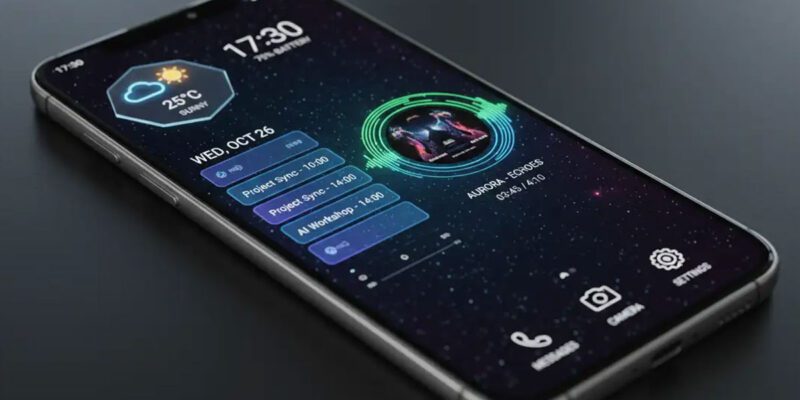
A well-designed widget layer means you absorb key information just by glancing at your home screen without opening any app. Core information widgets worth having: calendar (next 2-3 events), weather (today’s forecast with rain probability), battery (percentage plus estimated time remaining), and tasks (today’s priority items). Add any of these that you currently check manually more than five times a day.
Create App Pages by Context, Not Alphabet
Instead of sorting apps alphabetically or by category, organize your app pages by context: when and where you use them. Morning page: alarm, weather, news, workout tracker. Work page: email, Slack, calendar, notes. Entertainment page: streaming apps, social media, games. This mental map means finding any app takes one swipe and a glance rather than visual search.
Icon Packs: The Easiest Visual Upgrade
Icon packs replace the mismatched visual styles of different apps with a unified aesthetic. Search the Play Store for ‘icon pack’ and filter by rating. Popular options include Whicons, Lines Icon Pack, and Pixel Icon Pack. Apply them through your launcher’s icon settings. This single change makes a home screen look significantly more intentional and polished.
Live Wallpapers: Worth It or Battery Drain?
Live wallpapers that animate constantly do consume additional battery — typically 3-8% extra per day depending on complexity. Simple live wallpapers (subtle particle effects, slow-moving gradients) have minimal impact. Complex 3D ones with constant animation are more expensive. For a static but dynamic look, consider using a daily wallpaper app that automatically changes your wallpaper each morning rather than a traditional live wallpaper.
Maintain the System Once It’s Set Up
A well-designed home screen degrades over time as you install new apps that end up dumped on the last page and widgets stop refreshing. Do a monthly home screen audit: remove apps you’ve installed but don’t use, rearrange anything that’s ended up in the wrong place, and check that all widgets are still functioning. Treat your home screen like a workspace that needs occasional organization rather than a one-time setup.
Views: 85

You may also like

How to Stop Your Kids From Spending Money on Your Phone by Accident

How to Use Your Phone to Manage Your Time When You Work From Home
How to Use Your Phone Camera to Spot Things You’d Otherwise Miss
More in:Apps

How to Use Your Phone to Build Better Habits That Actually Stick

How to Use Your Phone to Help You Through a Difficult Life Transition

How to Use Your Phone to Manage Your Mental Load and Stop Forgetting Things

TecRounder is a blog that shares New Technology news from around the world (hence the name TecRounder), including the most recent mobile and gadget information: smartphone features, specifications, and more. You can find the latest technology updates here, including the most recent information on smartphones, laptop computers, and other electronic devices.