 By
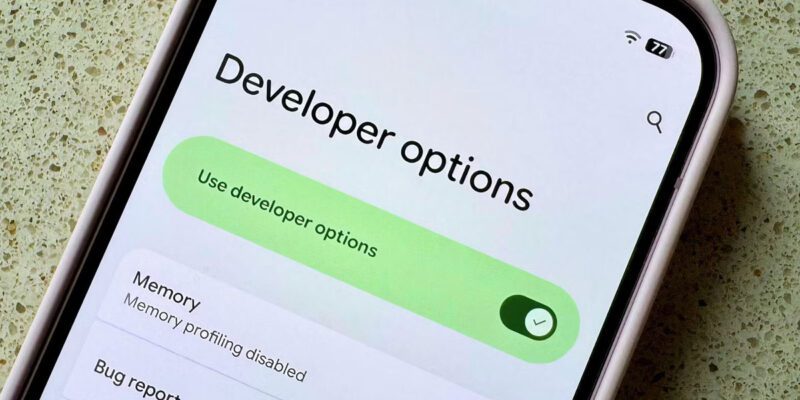
By Developer Options sounds intimidating — like something only app developers need. In reality, it’s a menu of advanced Android settings that any user can enable safely, and several of its options make a real difference to performance and usability. Here’s how to unlock it and what’s actually worth changing.
How to Enable Developer Options
Go to Settings > About Phone. Find the Build Number entry (it may be under Software Information on Samsung). Tap Build Number seven times in quick succession. You’ll see a countdown: ‘You are 3 steps away from being a developer.’ After the seventh tap, enter your PIN if prompted. Developer Options now appears in your Settings menu, usually under System or About Phone.
Reduce Animation Scales
The single most impactful Developer Option for everyday users. Find Window Animation Scale, Transition Animation Scale, and Animator Duration Scale. Set all three to 0.5x. Your phone will feel significantly faster because transitions and animations — which at 1x take around 300ms — now complete in 150ms. This is one of those changes that’s hard to go back from once you’ve experienced it.
Background Process Limit
Find Background Process Limit and set it to At Most 3 or At Most 4 Processes. This caps the number of apps that can run background processes simultaneously, freeing RAM for what you’re actively using. On phones with 4-6GB RAM, this meaningfully reduces memory pressure. Don’t set it lower than 3 — too few background processes causes issues with apps you want running.
Running Services: The System Monitor
Running Services (under Developer Options) shows you every process currently active in memory with CPU and RAM usage in real time. Use this to identify anything consuming unexpected resources. If something you don’t recognize is using significant CPU at idle, force stop it and investigate. This is essentially a task manager showing you the real state of your phone’s activity.
OEM Unlocking (For Advanced Users)
OEM Unlocking enables bootloader unlocking, which is the prerequisite for installing custom ROMs (like LineageOS), root access, and flashing custom software. Only enable this if you’re specifically planning to flash your phone’s firmware. For regular users, leave this disabled. Unlocking the bootloader typically voids your warranty and erases the phone.
USB Debugging for Computer Control
USB Debugging allows your computer to communicate with the phone via ADB (Android Debug Bridge), enabling advanced control from a computer — taking screenshots, transferring files, running tests, and much more. Enable it only when connected to a trusted computer. Disable it when not in use as it’s a potential security vector if you connect to unfamiliar computers.
Stay Cautious With Unknown Options
Developer Options contains some settings that can meaningfully break your phone’s stability if set incorrectly — things like changing USB configuration, enabling all strict mode features, or messing with Wi-Fi protocol settings. The options listed in this article are safe for any user. For anything else, search specifically for what it does before changing it. When in doubt, leave it at its default value.
Views: 109

You may also like

How to Stop Your Kids From Spending Money on Your Phone by Accident

How to Use Your Phone to Manage Your Time When You Work From Home

How to Use Your Phone Camera to Spot Things You’d Otherwise Miss
More in:Apps

How to Use Your Phone to Build Better Habits That Actually Stick

How to Use Your Phone to Help You Through a Difficult Life Transition

How to Use Your Phone to Manage Your Mental Load and Stop Forgetting Things

TecRounder is a blog that shares New Technology news from around the world (hence the name TecRounder), including the most recent mobile and gadget information: smartphone features, specifications, and more. You can find the latest technology updates here, including the most recent information on smartphones, laptop computers, and other electronic devices.