How to Set Up Android for Maximum Security Without Making It Unusable
 By
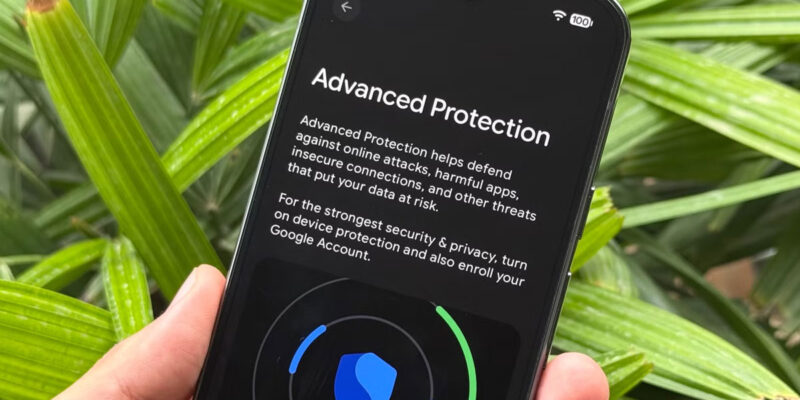
By Maximum security and everyday usability are often presented as opposites, but the reality is that most high-impact security improvements don’t significantly affect convenience. Here’s how to configure Android for strong security without making the phone frustrating to use.
Use a Strong, Unique Lock Screen
A 6-digit PIN is the minimum — a random alphanumeric password is better. Fingerprint unlock is both secure and convenient for daily use. Go to Settings > Lock Screen and configure your preferred method. Set auto-lock to 30 seconds or 1 minute maximum. The screen lock is your phone’s primary security barrier — treating it seriously is the foundation of everything else.
Enable Google Play Protect
Play Store > Profile > Play Protect > Scan Apps with Play Protect. This should be on by default but verify it. Play Protect continuously scans installed apps for malicious behavior using Google’s threat detection database. It’s your always-on malware scanner that runs without impacting performance.
Use a Password Manager and Strong Unique Passwords
Reused passwords mean a single breach compromises everything. Bitwarden (free, open source) or 1Password stores unique strong passwords for every account and autofills them on Android. The time investment of migrating your accounts to a password manager is typically two to three hours — and it permanently eliminates one of the most common ways accounts get compromised.
Enable Two-Factor Authentication on Critical Accounts
Email, banking, Google account, Apple ID, and any account with payment information should have 2FA enabled. Use an authenticator app (Google Authenticator, Authy, or Bitwarden’s integrated authenticator) rather than SMS where possible. SMS 2FA can be bypassed by SIM swapping; authenticator app codes cannot.
Keep Software Updated Promptly
Security patches address specific known vulnerabilities. The Pegasus spyware, for example, exploited zero-days in iOS and Android that were patched quickly once discovered — but users who delayed updates remained vulnerable. Install security patches within a week of release. App updates also include security fixes — enable automatic app updates in the Play Store.
Review App Permissions Quarterly
Settings > Privacy > Permission Manager. Work through each permission type every three months. Apps accumulate permissions over time through updates. An app that needed camera access for one feature now has it permanently even if that feature was removed in a later update. Remove permissions that aren’t currently needed.
Use a VPN on Public Wi-Fi
Public Wi-Fi networks at hotels, cafes, and airports can be monitored or spoofed. Using a VPN encrypts your traffic on untrusted networks. Mullvad and ProtonVPN have strong privacy policies and solid Android apps. Both have paid tiers but Proton’s free tier is functional for occasional use. Enable your VPN automatically on untrusted networks using the auto-connect feature.
Views: 70

You may also like

How to Stop Your Kids From Spending Money on Your Phone by Accident

How to Use Your Phone to Manage Your Time When You Work From Home
How to Use Your Phone Camera to Spot Things You’d Otherwise Miss
More in:Gadgets

How to Use Your Phone to Build Better Habits That Actually Stick

How to Use Your Phone to Help You Through a Difficult Life Transition

How to Use Your Phone to Manage Your Mental Load and Stop Forgetting Things

TecRounder is a blog that shares New Technology news from around the world (hence the name TecRounder), including the most recent mobile and gadget information: smartphone features, specifications, and more. You can find the latest technology updates here, including the most recent information on smartphones, laptop computers, and other electronic devices.