How to Make the Most of Samsung DeX on Your Galaxy Phone
 By
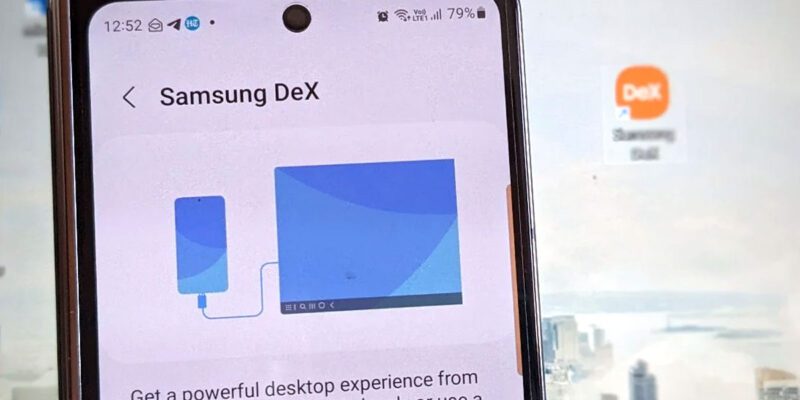
By Samsung DeX allows Galaxy phones to project a desktop-style interface onto a monitor, TV, or laptop screen. It’s one of the most underutilized features on Samsung’s flagship phones — most owners don’t know it exists, and those who do often haven’t figured out how to make it genuinely productive. Here’s a complete guide.
What You Need to Get Started
For monitor connection: a USB-C to HDMI adapter or cable (Samsung sells an official one, but generic USB-C 3.1 adapters work), a monitor with HDMI input, and a Bluetooth keyboard and mouse. For laptop connection: the Samsung DeX app installed on a Windows PC or Mac, and a USB-C cable to connect phone to laptop. The laptop method requires no additional hardware and runs DeX in a window on your existing display.
The DeX Interface: What to Expect
DeX presents a windowed desktop environment with a taskbar, app windows that can be resized, a dock, and a draggable desktop. Most Android apps run in DeX mode, though some display letterboxed or in a fixed-size window. Productivity apps — Microsoft Office, Google Docs, Slack, email — all work well and genuinely benefit from the larger screen.
Using DeX for Office Work
Microsoft Word, Excel, and PowerPoint on DeX are full-featured and keyboard-shortcut aware. Google Docs, Sheets, and Slides work similarly. For writing, spreadsheet work, and presentations, DeX on a monitor with a keyboard is a genuine laptop replacement for most tasks. Copy-paste works as expected, including between apps. The phone continues working as a phone while DeX runs on the external display.
Multi-Window Productivity on DeX
DeX’s biggest advantage over phone use is true multi-window. Have a document open in one window, a browser in another, and Slack in a third. Drag text between windows. Work on a spreadsheet while referencing a web page. This simultaneous multi-app use transforms what a phone can do for productivity in ways that split-screen on a 6-inch display can only approximate.
Using Your Phone as a Touchpad
When connected to a monitor without a mouse, your phone screen becomes a touchpad. Swipe to move the cursor, tap to click, two-finger scroll. It’s not as precise as a real mouse but functional for quick navigation. For extended use, a Bluetooth mouse is significantly more comfortable — small portable mice like the Logitech Pebble are excellent companions for DeX use on the go.
DeX on a Hotel TV
Most modern hotel TVs have an accessible HDMI port. Carrying a USB-C to HDMI cable in your travel kit allows you to connect your Galaxy phone to a hotel TV and work in DeX on a large screen using your phone as a keyboard and mouse. This setup — phone plus cable plus hotel TV — provides a functional workspace from just what fits in your pocket.
Limitations to Be Aware Of
Not all apps are DeX-optimized. Streaming apps like Netflix often don’t work on external displays due to DRM restrictions. Some games display in a small phone-sized window rather than scaling up. And DeX while charging and using a display does get warm — keep the phone on a flat surface with airflow. These are real limitations, but they don’t prevent DeX from being genuinely useful for the core productivity use cases it handles well.
Views: 83

You may also like

How to Stop Your Kids From Spending Money on Your Phone by Accident

How to Use Your Phone to Manage Your Time When You Work From Home
How to Use Your Phone Camera to Spot Things You’d Otherwise Miss
More in:Gadgets

How to Use Your Phone to Build Better Habits That Actually Stick

How to Use Your Phone to Help You Through a Difficult Life Transition

How to Use Your Phone to Manage Your Mental Load and Stop Forgetting Things

TecRounder is a blog that shares New Technology news from around the world (hence the name TecRounder), including the most recent mobile and gadget information: smartphone features, specifications, and more. You can find the latest technology updates here, including the most recent information on smartphones, laptop computers, and other electronic devices.