How to Master Android’s Do Not Disturb and Focus Modes
 By
By Do Not Disturb and Focus Mode are two of Android’s most useful features for protecting attention — and two of the most badly configured tools on most people’s phones. Default settings are too permissive, custom configurations are rarely set up, and most people just toggle the bell icon without understanding what it’s actually doing. Here’s how to use both properly.
Understanding the Difference
Do Not Disturb silences notifications while still allowing specified exceptions — calls from starred contacts, alarms, repeat callers. It’s designed for sleep and meetings where you need quiet but must remain reachable for genuine emergencies. Focus Mode pauses specific apps entirely — their notifications are blocked and the apps become temporarily inaccessible. It’s designed for focused work where you want to eliminate distraction apps.
Configuring DND Properly
Settings > Notifications > Do Not Disturb > Exceptions. Decide which calls break through DND. Set it to Starred Contacts (add family members and your manager to your starred contacts). Enable Repeat Callers (if someone calls twice in 15 minutes, it comes through — genuine emergencies usually involve repeated calling). Disable everything else. Alarms should always be allowed.
Automating DND on a Schedule
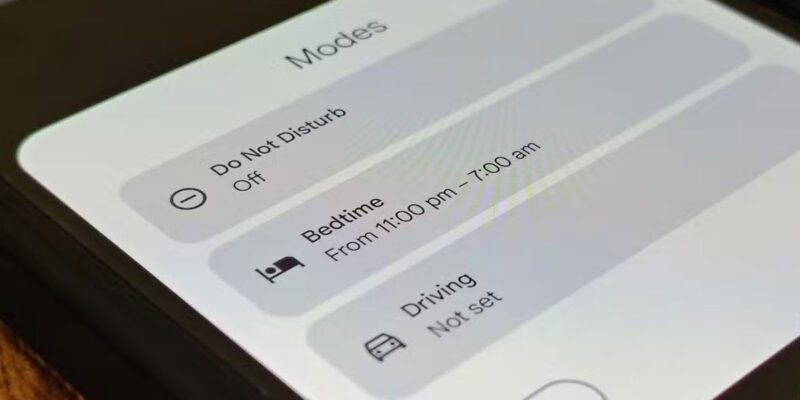
Settings > Notifications > Do Not Disturb > Schedules. Create a Sleep schedule that activates automatically at your usual bedtime and deactivates at your usual wake time. Create an Event schedule that activates during calendar events marked as Busy. These automations mean DND engages without you remembering to toggle it.
Focus Mode: Block Specific Distraction Apps
Settings > Digital Wellbeing > Focus Mode. Select the apps you want to block — social media, news, games, entertainment. When Focus Mode is active, these apps are grayed out and inaccessible. Set a schedule for your work hours. You can take a break from Focus Mode temporarily (15 or 30 minutes) if you genuinely need to check something, and it automatically re-activates after the break.
Create Work and Personal Modes With Routines
Samsung’s Bixby Routines and Google’s Digital Wellbeing can create automatic mode switching. Build a Work Mode routine that activates at 9am on weekdays: silences personal notifications, enables Work Profile, launches work apps, and sets a Focus Mode blocking social apps. Build a Personal Mode for evenings. Mode switching happens automatically without any manual action.
The Hidden Benefit of Visible Absence
When Focus Mode hides social media app icons and DND silences notifications, there’s a psychological benefit beyond just not receiving interruptions. You stop checking apps reflexively because the visual cues that normally trigger checking — the app icon on your screen, notification dots — are absent. Reducing these cues reduces the checking behavior, not just its consequences.
Communicate Your Availability
Using strong DND and Focus Mode settings only works socially if the people in your life know how to reach you genuinely urgently. Tell key contacts to call twice if it’s urgent, or use a specific keyword in a text that you check periodically. This establishes an expected availability mode so that silence doesn’t create anxiety in people who matter, while still protecting your focus.
Views: 104

You may also like

How to Stop Your Kids From Spending Money on Your Phone by Accident

How to Use Your Phone to Manage Your Time When You Work From Home
How to Use Your Phone Camera to Spot Things You’d Otherwise Miss
More in:Gadgets

How to Use Your Phone to Build Better Habits That Actually Stick

How to Use Your Phone to Help You Through a Difficult Life Transition

How to Use Your Phone to Manage Your Mental Load and Stop Forgetting Things

TecRounder is a blog that shares New Technology news from around the world (hence the name TecRounder), including the most recent mobile and gadget information: smartphone features, specifications, and more. You can find the latest technology updates here, including the most recent information on smartphones, laptop computers, and other electronic devices.