How to Fix Android Auto Disconnect Problems and Improve Reliability
 By
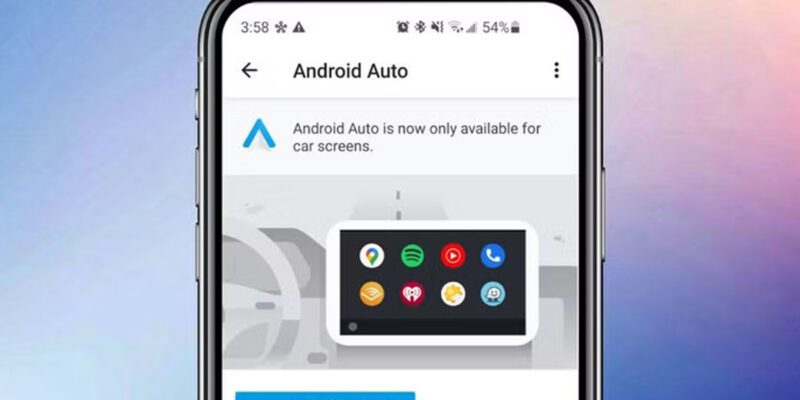
By Android Auto disconnecting mid-journey is one of the most reliably irritating technology problems in daily life. You’re navigating somewhere new, the music stops, the map disappears. Here’s a systematic approach to diagnosing and fixing Android Auto disconnection problems.
The Cable Is Almost Always the Problem
This deserves repeating because it’s true in the majority of cases. Android Auto requires a high-quality USB data cable. Not a charging cable, not a cheap multi-pack cable, not a cable that’s been bent at a sharp angle repeatedly. Buy a quality USB-C cable certified for data transfer — Anker, Belkin, or the cable that came with your phone. Test it. If the disconnections stop, you’ve found the problem.
Check the Car’s USB Port
Try different USB ports in your car. Many cars have both a data-capable port (usually near the front of the console) and charging-only ports. Plug into every available port and test Android Auto on each — the difference in reliability between them can be dramatic. Also try blowing out the port with compressed air; debris in the car’s USB port causes intermittent contact.
Disable Battery Optimization for Android Auto
Go to Settings > Apps > Android Auto > Battery > Unrestricted. Android’s battery optimizer can suspend Android Auto when it thinks it’s been idle, causing disconnections. Setting it to Unrestricted prevents this. Also check Settings > Battery > Background Usage Limits and remove Android Auto from any sleeping app lists.
Reset Android Auto App Data
Settings > Apps > Android Auto > Storage > Clear Cache, then Clear Data. Restart your phone. This resets Android Auto’s configuration completely. Many persistent disconnection problems that survive cable and software updates are resolved by this data reset. You’ll need to reconfigure your Android Auto settings (apps, wallpaper, assistant preferences) afterward.
For Wireless Android Auto: Address the Wireless Setup
Wireless Android Auto is more susceptible to interference than wired. Ensure your phone’s Wi-Fi is enabled (wireless AA uses a local Wi-Fi connection, not your home network). Keep other Bluetooth devices to a minimum while driving — too many active Bluetooth connections can interfere. Keep the phone relatively close to the car’s head unit antenna.
Update Your Car’s Head Unit Software
Car manufacturers push head unit software updates that fix Android Auto compatibility issues. Check your infotainment system’s settings for Software Update, or your manufacturer’s website for your car model and year. Some manufacturers require updates via USB stick; others do it over Wi-Fi or at the dealership. If your car had working Android Auto and it broke after a specific date, a head unit update often fixes it.
Factory Reset Android Auto on Your Phone
On your phone, go to Settings > Apps > Android Auto > three dots menu > Factory Reset (or Reset App Preferences). This performs a more thorough reset than clearing data alone. Also go to your Google account on the phone and remove Android Auto’s data permissions, then re-grant them. This full reset resolves most software-level disconnection issues that simpler fixes miss.
Views: 42

You may also like

How to Teach Your Children About Phone Safety Without Them Tuning You Out

How to Use Your Phone to Create Content for Social Media Without It Taking All Day
How to Make Your Phone Work Better in Rural Areas With Poor Signal
More in:Gadgets

How to Use Your Phone to Track and Improve Your Posture
How to Use Your Phone to Become a Better Writer

How to Use Your Phone to Find a Therapist or Mental Health Support

TecRounder is a blog that shares New Technology news from around the world (hence the name TecRounder), including the most recent mobile and gadget information: smartphone features, specifications, and more. You can find the latest technology updates here, including the most recent information on smartphones, laptop computers, and other electronic devices.