 By
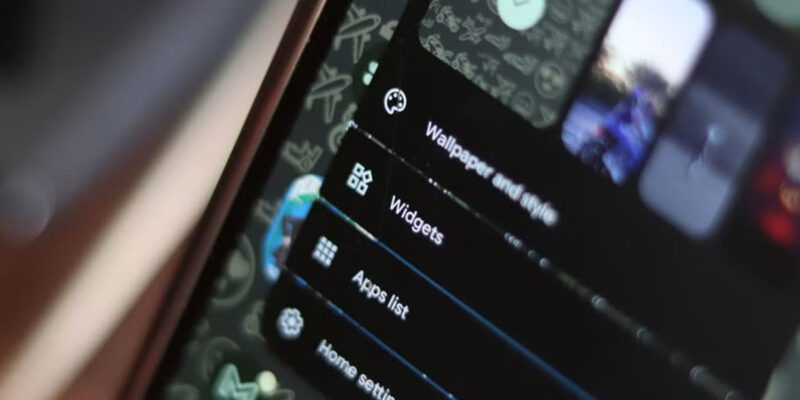
By Android widgets are one of the platform’s biggest advantages over iPhone and one of the most underused features. A well-designed home screen with the right widgets means you rarely need to open apps for information you check repeatedly throughout the day. Here’s how to set one up properly.
Understanding Widget Types
Android widgets come in information widgets (showing data without interaction — weather, calendar, battery), action widgets (buttons that trigger functions — toggle Wi-Fi, play/pause music), and collection widgets (scrollable lists — emails, tasks, news). Each type has a different role. Build a home screen with a mix: at least one information widget for always-visible data, one action widget for frequent tasks, and one collection widget for your most important ongoing list.
The Calendar Widget: More Useful Than Most People Use
A calendar widget showing today and tomorrow’s events on your home screen means you never miss a meeting because you forgot to check. Google Calendar’s widget (resize it to show three or four days) shows times, event titles, and color codes at a glance. Seeing your schedule passively as you use your phone keeps you oriented through the day without opening the app.
Weather Widget Done Right
The default Samsung weather widget is functional but generic. Weather widgets from 1Weather, Today Weather, or Weather Underground show more useful information: hourly forecasts, rain probability by hour (not just the day), and UV index. For a home screen widget, hourly rain probability is the information that actually changes what you do today.
Task and To-Do Widgets
Todoist, TickTick, and Google Tasks all offer home screen widgets showing your tasks. Having your three or five most important tasks visible on your home screen serves as a passive reminder throughout the day. The friction of seeing undone tasks motivates completion better than checking a separate app intentionally.
Media Control Widgets
Spotify, Pocket Casts, and most music apps offer playback control widgets. Place these on a home screen or lock screen so you can skip tracks, pause, and adjust volume without unlocking your phone. For anyone who listens to music or podcasts while commuting, working, or exercising, this is a genuine daily time-saver.
KWGT for Fully Custom Widgets
KWGT (Kustom Widget Maker) lets you design completely custom widgets from scratch. There’s a significant learning curve, but the KWGT preset packs available from the Play Store let you install beautiful custom widgets without building them yourself. This is the tool for users who want a home screen that looks nothing like the default.
Don’t Overdo It
A home screen cluttered with widgets becomes noise rather than signal. Be selective: include only widgets for information you check more than five times a day or actions you perform more than three times a day. Everything else should remain in the app drawer. A clean home screen with four or five carefully chosen widgets is more functional than one covered in everything available.
Views: 39

You may also like
Is Your Android Battery Calibration Off? How to Fix Wrong Percentages
Why Your Android Phone Charges So Slowly and What Actually Fixes It
How to Use Your Phone to Learn About Nutrition Without Getting Confused
More in:Apps

How to Use Your Phone to Build Better Habits That Actually Stick

How to Use Your Phone to Help You Through a Difficult Life Transition

How to Use Your Phone for Better, More Meaningful Travel Experiences

TecRounder is a blog that shares New Technology news from around the world (hence the name TecRounder), including the most recent mobile and gadget information: smartphone features, specifications, and more. You can find the latest technology updates here, including the most recent information on smartphones, laptop computers, and other electronic devices.