 By
By Cars need oil changes. Teeth need cleaning. Android phones need maintenance too — and most people never do it until something goes wrong. A monthly maintenance routine takes about 20 minutes and keeps your phone fast, secure, and working properly. Here’s the complete checklist.
Update Everything
Check for Android system updates (Settings > Software Update), Google Play Store app updates (Play Store > Profile > Manage Apps), and Galaxy Store updates if you’re on Samsung. Updates fix security vulnerabilities, improve performance, and resolve bugs. Making this a monthly habit means you’re never running significantly outdated software.
Clear App Caches
Go to Settings > Storage > Other Apps (or Settings > Apps) and sort by size. For your largest and most-used apps — social media, navigation, streaming, browsers — tap Storage and clear cache. Don’t clear data unless there’s a specific problem; just cache. This typically frees several hundred megabytes and can resolve slowness in specific apps.
Audit App Permissions
Go to Settings > Privacy > Permission Manager. Work through location, camera, microphone, contacts, and storage. Remove permissions from apps that no longer need them or that you installed and forgot about. Apps change their permission requests through updates, so this is worth reviewing monthly.
Delete Apps You Haven’t Used
Open your app drawer and be honest: when did you last use each app? If it’s been more than 60 days and it’s not something you need seasonally, uninstall it. Unused apps run background services, receive updates, and consume storage. Fewer installed apps means a cleaner system.
Review and Clean Storage
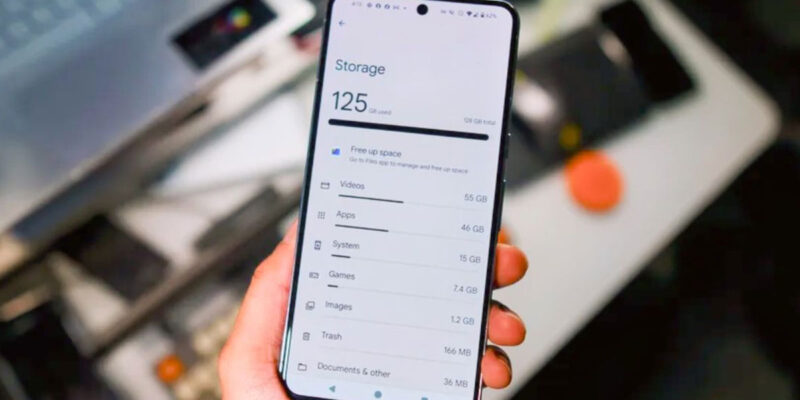
Check Settings > Storage for overall usage. Use Google’s Files app (the Clean section) to identify junk files and duplicate photos. Review your Downloads folder and delete anything you no longer need. If photos are backed up to Google Photos, use the Free Up Space option to remove local copies of already-backed-up media.
Check Battery Health
On Samsung: Settings > Device Care > Diagnostics > Battery Status. On other Android: install AccuBattery from the Play Store, which tracks battery capacity over time and shows you when it’s degraded significantly below original capacity. Catching battery degradation early lets you plan a replacement before it starts causing problems.
Review Security Settings
Check Settings > Security for any flags or recommendations. Verify that Find My Device is enabled. Check that Google Play Protect is active (Play Store > Profile > Play Protect). Review any notifications about security vulnerabilities in installed apps. This security audit takes five minutes and catches things that passive use misses.
Views: 45

You may also like

How to Use Your Phone to Create a Morning Routine That Actually Works

How to Handle Phone Anxiety and the Constant Pressure to Be Available

How to Use Your Phone to Plan and Track Your Garden or Allotment
More in:Apps

How to Use Your Phone to Build Better Habits That Actually Stick

How to Use Your Phone to Help You Through a Difficult Life Transition

How to Use Your Phone to Manage Your Mental Load and Stop Forgetting Things

TecRounder is a blog that shares New Technology news from around the world (hence the name TecRounder), including the most recent mobile and gadget information: smartphone features, specifications, and more. You can find the latest technology updates here, including the most recent information on smartphones, laptop computers, and other electronic devices.