How to Use Android’s Digital Wellbeing to Actually Reduce Phone Usage
 By
By Screen time tools only work if you configure them thoughtfully. Most people turn on Digital Wellbeing, get a few warnings, and then dismiss them. Here’s how to set it up in a way that actually changes behavior rather than just producing notifications you learn to ignore.
Understand Your Current Usage First
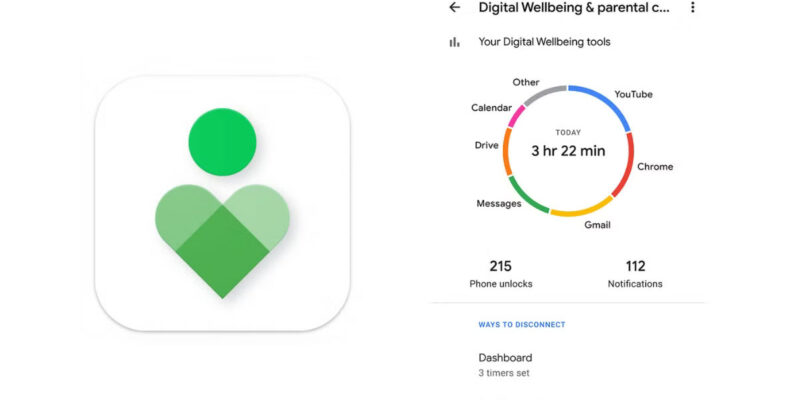
Go to Settings > Digital Wellbeing and open your Dashboard. Look at your screen time, your unlock count, and your usage by app. Don’t judge — just observe. Most people are surprised by their actual numbers. Seeing that you’ve unlocked your phone 80 times today or spent three hours in a specific app is more motivating than any amount of generic advice about phone use.
Set App Timers for Specific Problematic Apps
Rather than generic screen time limits, set timers specifically for the apps where you lose the most time. Tap an app in the Dashboard and set a daily timer — 30 minutes for Instagram, 45 minutes for TikTok, 20 minutes for YouTube. When the timer runs out, the app icon grays out and a prompt appears to unlock it. This friction is intentional and surprisingly effective.
Use Focus Mode During Work Hours
Digital Wellbeing > Focus Mode lets you pause distracting apps on a schedule. Set it to run during your working hours with your social apps paused. During focus mode, those apps are inaccessible — not just discouraged, but actually blocked. You can break focus mode temporarily if needed, but the extra step prevents mindless opening. Set a daily schedule so it runs automatically.
Enable Bedtime Mode for Better Sleep
Digital Wellbeing > Bedtime Mode can automatically: grayscale your screen (making it less visually rewarding), enable Do Not Disturb, and dim the display on a schedule. Set it to start 30-60 minutes before your intended sleep time. Grayscale is more effective than people expect — color is one of the things that makes phone screens compelling.
Make Dashboards and Stats Visible
Add the Digital Wellbeing widget to your home screen so you can see your daily usage count at a glance without opening settings. Seeing the running total passively throughout the day creates more awareness than checking retrospectively at the end of the day when the time is already spent.
The Accountability Partner Approach
Screen time tools work significantly better with external accountability. Share your weekly Digital Wellbeing report with a partner or friend who’s also working on reducing phone use. The knowledge that someone will see your numbers changes behavior more effectively than any app timer alone. Pair the technical tools with social accountability.
Address the Underlying Need
Compulsive phone use is usually a response to something: boredom, anxiety, loneliness, avoidance, or habit. Digital Wellbeing tools reduce the friction of acting on these impulses, but they don’t address the impulse itself. If you find yourself repeatedly breaking app timers or feeling anxious when your phone is inaccessible, that’s worth exploring beyond just adjusting settings.
Views: 50

You may also like

How to Stop Your Kids From Spending Money on Your Phone by Accident

How to Use Your Phone to Manage Your Time When You Work From Home
How to Use Your Phone Camera to Spot Things You’d Otherwise Miss
More in:Gadgets

How to Use Your Phone to Build Better Habits That Actually Stick

How to Use Your Phone to Help You Through a Difficult Life Transition

How to Use Your Phone to Manage Your Mental Load and Stop Forgetting Things

TecRounder is a blog that shares New Technology news from around the world (hence the name TecRounder), including the most recent mobile and gadget information: smartphone features, specifications, and more. You can find the latest technology updates here, including the most recent information on smartphones, laptop computers, and other electronic devices.