How to Use Your Phone’s Camera to Actually Read and Translate Text
 By
By Your phone camera is more than a photo-taking device. It has text recognition built in — the ability to read text in the real world, extract it, translate it, and let you interact with it. Most people discover this capability by accident and never fully explore it.
Here’s what it can actually do.
Google Lens: The Main Tool
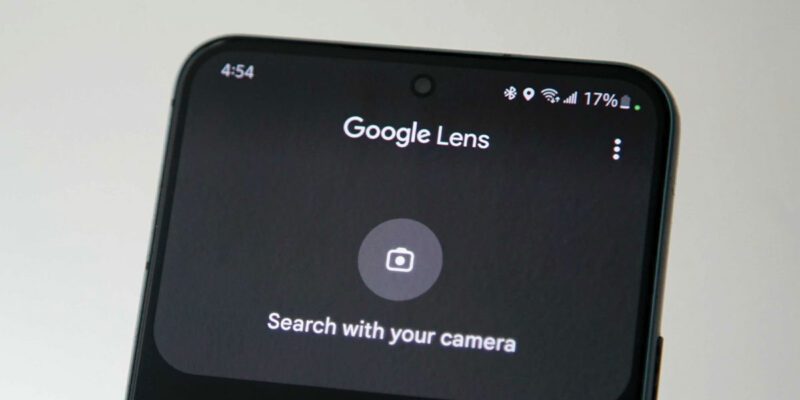
Google Lens is available on all Android phones and on iPhone through the Google app. It’s also built into Google’s camera app. Open it by tapping the Lens icon in Google Search, in Google Photos, or in your camera app.
Google Lens can: – Read any text in view and let you copy or search it – Translate text in real time into your language – Identify plants, animals, products, and landmarks – Scan QR codes and barcodes – Match and search for similar images
Text in the Real World: How It Works
Point your camera at any text — a menu in a restaurant, a street sign, a document, the back of a product — and Google Lens highlights recognized text. Tap any word to select it, or tap “Select All” to select all visible text.
From there you can copy the text to paste elsewhere, search Google for it, translate it, or have it read aloud. This is genuinely useful in situations like: – Photographing a wine label and searching for information or reviews – Reading a restaurant menu in another language – Copying a long web address from a printed leaflet – Extracting information from a business card
Live Translation: The Travel Feature
Point your camera at text in a foreign language. In Lens, tap “Translate.” The text in the camera view is replaced by the translation overlaid on the same image in real time. You’re reading the menu in French but it looks like English to you.
This works while the camera is live — you don’t have to take a photo first. The translation updates as you move the camera. It’s available for over 100 languages and the accuracy is generally good enough for practical comprehension, though subtle nuance may be lost.
On iPhone: Live Text
iPhone users have “Live Text” built into the camera and Photos app (iOS 15 and later). When you point the camera at text, a small icon appears in the corner of the viewfinder indicating Live Text is active. Tap and hold any text in the live view to select it.
In the Photos app, Live Text works on existing photos — tap and hold text in any photo to select and copy it.
Apple Translate also integrates with the camera through its built-in Conversation mode, which can translate spoken and written language in real time.
Extracting Text From Screenshots and Documents
If you’ve screenshotted a document, image, or text you need to extract, Google Lens works on existing images as well as the live camera. Open Google Photos > select the image > tap the Lens icon > select Text. The recognized text is displayed and selectable.
For iPhone, open a screenshot in Photos and tap the text icon that appears in the corner to activate Live Text extraction.
Practical Use Cases
WiFi passwords posted in hotels or cafes: scan the printed card and connect automatically.
Documents in another language: photograph and translate page by page.
Books and articles where you want to search a specific passage: photograph and search the text.
Business cards: scan to save contact information directly to your contacts.
Product labels with ingredients or nutritional information in small print: scan and increase to readable size on your screen.
Menus in unfamiliar languages: the feature that pays for itself on the first international trip.
Views: 115

You may also like

How to Use Your Phone to Learn About Nutrition Without Getting Confused
How to Use Your Phone to Document and Share Your Creative Work

How to Use Your Phone to Prepare for a Job Interview
More in:Gadgets

How to Use Your Phone to Manage Your Pet’s Health Records and Vet Visits

How to Use Your Phone to Deal With Information Overload

How to Use Your Phone to Learn Basic First Aid You Might Actually Need

TecRounder is a blog that shares New Technology news from around the world (hence the name TecRounder), including the most recent mobile and gadget information: smartphone features, specifications, and more. You can find the latest technology updates here, including the most recent information on smartphones, laptop computers, and other electronic devices.