The Best Keyboard Shortcuts for Android That Will Save You Hours
 By
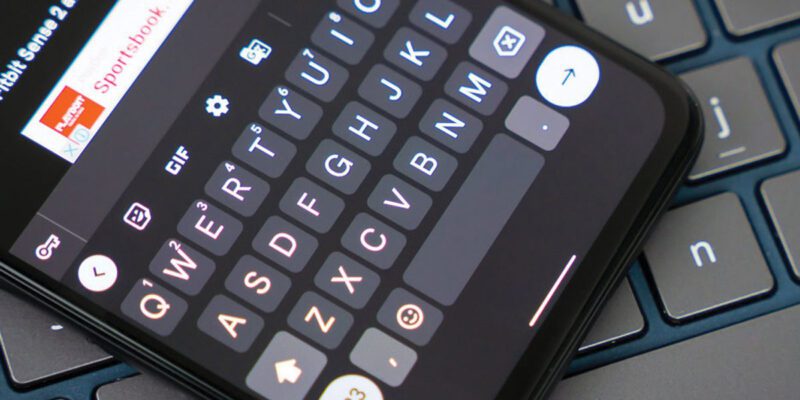
By Most people type on their Android phone the same way they did the first week they had it. Tap each letter, use the backspace for mistakes, tap the space bar, repeat. It’s functional but it’s slower than it needs to be.
These shortcuts and gestures are standard features on most Android keyboards — they’re just not announced anywhere.
Swipe to Type (If You’re Not Already)
If you’re still tapping individual letters rather than swiping between them in a continuous motion, switching to swipe input (also called gesture typing or glide typing) is the single biggest speed improvement available. Slide your finger from letter to letter without lifting it off the screen. The keyboard infers the word from the path of your gesture.
Enable it in Gboard Settings > Glide Typing > Enable Glide Typing. It takes about a day of use before it feels natural. After a week, going back to tap typing feels absurdly slow.
Slide Down on Backspace to Delete Words
When you need to delete multiple words, don’t tap backspace repeatedly. On most Android keyboards, hold the backspace key and slide left. Each increment deletes one word. This is dramatically faster than holding backspace and waiting for it to cycle through individual letters.
Slide Left on Space Bar to Move the Cursor
On Gboard, sliding your finger left or right on the space bar moves the text cursor one character at a time in that direction. This is useful for precise cursor positioning without having to tap and hope the cursor lands where you want it. You can also long-press anywhere in text to get a cursor handle you can drag.
Double-Tap Space Bar for Period and Space
Double-tapping the space bar at the end of a sentence adds a period and a space automatically. Enable this in Gboard Settings > Text Correction > Period on Double Spacebar. This means you can end sentences and start new ones without switching to the symbols keyboard.
Text Shortcuts for Common Phrases
Both Gboard and the native Samsung keyboard let you create text shortcuts — abbreviations that expand to full phrases. In Gboard: Settings > Dictionary > Personal Dictionary. Set “omw” to expand to “On my way”, “addr” to expand to your full address, “em” to expand to your email address. Once set up, these shortcuts work everywhere you type.
Voice Typing Button
The microphone icon on the keyboard activates voice typing. For long messages, notes, or any text input where your thoughts are coming faster than your thumbs can type, speaking is significantly faster than typing. Press the microphone, speak naturally, and the text appears. Say “period” or “comma” for punctuation.
One-Handed Mode
For typing with one hand, Gboard has a one-handed mode that compresses the keyboard to one side. Tap and hold the Globe/comma key, select the one-handed mode icon. The keyboard shrinks and shifts left or right, making it reachable with a single thumb.
Emoji Search
Tap the emoji icon on your keyboard to open the emoji panel. Instead of scrolling through hundreds of options, use the search bar at the top. Type “happy” and see happy-face emojis. Type “fire” and see flame-related options. Much faster than browsing visually.
Copy, Cut, Paste Without the Context Menu
When text is selected (double-tap a word to select it, then drag handles to adjust selection), you can use keyboard gestures. On Gboard, after selecting text, tap Ctrl-C behavior is handled through the floating clipboard toolbar that appears. But knowing that double-tapping a word selects it instantly is the time-saver here — avoids the long-press and wait.
Clipboard History
Gboard maintains a clipboard history. Tap the clipboard icon that appears in the keyboard toolbar to see recently copied text items and paste any of them. This is useful when you’re entering the same piece of information (an address, a reference number) multiple times across different apps.
Views: 90

You may also like
How to Use Your Phone to Learn About Nutrition Without Getting Confused

How to Use Your Phone to Document and Share Your Creative Work

How to Use Your Phone to Prepare for a Job Interview
More in:Gadgets

How to Use Your Phone to Manage Your Pet’s Health Records and Vet Visits

How to Use Your Phone to Deal With Information Overload
How to Use Your Phone to Learn Basic First Aid You Might Actually Need

TecRounder is a blog that shares New Technology news from around the world (hence the name TecRounder), including the most recent mobile and gadget information: smartphone features, specifications, and more. You can find the latest technology updates here, including the most recent information on smartphones, laptop computers, and other electronic devices.