 By
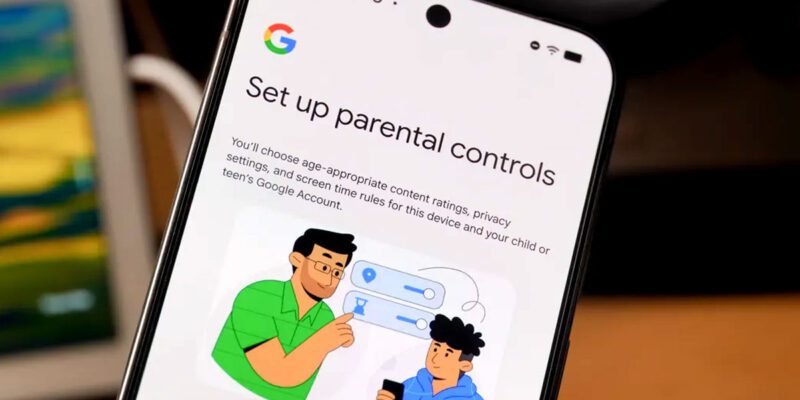
By Giving a child a smartphone without parental controls is like giving them unsupervised internet access in 2026 — which is exactly what it is. Setting up proper controls on Android takes under 30 minutes and gives you meaningful oversight without needing to hover over your child’s shoulder constantly.
Start With Google Family Link
Google Family Link is the cornerstone of Android parental controls. Download Family Link on your phone, create a Google account for your child (or link their existing one), and follow the setup wizard. Family Link gives you app approval controls, screen time limits, location tracking, and daily usage reports. It works across all Android phones and is free.
Set Up App Approval Requirements
In Family Link, enable app approvals so your child can’t install anything without your permission. Every request appears as a notification on your phone and you can review the app, its age rating, and permissions before approving or declining. This is arguably the most important control for most families.
Configure Screen Time Limits
Family Link lets you set daily screen time limits and a bedtime after which the phone locks. Set limits specific to weekdays and weekends. You can also pause device usage remotely from your phone at any time — useful if your child isn’t responding to dinner calls. After the daily limit, only emergency calls remain available.
Enable SafeSearch and Content Filters
In Family Link settings, go to Google Search and enable SafeSearch. Also go to Google Play settings and set content restrictions to the appropriate age rating for your child. Configure YouTube to use YouTube Kids or enable Restricted Mode on the standard YouTube app. These filters aren’t perfect but catch the majority of inappropriate content.
Review Location and Communication Settings
Family Link shows your child’s device location on a map in real time. Enable location sharing and make sure your child knows you can see it — transparency about monitoring is healthier than hidden surveillance. Review which apps have location access on their device and restrict any that don’t need it.
Use Built-In Android Parental Controls for Older Kids
For teenagers who are transitioning away from Family Link supervision, use Android’s Digital Wellbeing features instead. Settings > Digital Wellbeing lets you set app timers, Focus Mode to block distracting apps, and Bedtime Mode that grayscales the screen. Present these as tools to help them manage their own time rather than restrictions.
Have the Conversation Too
Parental controls are a safety net, not a complete solution. Talk to your children about why certain content is restricted, what to do if they encounter something uncomfortable online, and how to handle strangers contacting them. The controls and the conversation together are far more effective than either alone.
Views: 76

You may also like
Why Your Android Phone Charges So Slowly and What Actually Fixes It

How to Use Your Phone to Learn About Nutrition Without Getting Confused

How to Use Your Phone to Document and Share Your Creative Work
More in:Apps

How to Use Your Phone to Build Better Habits That Actually Stick

How to Use Your Phone to Help You Through a Difficult Life Transition

How to Use Your Phone for Better, More Meaningful Travel Experiences

TecRounder is a blog that shares New Technology news from around the world (hence the name TecRounder), including the most recent mobile and gadget information: smartphone features, specifications, and more. You can find the latest technology updates here, including the most recent information on smartphones, laptop computers, and other electronic devices.