 By
By Accessibility features on Android are designed for users with disabilities, but many of them are genuinely useful for everyone. These settings offer levels of phone control that even experienced Android users don’t realize are available. Here’s a tour of what’s worth enabling.
Accessibility Menu: A Floating Control Panel
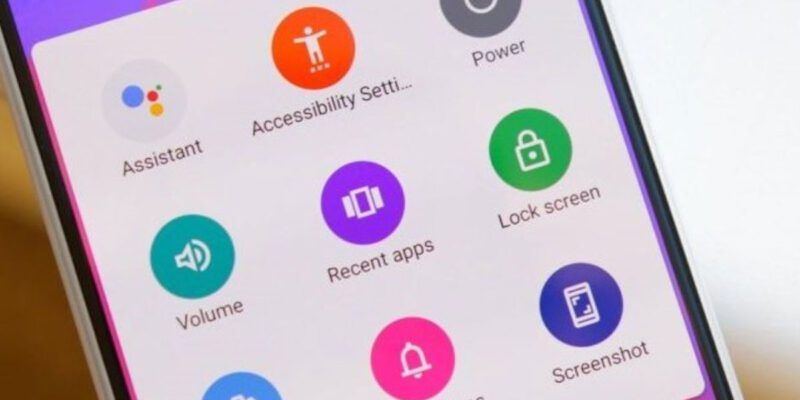
Go to Settings > Accessibility > Accessibility Menu and enable it. This adds a large persistent floating button to your screen that gives you quick access to screenshots, lock screen, volume, recent apps, notifications, and Google Assistant — without reaching for physical buttons. It’s particularly useful for quickly grabbing screenshots or adjusting volume mid-app.
Switch Access for One-Handed Use
Switch Access allows you to control your phone with a limited number of input triggers. With clever configuration, you can set a long-press on the volume button to perform navigation actions, enabling one-handed phone operation without stretching your thumb across large screens.
Text to Speech for Listening While Doing Other Things
Go to Settings > Accessibility > Text-to-Speech Output and configure a quality voice engine. Combined with Select to Speak (also in Accessibility), you can highlight any text anywhere on your phone and have it read aloud — articles, emails, messages, web pages. Useful while driving, cooking, or exercising.
Color Correction for Better Display in Any Light
Under Accessibility > Color and Motion, color correction settings let you adjust how your display renders colors. Beyond helping users with color vision deficiencies, Deuteranomaly mode can make certain text and interface elements easier to read in bright outdoor light. Grayscale mode extends battery life noticeably on OLED screens.
Remove Animations for a Snappier Feel
Under Accessibility > Remove Animations (or Time to Take Action > No Delay), you can disable all system animations entirely without needing Developer Options. Combined with the 0.5x animation scales in Developer Options, this is the most aggressive animation reduction available — making every interaction feel nearly instantaneous.
Magnification for Zooming Into Anything
Settings > Accessibility > Magnification lets you set up a triple-tap gesture to zoom into any part of the screen. Unlike standard Android zoom, this works everywhere — including in apps that normally prevent zooming. Useful for reading small text in screenshots, PDFs, or web pages.
Interaction Controls for App Restrictions
Settings > Accessibility > Interaction Controls lets you temporarily lock the screen into a single app, prevent accidental touch input in specific areas, and adjust touch timing. The Touch and Hold Delay setting deserves attention — if you frequently trigger long-press actions by accident, increasing this delay prevents it.
Views: 83

You may also like

How to Use Your Phone to Stay Financially Organised During a Life Event

How to Use Your Phone to Stay Motivated When You Feel Like Giving Up

How to Use Your Phone to Get More From Your Doctor’s Appointments
More in:Apps

How to Use Your Phone to Find a Therapist or Mental Health Support

How to Keep Kids Safe Online When They’re Using Your Phone

The Best Free Apps That Replace Paid Subscriptions You’re Probably Wasting Money On

TecRounder is a blog that shares New Technology news from around the world (hence the name TecRounder), including the most recent mobile and gadget information: smartphone features, specifications, and more. You can find the latest technology updates here, including the most recent information on smartphones, laptop computers, and other electronic devices.