 By
By Losing WhatsApp messages when you switch phones is one of the most common and preventable frustrations in tech. People spend years building up important conversations — family photos, business discussions, shared memories — and then accidentally lose everything because backup was never set up properly.
Let’s fix that. This guide covers everything you need to know about WhatsApp backup, for both Android and iPhone.
Android: How to Set Up Google Drive Backup
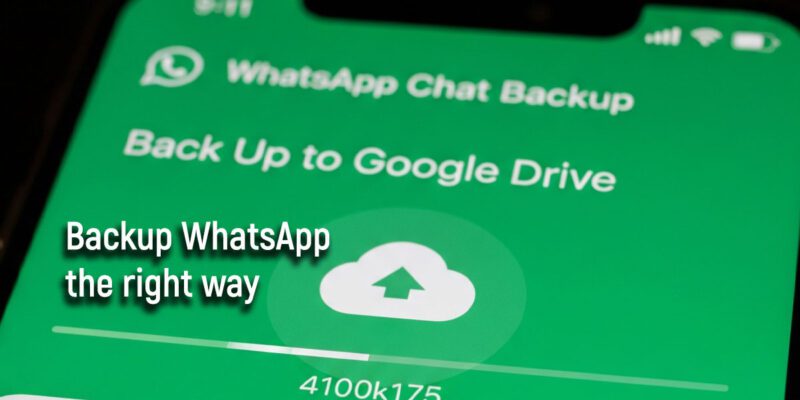
Open WhatsApp > Settings > Chats > Chat Backup. Tap Back Up to Google Drive and select how often: Daily, Weekly, or Monthly. Choose the Google account you want to back up to and make sure it has enough free storage. Tap Back Up Now to create an immediate backup. For most people, Daily backup is the right choice.
Android: Local Backup as an Extra Safety Net
WhatsApp also automatically creates a local backup in your phone’s internal storage every night at 2 AM. Go to your file manager, navigate to Internal Storage > WhatsApp > Databases. You’ll find the last seven days of backups. Copy these to a computer periodically if you want extra protection — these are especially valuable if you lose cloud backup access.
iPhone: How to Set Up iCloud Backup
On iPhone, go to WhatsApp > Settings > Chats > Chat Backup. Tap Auto Backup and set it to Daily. Make sure iCloud Drive is enabled on your device (Settings > Your Name > iCloud > iCloud Drive). WhatsApp stores its backup inside iCloud, separate from your regular iCloud backup, so check that your iCloud storage has enough space.
Encrypting Your Backup
In WhatsApp Settings > Chats > Chat Backup, look for End-to-End Encrypted Backup. Enable this and create a unique 64-digit key or a memorable password. Write this password down and store it somewhere safe. If you lose it, WhatsApp cannot recover your backup. Encryption means that even if someone accesses your Google Drive or iCloud, they cannot read your messages.
How to Restore When Switching Phones
For Android to Android: Install WhatsApp on the new phone, verify your number, and when prompted to restore, tap Restore. WhatsApp will pull from your most recent Google Drive backup. For iPhone to iPhone: Sign in to iCloud with your Apple ID first, then install WhatsApp and verify your number. Tap Restore when prompted. Both processes work reliably as long as you used the same Google or Apple account.
Switching From Android to iPhone (or Vice Versa)
Cross-platform transfer is the tricky one. Google Drive backups cannot be restored on iPhone, and iCloud backups cannot be restored on Android. WhatsApp has a built-in Move to iOS feature for Android to iPhone migration, and Samsung Smart Switch supports WhatsApp transfers for Android to Android. For iPhone to Android, use the Move to Android app available in the App Store.
Check That Your Backup Is Actually Working
Go to Settings > Chats > Chat Backup and check the Last Backup time and the backup size. If the size is 0 MB or the last backup was months ago, something went wrong. Common causes: not enough Google/iCloud storage, wrong Google account selected, or Wi-Fi requirement not being met. Fix these and run a manual backup immediately.
Views: 97

You may also like

How to Use Your Phone to Stay Financially Organised During a Life Event

How to Use Your Phone to Stay Motivated When You Feel Like Giving Up

How to Use Your Phone to Get More From Your Doctor’s Appointments
More in:Apps

How to Use Your Phone to Find a Therapist or Mental Health Support

How to Keep Kids Safe Online When They’re Using Your Phone

The Best Free Apps That Replace Paid Subscriptions You’re Probably Wasting Money On

TecRounder is a blog that shares New Technology news from around the world (hence the name TecRounder), including the most recent mobile and gadget information: smartphone features, specifications, and more. You can find the latest technology updates here, including the most recent information on smartphones, laptop computers, and other electronic devices.