 By
By Deep work — the concentrated, cognitively demanding work that produces the most valuable output — is essentially incompatible with a phone in its default configuration. The notification sounds, the habitual checking, the always-available social media — these fragment attention in ways that are difficult to recover from.
But the phone doesn’t have to be the enemy of focus. Configured intentionally, it can be a neutral or even supportive presence during focused work.
The Fundamental Problem: Intermittent Variable Rewards
Phones are engineered to create habitual checking through the same mechanism that makes slot machines compulsive: intermittent variable rewards. Sometimes you check and there’s something interesting (a message, a like, news). Sometimes there’s nothing. The unpredictability of the reward is what creates the compulsion to check repeatedly.
Understanding this makes it easier to design a work environment that doesn’t trigger the checking habit rather than relying on willpower to resist it.
The Physical Solution: Put It Somewhere Else
Research on phone proximity and cognitive performance is fairly consistent: even a silent, face-down phone on the desk impairs cognitive performance on demanding tasks compared to when it’s in another room. The reduced impairment when it’s out of sight but nearby versus completely absent suggests that knowing the phone is there takes some cognitive resources.
During focused work sessions, put your phone in a drawer, in another room, or in a bag rather than on your desk. This isn’t about willpower — it’s removing the visual cue that triggers the checking impulse.
Using Do Not Disturb During Work Sessions
If the phone must be nearby (for legitimate work purposes, as a second screen, etc.), configure Do Not Disturb for work hours so that only calls from specific contacts come through. Everything else is silenced and delivered in batch form at the end of the work session.
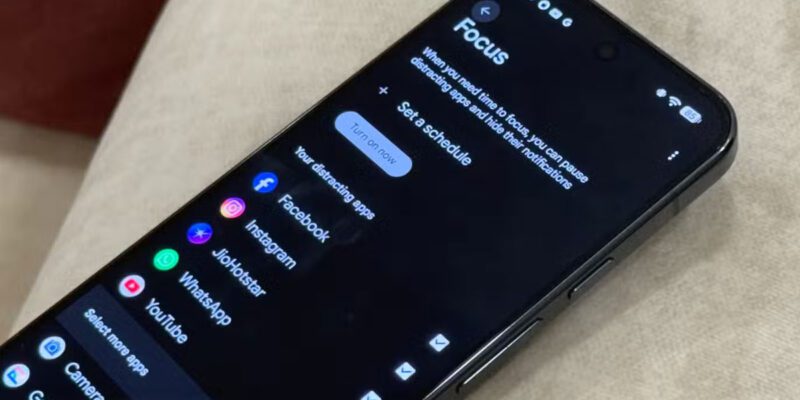
Schedule this automatically: iPhone Focus Modes and Android Digital Wellbeing both allow time-based profiles. Set “Work” focus to active from 9am-12pm and 1pm-5pm on weekdays. It turns on without you having to remember.
Grayscale Mode During Work
Converting your phone to grayscale (Settings > Accessibility > Display > Colour Filters > Grayscale on iPhone; Settings > Digital Wellbeing > Bedtime Mode on Android) makes the phone significantly less appealing to look at. Colour is a core part of what makes apps and social media visually engaging. A greyscale phone satisfies any remaining checking urge without the addictive pull of colour.
Switch to grayscale at the start of work sessions and back to colour during breaks.
Pomodoro Timer on Your Phone
Using your phone as a Pomodoro timer (25 minutes work, 5 minutes break) turns it from a distraction into a work structure tool. Apps like Forest, Focus To-Do, or simply your phone’s built-in clock timer support this.
The Forest app specifically uses a gamification mechanism: you plant a virtual tree at the start of each focus session and it grows while you’re working but dies if you leave the app to check social media. Childlike, but effective.
Designating Phone Time
Instead of trying to use your phone zero times during work hours — an extreme that creates anxiety and backfire — designate specific times for phone checking. “I’ll check my phone at 10:30am, 12:30pm, and 3pm.” Having scheduled times reduces the anxiety of not checking (you’re not missing things — you’ll check soon) while significantly reducing the compulsive checking that fragments attention.
This scheduled approach requires a few days of adjustment but becomes natural quickly.
If Your Work Requires Your Phone
If you use your phone for legitimate work tasks — calls, client messaging, mobile apps — separate the work functions from the distraction functions. During focused work, have only work apps accessible (everything else in a folder on a second screen). Use Guided Access (iPhone) or Screen Pinning (Android) if you need to be on one specific work app and want to prevent wandering.
Views: 24

You may also like
Is Your Android Battery Calibration Off? How to Fix Wrong Percentages
Why Your Android Phone Charges So Slowly and What Actually Fixes It
How to Use Your Phone to Learn About Nutrition Without Getting Confused
More in:Apps

How to Use Your Phone to Build Better Habits That Actually Stick

How to Use Your Phone to Help You Through a Difficult Life Transition

How to Use Your Phone for Better, More Meaningful Travel Experiences

TecRounder is a blog that shares New Technology news from around the world (hence the name TecRounder), including the most recent mobile and gadget information: smartphone features, specifications, and more. You can find the latest technology updates here, including the most recent information on smartphones, laptop computers, and other electronic devices.