 By
By WhatsApp Status is the app’s version of Stories — photos, videos, GIFs, and text that disappear after 24 hours. Most people either never use it or barely scratch the surface of what it can do. Here’s a complete guide to making the most of it.
Posting a Status: The Basics
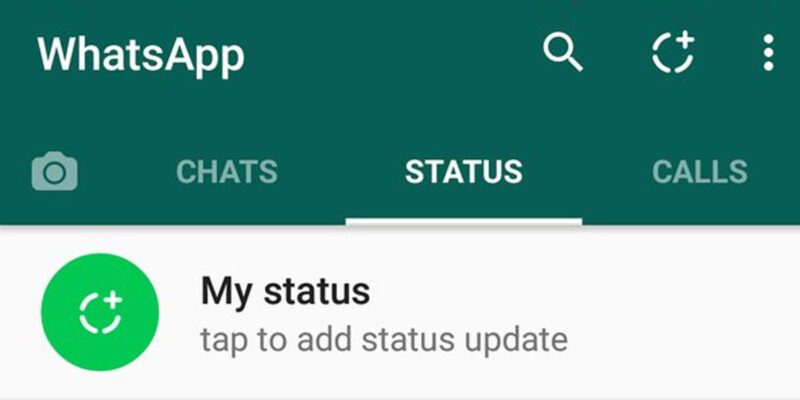
Tap the Updates tab (or Status tab on older versions), then the pencil or camera icon. You can post a photo or video from your gallery, take one in the moment, or type a text status with a colored background. GIFs work too. Each status post lasts exactly 24 hours and can be up to 30 seconds of video.
Control Exactly Who Sees Your Status
Before posting, tap the Privacy icon (the person icon with a lock). Choose between My Contacts, My Contacts Except (to exclude specific people), or Only Share With (to choose specific people). This is per-post privacy, so you can tailor each update to a different audience. Work contacts don’t need to see your weekend photos.
See Who Has Viewed Your Status
Open your own status update and swipe up to see a list of viewers with the time they viewed it. Note that this only works for contacts who have their Last Seen visible to you — privacy settings can limit what you see here.
Mute Status Updates Without Unfriending
Long-press on any contact’s status in the Updates tab and select Mute. Their status updates will move to a separate Muted Updates section and won’t appear at the top. Useful for contacts who post frequently and clutter your view without you needing to remove them.
Save Status Photos and Videos
WhatsApp doesn’t make it obvious, but you can save other people’s status updates. Open the status, then tap the three-dot menu (Android) or Share icon (iPhone). Select Save. This saves the media to your gallery. Note that this is only for your own reference — saving someone’s status without permission can be a privacy issue depending on context.
Add Music to Your Status
When posting a video status, you can add a music track via the music note icon if it appears in your editor. Availability varies by region due to licensing restrictions. If it’s not available via WhatsApp, record a video with music playing in the background — the audio captures just fine.
React to Statuses Without Opening a Chat
You can send a quick emoji reaction to someone’s status by tapping the emoji icon while viewing it. This sends them a private message with the reaction without starting a full conversation — a quick way to acknowledge a post without needing to type a response.
Text Status Tips
For text-only statuses, you can choose from a range of colored and gradient backgrounds and different fonts by tapping the T icon. You can also make text statuses with links, though they won’t be clickable — they’re display only. Keep text statuses short: long ones get cut off unless the viewer taps to expand.
Views: 135

You may also like

How to Use Your Phone to Stay Financially Organised During a Life Event

How to Use Your Phone to Stay Motivated When You Feel Like Giving Up

How to Use Your Phone to Get More From Your Doctor’s Appointments
More in:Apps

How to Use Your Phone to Find a Therapist or Mental Health Support

How to Keep Kids Safe Online When They’re Using Your Phone

The Best Free Apps That Replace Paid Subscriptions You’re Probably Wasting Money On

TecRounder is a blog that shares New Technology news from around the world (hence the name TecRounder), including the most recent mobile and gadget information: smartphone features, specifications, and more. You can find the latest technology updates here, including the most recent information on smartphones, laptop computers, and other electronic devices.