How to Share Your Phone Screen During Video Calls and Presentations
 By
By Screen sharing from a phone during video calls or presentations is more useful than most people realise — showing a mobile app, demonstrating something on your phone, or presenting content when you don’t have a laptop available. It’s also something that goes wrong in embarrassing ways if you’re not prepared.
Here’s how to do it right.
On Zoom
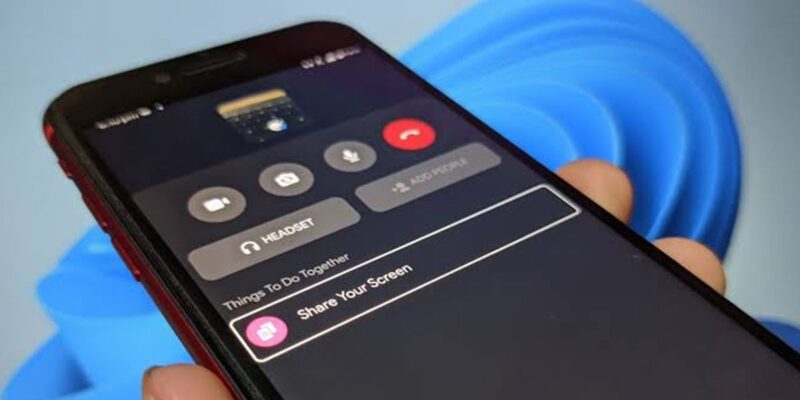
During a Zoom call, tap the three dots (More) in the bottom right. Tap Share Screen. You’ll see options for what to share: your entire screen or individual apps. Sharing your entire screen exposes everything, including notifications. Share a specific app instead whenever possible.
Before sharing your entire screen, go through your notification settings and enable Do Not Disturb. You don’t want a personal message notification visible to everyone in the meeting.
On Android, when you select Share Screen, Zoom uses the screen recording permission to capture everything. A notification appears at the top of your screen indicating sharing is active.
On Microsoft Teams
Tap the overflow menu (three dots) during a call > Share > Screen. Teams allows you to share your screen or a specific window. The same rule applies: specific app over full screen when possible.
On Google Meet
Tap the three dots during a call > Share Screen. Select the screen or a specific app from the list. Google Meet’s mobile screen sharing works cleanly on both Android and iPhone.
Before You Share: The Preparation Checklist
Enable Do Not Disturb on your phone — this prevents personal notifications appearing during your presentation.
Check what’s visible on your screen before sharing begins. Is there anything you don’t want seen? Tabs open in your browser? App notifications? Make sure the screen is clean.
Increase your screen brightness to maximum — screen sharing from a phone that’s showing a dim screen is hard for viewers to see.
Close any apps you don’t need to have open that might generate popups or alerts.
Keeping the Screen Active
When screen sharing from a phone, your screen’s auto-lock timer may be shorter than your presentation. Change it before starting: Settings > Display > Screen Timeout, set to “Never” or the maximum available. Remember to set it back afterward.
Audio Considerations
When you’re on a video call on your phone while also sharing your screen, be aware that any audio playing from your phone will potentially be picked up by the call’s microphone. Mute yourself when not speaking if you need to play audio from another source.
Alternative: Casting to a Computer
If you want to show your phone screen on a larger display during a meeting, casting may be cleaner than screen sharing directly from the phone. scrcpy (for Android on Windows/Mac) mirrors your Android screen to your computer, which you then screen share normally from your laptop. This gives you more stable performance and higher quality than direct phone screen sharing.
For iPhone, AirPlay to a Mac works similarly if you have a Mac running the Reflection or LonelyScreen receiver app.
Professional Appearance
When sharing your phone screen professionally — for client demos, training, presentations — it’s worth having these elements in place: a clean home screen behind the app you’re sharing, no visible personal apps or notifications, a phone stand or mount so the camera angle is stable, and sufficient battery to last the presentation without the low battery warning appearing on screen.
The few minutes of preparation make a significant difference to how professional the presentation feels.
Views: 83

You may also like
Is Your Android Battery Calibration Off? How to Fix Wrong Percentages
Why Your Android Phone Charges So Slowly and What Actually Fixes It
How to Use Your Phone to Learn About Nutrition Without Getting Confused
More in:Gadgets
How to Use Your Phone to Document and Share Your Creative Work

How to Use Your Phone to Prepare for a Job Interview

How to Use Your Phone to Manage Your Pet’s Health Records and Vet Visits

TecRounder is a blog that shares New Technology news from around the world (hence the name TecRounder), including the most recent mobile and gadget information: smartphone features, specifications, and more. You can find the latest technology updates here, including the most recent information on smartphones, laptop computers, and other electronic devices.