 By
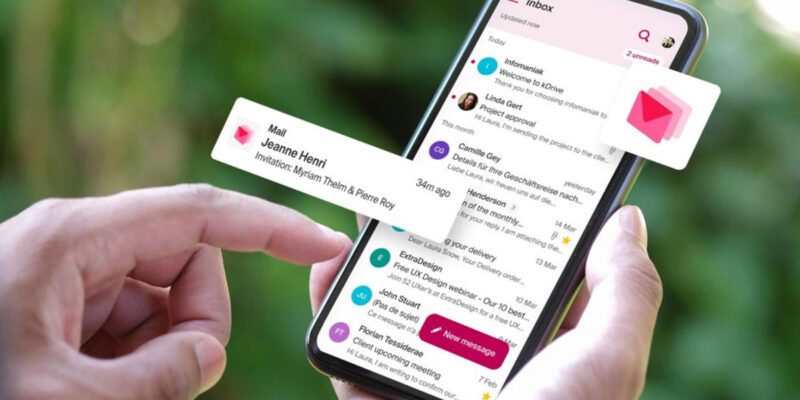
By The average knowledge worker receives over 100 emails a day. On a phone, without the structure of a desktop workflow, email becomes a constant stream of incoming demands that arrives wherever you are, whenever it arrives, with a persistent notification badge that never feels empty.
Here’s how to set up your phone’s email so it serves you rather than constantly interrupting you.
Fix the Notification Problem First
Email notifications on phones are almost always configured wrong by default. The default is: every email generates a notification. This means 100+ notifications a day from email alone — a reliable way to create anxiety and fragmented attention.
Turn off email notifications entirely for low-priority accounts. For your primary account, set notifications to “important only” or scheduled delivery rather than real-time.
On iPhone: Settings > Notifications > Mail > turn off notifications or set to “Deliver Quietly” (badge only, no alert sound).
On Gmail: Settings > Notifications > set to “High priority only” or “None” depending on the account.
The right relationship with email is that you check it on your schedule, not that it demands your attention constantly.
Scheduled Email Checking
Decide when you’ll check email. For most people, two to three times a day is sufficient for personal accounts. For work email, checking at the start of the morning, after lunch, and before end of day is adequate for most roles.
Setting these as calendar events with brief blocks for email processing changes the relationship from “responsive to whatever arrives” to “scheduled processing task.”
The Mobile Email Triage System
When you do check email on your phone, use a clear triage approach rather than reading every email fully.
Quick delete: anything you don’t need to read — newsletters you don’t read, promotional emails, irrelevant CC’s. Delete in a swipe.
Read and done: emails that require only a brief read to note information. Read and archive.
Quick reply: emails that can be answered in under 60 seconds. Reply immediately.
Flag for later: emails requiring a proper response or action you can’t complete on mobile. Flag or star and handle at your desk.
This triage takes 5-10 minutes and means your inbox is processed, not just pawed through.
Using Email Apps That Support This Workflow
Gmail’s swipe actions can be configured to archive, delete, or snooze. Configure the swipes to match your triage system.
Spark (Android and iPhone) has a Smart Inbox that automatically groups emails into categories and has excellent swipe actions for triage.
Hey (subscription-based but distinctive) has a radically different approach that some people find transformational — it separates email into streams by type and requires explicit sorting rather than accepting everything into one inbox.
Unsubscribing Consistently
Each week, unsubscribe from one or two mailing lists you never read. Gmail shows unsubscribe links at the top of marketing emails. Over a few months, this significantly reduces incoming volume and makes triage faster.
Using Unroll.me or a similar service provides a more systematic approach: it shows you all the mailing lists you’re subscribed to at once and lets you unsubscribe from many simultaneously.
The Email-Free Commute
One specific suggestion worth trying: don’t check work email during your morning commute. The commute is a natural transition time between personal and work modes. Checking work email before you’ve even arrived means you’re in work mode from the moment you leave home. Listening to music, a podcast, or just being present during the commute preserves more personal mental space.
This isn’t possible for everyone, but for those who have the choice, the morning commute is often better spent not working.
Views: 32

You may also like
Is Your Android Battery Calibration Off? How to Fix Wrong Percentages
Why Your Android Phone Charges So Slowly and What Actually Fixes It
How to Use Your Phone to Learn About Nutrition Without Getting Confused
More in:Apps

How to Use Your Phone to Build Better Habits That Actually Stick

How to Use Your Phone to Help You Through a Difficult Life Transition

How to Use Your Phone for Better, More Meaningful Travel Experiences

TecRounder is a blog that shares New Technology news from around the world (hence the name TecRounder), including the most recent mobile and gadget information: smartphone features, specifications, and more. You can find the latest technology updates here, including the most recent information on smartphones, laptop computers, and other electronic devices.