How to Get the Most From Your Phone’s Built-In Health and Fitness Tracking
 By TecRounder
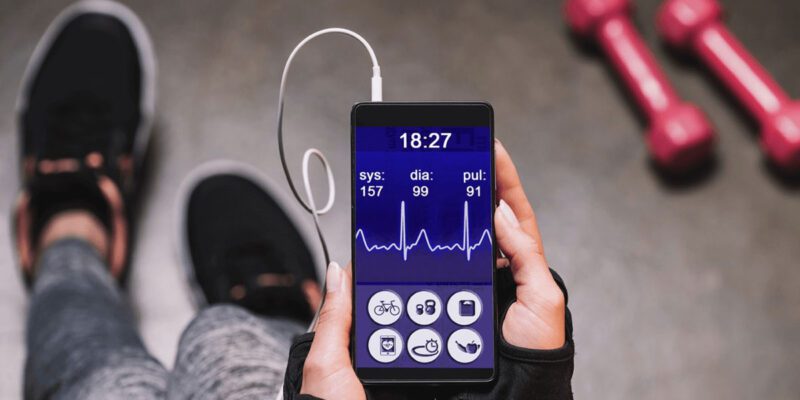
Both iPhone and Android phones track health and fitness data automatically, even without any additional apps or wearables. Most people don’t know what’s being captured or how to use it. Here’s a tour of what’s available and how to make it useful.
What Your Phone Tracks Automatically
Steps: your phone counts steps automatically using the accelerometer. This works passively — you don’t need to start a workout or carry the phone in a specific way (though pocket or hand gives more accurate counts than bag).
Flights of stairs climbed: iPhones with a barometric pressure sensor (all models from iPhone 6 onwards) automatically count flights of stairs using pressure changes.
Walking and running distance: calculated from step count and phone movement data.
Sleep: with iPhone Health and some Android phones, when the phone is on your nightstand, it can detect sleep patterns from stillness and charging habits.
Heart rate: measured on phones with camera-based heart rate sensors (some Samsung models) or via wearable devices that sync to the phone.
Noise exposure: both platforms detect and log when you’re exposed to loud environments for extended periods.
iPhone Health App
Open Health > Browse to see all data categories being tracked. The Dashboard at the top shows highlights. In Activity, you’ll see your step count, distance, and flights with historical data and trends.
Key features to enable: – Walking Steadiness (under Mobility): tracks balance and gait over time, useful for older users or those recovering from injuries – Cardio Fitness (under Heart): estimates VO2 max from your movement patterns over time – Health Records: connects to your healthcare provider’s records in some regions – Medical ID: set up your emergency medical information here (blood type, allergies, medications) visible from the lock screen
Android: Google Fit / Health Connect
Google Fit (or the newer Health Connect framework) centralises health data from all apps on Android. Install Google Fit if it’s not pre-installed.
Connect all your health and fitness apps to Health Connect (Settings > Health Connect > App Permissions) so all health data flows to one place. This allows you to see sleep tracking from one app, steps from the phone itself, and heart rate from a fitness app all in a single timeline.
Samsung Health works similarly for Samsung phones, with the addition of Samsung-specific measurements if your phone has them.
Making the Data Actually Useful
Weekly trends rather than daily obsession: your step count on a specific Tuesday is meaningless. Your average steps per week over the last three months, and whether it’s trending up or down, is useful information.
Share with your doctor: both Health (iPhone) and Health Connect (Android) can export data or generate reports. If you’re discussing activity levels, sleep, or heart rate with a healthcare provider, this data is useful and accurate for the metrics it does track well.
Streak tracking: some people find that seeing a streak of meeting their daily step goal in the Health app motivates them to keep it going. If this works for you, great. If tracking creates anxiety rather than motivation, the data is better viewed as trends rather than daily targets.
What Built-In Tracking Doesn’t Do Well
Sleep stage tracking from a phone on a nightstand is rough at best — it can estimate duration but not accurate sleep stages. Calorie burn estimates are rough and can be misleading. Specific workout performance metrics require a wearable.
Use the built-in data for broad patterns and trends. For precision in any specific metric, dedicated wearables and apps produce better data.
Views: 63

You may also like
Is Your Android Battery Calibration Off? How to Fix Wrong Percentages
Why Your Android Phone Charges So Slowly and What Actually Fixes It
How to Use Your Phone to Learn About Nutrition Without Getting Confused
More in:Gadgets
How to Use Your Phone to Document and Share Your Creative Work

How to Use Your Phone to Prepare for a Job Interview
How to Use Your Phone to Manage Your Pet’s Health Records and Vet Visits

TecRounder is a blog that shares New Technology news from around the world (hence the name TecRounder), including the most recent mobile and gadget information: smartphone features, specifications, and more. You can find the latest technology updates here, including the most recent information on smartphones, laptop computers, and other electronic devices.