 By
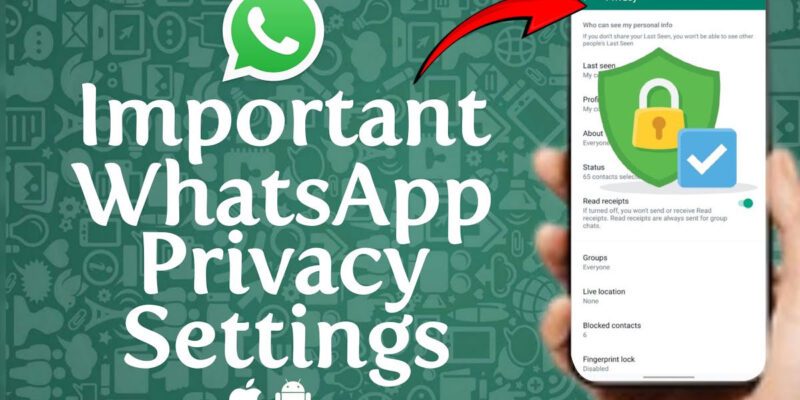
By WhatsApp is end-to-end encrypted, which means your messages are protected in transit. But encryption doesn’t cover everything. By default, WhatsApp shares a lot of information about you — who can see your profile photo, when you were last online, whether you’ve read someone’s message — with everyone in your contact list and sometimes beyond.
Here’s a walkthrough of what to change and why it matters.
Last Seen and Online Status
Go to Settings > Privacy > Last Seen and Online. Set Last Seen to My Contacts or Nobody. Same for the Online status. By default, anyone who has your number — not just people you’ve approved — can see when you were last active on WhatsApp. This is information you generally don’t need to share widely.
Profile Photo and About
Under Settings > Privacy, set Profile Photo and About to My Contacts. If it’s set to Everyone, your photo is visible to any WhatsApp user who has your phone number, including strangers who get your number through group chats or business transactions.
Read Receipts
Go to Settings > Privacy and scroll down to Read Receipts. Toggle this off to disable the blue double ticks that tell senders you’ve read their message. Note: if you turn this off, you also stop seeing when others have read your messages. It’s a mutual arrangement.
Groups: Who Can Add You
Under Settings > Privacy > Groups, change this from Everyone to My Contacts or My Contacts Except. With the Everyone setting, any WhatsApp user can add you to a group without your permission, which is frequently exploited for spam and scams.
Status: Who Sees Your Updates
Go to Settings > Privacy > Status. You can share with all contacts, a custom selection, or exclude specific people. Review this if you post WhatsApp statuses — it’s very easy to accidentally share with professional contacts or family members something intended for a different audience.
Disappearing Messages
Go to Settings > Privacy > Default Message Timer and set a default expiration for new chats. Options are 24 hours, 7 days, or 90 days. When enabled, messages in new chats automatically delete after the set period. You can override this for specific chats where you want permanent records.
Two-Step Verification: Turn It On Now
Go to Settings > Account > Two-Step Verification and enable it. Set a 6-digit PIN and add an email address for recovery. This prevents anyone from registering your phone number on another device without your PIN, even if they intercept your SMS verification code. WhatsApp account takeovers are a real and growing threat — this stops most of them.
Protect Your Chat Backups
Go to Settings > Chats > Chat Backup > End-to-End Encrypted Backup and enable it with a strong password. This encrypts your Google Drive or iCloud backup so that even if someone accessed your cloud storage, they couldn’t read your WhatsApp messages without your specific backup password.
Views: 95

You may also like

How to Use Your Phone to Stay Financially Organised During a Life Event

How to Use Your Phone to Stay Motivated When You Feel Like Giving Up

How to Use Your Phone to Get More From Your Doctor’s Appointments
More in:Apps

How to Use Your Phone to Find a Therapist or Mental Health Support

How to Keep Kids Safe Online When They’re Using Your Phone

The Best Free Apps That Replace Paid Subscriptions You’re Probably Wasting Money On

TecRounder is a blog that shares New Technology news from around the world (hence the name TecRounder), including the most recent mobile and gadget information: smartphone features, specifications, and more. You can find the latest technology updates here, including the most recent information on smartphones, laptop computers, and other electronic devices.