Best Hidden Android Settings for Saving Battery Life That Most People Never Find

 By
By Android’s surface-level battery settings are fine. Brightness slider, battery saver toggle, done. But if you’re willing to dig a few menus deeper, there’s a set of settings that most users never find — and they make a real difference.
These aren’t hacks or third-party apps. They’re legitimate Android settings that Google and manufacturers bury or omit from obvious menus.
Developer Options: Disable Unnecessary Background Processes
Enable Developer Options by tapping Build Number seven times in About Phone. Inside Developer Options, find Background Process Limit and set it to At Most 3 Processes. Android normally lets apps run unlimited background processes. Capping this forces apps to compete for a limited resource pool and significantly reduces background drain.
Developer Options: Reduce Animation Scales
Set Window Animation Scale, Transition Animation Scale, and Animator Duration Scale all to 0.5x in Developer Options. This doesn’t save massive amounts of battery on its own, but it reduces the work the GPU does to render transitions, and the phone also feels snappier — which is a nice bonus.
Restrict Mobile Data for Background Apps
Go to Settings > Network > Data Usage > Data Saver and enable it. Then go through individual apps and only whitelist the ones that truly need unrestricted background data (messaging apps, email). Everything else gets throttled when the screen is off. This is especially effective if you’re not on unlimited data anyway.
Disable Location Access for Apps That Don’t Need It
Location requests are one of the silent battery killers. Go to Settings > Location > App Permissions and review every app. Change anything set to All the Time down to Only While Using unless you have a specific reason for the constant access. Weather apps, retail apps, food delivery apps — most of them don’t need your location running in the background 24/7.
Use Grayscale Mode
On OLED screens (which cover most premium Android phones), colored pixels use more power than dark ones, and grayscale uses less power than full color. Enable Grayscale under Settings > Accessibility > Color and Motion. This one has the side effect of making your phone less visually appealing, but if you’re in a battery emergency it’s one of the more effective quick fixes.
Schedule Battery Saver to Turn On Automatically
Most people only enable Battery Saver manually when they’re desperate. Under Settings > Battery > Battery Saver, you can set it to turn on automatically at a certain percentage threshold. Set it to activate at 30% instead of the default 15% and you’ll get a meaningful extension of usable life before you need a charger.
Check Wakelocks With the Built-In Battery Stats
In Developer Options, there’s a Running Services screen that shows everything actively running right now. If something is consuming CPU or holding a wakelock unexpectedly, you’ll see it here. A wakelock prevents the CPU from sleeping, which is one of the worst things for battery life. Force-stop any services you don’t recognize.
Reduce Refresh Rate If Your Phone Supports It
If you have a phone with a 120Hz display, dropping to 60Hz under Settings > Display > Motion Smoothness can save a noticeable amount of battery per day. The difference in smoothness is real but you adapt to 60Hz quickly. For most tasks — reading, emailing, messaging — 60Hz is perfectly fine.
Views: 105

You may also like

How to Use Your Phone to Stay Financially Organised During a Life Event

How to Use Your Phone to Stay Motivated When You Feel Like Giving Up

How to Use Your Phone to Get More From Your Doctor’s Appointments
More in:Gadgets

How to Use Your Phone to Create and Stick to a Weekly Meal Plan

How to Use Your Phone to Research and Buy a Used Car Safely
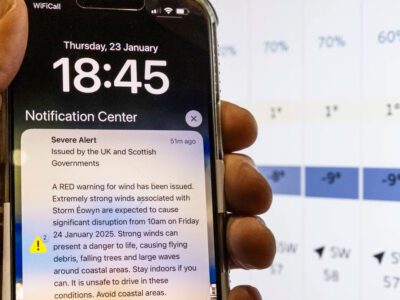
How to Use Your Phone to Stay Safe and Informed During Bad Weather

TecRounder is a blog that shares New Technology news from around the world (hence the name TecRounder), including the most recent mobile and gadget information: smartphone features, specifications, and more. You can find the latest technology updates here, including the most recent information on smartphones, laptop computers, and other electronic devices.