 By
By Taking screenshots and recording your screen on Android is something almost everyone does but few people do efficiently. There are multiple methods for each, including some that do things the obvious method can’t — like capturing long pages that don’t fit on one screen.
Basic Screenshot: Power + Volume Down
Press Power and Volume Down simultaneously and hold for one second. The screen flashes and a thumbnail preview appears at the bottom. Tap the thumbnail to see editing options — crop, annotate, share — or let it dismiss to save to your Gallery. This works on virtually every Android phone.
Three-Finger Swipe Screenshot
Many Android phones — particularly Samsung, OnePlus, and Xiaomi — support a three-finger swipe down gesture for screenshots. Enable this in Settings > Advanced Features > Motions and Gestures > Palm Swipe to Capture or the equivalent for your brand. Swipe three fingers down the screen and it captures instantly.
Scrolling Screenshot for Long Pages
After taking a screenshot, Samsung phones show a Scroll Capture button in the toolbar below the preview. Tap it repeatedly to extend the capture downward, capturing content below the current screen. This works in browsers, messaging apps, settings menus, and many other apps. The result is a single long image of the entire page.
Assistant Gesture Screenshot
Swipe up from the bottom corner of the screen to activate Google Assistant, then say ‘Take a screenshot.’ This is the easiest method when your hands are otherwise occupied, when buttons are awkward to reach, or when the phone is mounted in a car dock.
Screen Recording: Built-In Method
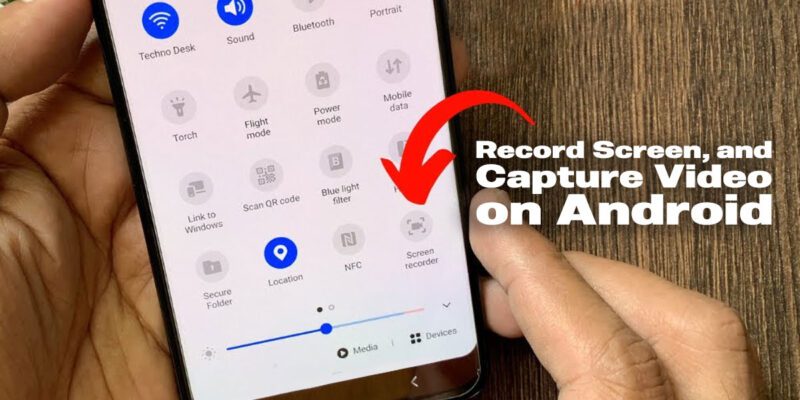
Pull down the Quick Settings panel and find Screen Recorder (or Screen Record). If it’s not visible, tap the Edit button and add it from the list of available tiles. Tap it to start recording with options for sound (microphone, device sound, or both) and whether to show touches. Stop recording with the red icon in the notification bar.
Screen Recording for Long Videos
The built-in screen recorder stores video in your Gallery. For longer recordings (tutorials, gameplay) quality and file size matter. In the screen recorder settings, choose the highest resolution available (1080p or above) and adjust the bit rate if the option exists. For professional content, third-party apps like AZ Screen Recorder offer more control over quality settings.
Where Screenshots and Screen Recordings Are Saved
Screenshots go to Gallery > Screenshots folder and are also accessible in Files > Internal Storage > Pictures > Screenshots. Screen recordings save to Gallery > Screen Recordings (Samsung) or a similar folder depending on your brand. Both are also visible in Google Photos if you have it installed and syncing.
Views: 79

You may also like

How to Use Your Phone to Stay Financially Organised During a Life Event

How to Use Your Phone to Stay Motivated When You Feel Like Giving Up

How to Use Your Phone to Get More From Your Doctor’s Appointments
More in:Apps

How to Use Your Phone to Find a Therapist or Mental Health Support

How to Keep Kids Safe Online When They’re Using Your Phone

The Best Free Apps That Replace Paid Subscriptions You’re Probably Wasting Money On

TecRounder is a blog that shares New Technology news from around the world (hence the name TecRounder), including the most recent mobile and gadget information: smartphone features, specifications, and more. You can find the latest technology updates here, including the most recent information on smartphones, laptop computers, and other electronic devices.