 By
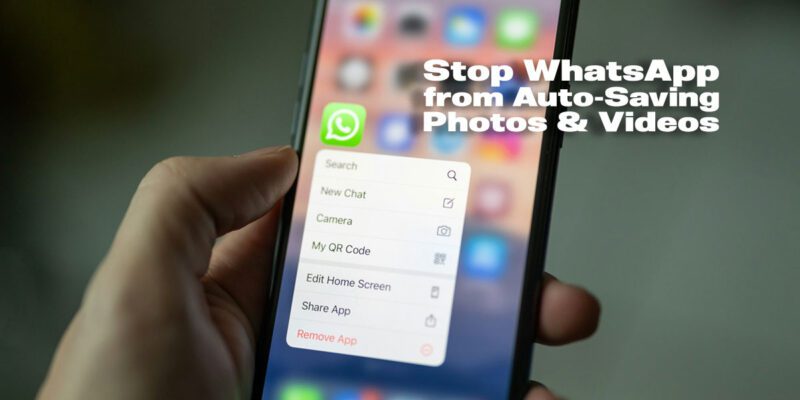
By Your phone gallery is a graveyard of blurry memes, forwarded videos you never asked for, and photos from groups you’re barely part of. WhatsApp auto-saves incoming media by default, and on active groups it fills your storage surprisingly fast. Here’s how to stop it.
Turn Off Media Auto-Download System-Wide
Open WhatsApp > Settings > Storage and Data > Media Auto-Download. You’ll see three sections: When using mobile data, When connected on Wi-Fi, and When roaming. For each one, tap and uncheck Photos, Audio, Videos, and Documents. Nothing will auto-download anymore — you’ll tap individual files to download them when you want to.
Keep Downloads for Specific Chats Only
If you want auto-download from certain chats (like a family group where you always want photos) but not others, open that specific chat, tap the chat name, and scroll to Media Visibility or Media Download. You can control downloads per-chat, overriding the global setting. Useful for keeping automatic downloads from your inner circle while blocking group spam.
Disable Media Visibility to Stop Photos Appearing in Gallery
Even if photos download, you can prevent them from appearing in your phone’s main gallery. Go to a chat, tap the chat name, and disable Media Visibility. Files will still be available in WhatsApp but won’t clutter your camera roll. Do this for every group chat you’re in.
Hide WhatsApp Folder From Gallery (Android)
Navigate to your WhatsApp media folder using a file manager (Internal Storage > WhatsApp > Media). Create a file named .nomedia in that folder (a blank text file with that exact name). Android’s media scanner ignores folders containing a .nomedia file, so WhatsApp downloads will be invisible to your gallery app.
For iPhone: Disable Save to Camera Roll
On iPhone, go to WhatsApp Settings > Chats and toggle off Save to Camera Roll. This prevents all WhatsApp media from appearing in your iPhone’s Photos app. Photos are still available inside WhatsApp itself but don’t clutter your main photo library.
Clean Up What’s Already There
After changing these settings, clean up existing auto-saved media. Go to WhatsApp > Settings > Storage and Data > Manage Storage. Sort chats by size and bulk-delete forwarded photos, videos, and GIFs from large groups. You’ll often recover several gigabytes of storage that accumulated without you realizing it.
The Smarter Approach Going Forward
With auto-download off, when someone sends you something worth keeping, simply tap and hold the file and select Save. You’re in control of what goes to your gallery rather than every meme and voice note from every group you’re in. It takes one extra tap per file worth keeping — a very reasonable trade for a clean photo library.
Views: 102

You may also like

How to Use Your Phone to Learn About Nutrition Without Getting Confused
How to Use Your Phone to Document and Share Your Creative Work

How to Use Your Phone to Prepare for a Job Interview
More in:Apps

How to Use Your Phone to Build Better Habits That Actually Stick

How to Use Your Phone to Help You Through a Difficult Life Transition
How to Use Your Phone for Better, More Meaningful Travel Experiences

TecRounder is a blog that shares New Technology news from around the world (hence the name TecRounder), including the most recent mobile and gadget information: smartphone features, specifications, and more. You can find the latest technology updates here, including the most recent information on smartphones, laptop computers, and other electronic devices.