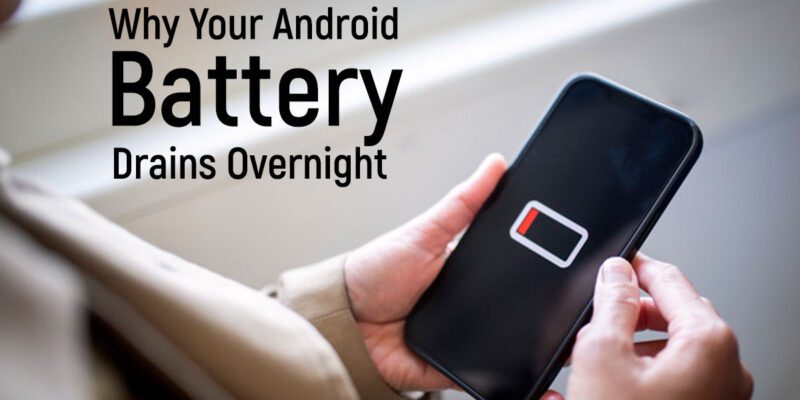
Why Your Android Battery Drains Overnight and How to Stop It
 By
By You plug your Android in at 100% before bed, set it face down on the nightstand, and wake up to find it at 70% — or worse. You didn’t use it. Nothing happened. Yet somehow the battery bled out while you were sleeping.
This is one of the most common Android complaints and it almost always has a fixable cause. Here’s what’s draining it and how to stop it.
Background App Sync Is Working All Night
By default, Android apps sync in the background continuously. Email, social media, news apps, weather services — they’re all checking in with their servers throughout the night, waking up your processor and radio repeatedly. Go to Settings > Accounts (or Passwords and Accounts on some devices) and review which accounts are set to auto-sync. Turn off sync for anything you don’t need updated constantly overnight.
Wi-Fi Scanning and Bluetooth Are Staying Active
Even with Wi-Fi connected, Android can keep scanning for other networks. Go to Settings > Location > Wi-Fi and Bluetooth Scanning and turn off both options. Also, if you’re not using Bluetooth overnight, turn it off in Quick Settings. These background radio activities add up over eight hours.
Google Assistant and Always-Listening Features
The always-on microphone feature for Hey Google and similar hotword detection keeps your processor partially active at all times. You can disable this in Settings > Google > Account Services > Search, Assistant, and Voice > Voice Match. If you don’t regularly use hands-free Google, this is worth turning off.
A Specific App Has a Battery Leak
Some apps have bugs that prevent them from properly entering low-power sleep states. Go to Settings > Battery > Battery Usage and switch the view to show usage since last full charge. Identify anything that’s consumed more than a few percent while the screen was off. That’s abnormal. Clear the app’s cache, check for updates, or uninstall it if you don’t need it.
Your Network Connection Is Causing Problems
A weak cellular signal is one of the biggest overnight battery killers that nobody talks about. When your phone is on the edge of signal coverage, the cellular radio cranks up its power trying to maintain a connection. If you’re in an area with weak signal overnight, try enabling Airplane Mode and connecting only to Wi-Fi before bed. If your Wi-Fi is solid, you won’t miss anything.
Do Not Disturb Doesn’t Prevent Background Activity
A lot of people think enabling Do Not Disturb mode stops apps from running in the background. It doesn’t — it just silences notifications. To actually reduce background activity, you need to combine Do Not Disturb with Adaptive Battery settings, restricted background data, and the sync adjustments mentioned above.
The Simplest Overnight Fix
Enable Airplane Mode before you go to sleep and re-enable it in the morning. This completely cuts off all wireless radios — cellular, Wi-Fi, Bluetooth — and typically results in less than 2% drain overnight. You won’t receive calls or messages, but if you’re asleep anyway, that’s probably fine for most people. Alternatively, just enable Do Not Disturb alongside turning off sync — you’ll maintain connectivity but dramatically reduce background activity.
Views: 82

You may also like

How to Use Your Phone to Stay Financially Organised During a Life Event

How to Use Your Phone to Stay Motivated When You Feel Like Giving Up

How to Use Your Phone to Get More From Your Doctor’s Appointments
More in:Gadgets

How to Use Your Phone to Create and Stick to a Weekly Meal Plan

How to Use Your Phone to Research and Buy a Used Car Safely
How to Use Your Phone to Stay Safe and Informed During Bad Weather

TecRounder is a blog that shares New Technology news from around the world (hence the name TecRounder), including the most recent mobile and gadget information: smartphone features, specifications, and more. You can find the latest technology updates here, including the most recent information on smartphones, laptop computers, and other electronic devices.