How to Remove Ads From Your Samsung Phone (Without Rooting It)
 By
By Samsung makes excellent phones. They also ship them loaded with ads — in the weather app, in the notifications, in the game launcher, in Bixby, and even occasionally in the Galaxy Store. It’s frustrating, especially on a phone that costs several hundred dollars.
The good news is that you can remove the vast majority of these ads without rooting your phone or using any third-party apps. It just takes about 15 minutes of digging through settings.
Turn Off Personalized Ads in Samsung Account Settings
Open Settings, scroll to Samsung Account, and tap Privacy. Look for Customization Service and turn it off. This tells Samsung to stop using your behavior data to serve targeted ads across their apps. It won’t eliminate all ads but it reduces the personalized ones.
Disable Lock Screen Ads
Some Samsung phones show content and suggestions on the lock screen. Go to Settings > Lock Screen and look for Wallpaper Services or Content to Show. Set this to None or Clock Only. This removes the rotating lock screen cards that are often ad-adjacent.
Turn Off Ads in Samsung Internet
Open Samsung Internet browser, tap the three-line menu, go to Settings > Sites and Downloads and enable Secret Mode to get tracker blocking. More importantly, go to Extensions and enable Samsung’s built-in Ad Blocker. It works well and it’s free.
Disable Notifications From Samsung Apps That Push Ads
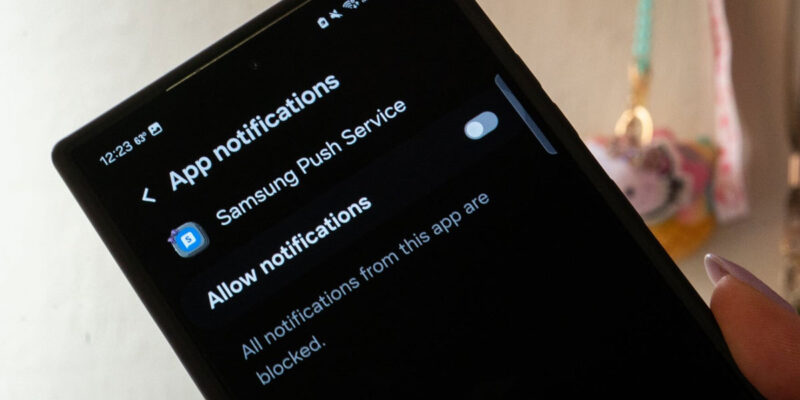
Go to Settings > Notifications > App Notifications and look for Samsung Push Service, Samsung Daily, Game Launcher, and Galaxy Store. Disable notifications for any of these that you don’t actually use. Samsung Push Service in particular is responsible for a lot of the promotional notifications you receive without asking for them.
Remove or Disable Samsung’s Bloatware
You can’t uninstall most Samsung pre-installed apps but you can disable them. Go to Settings > Apps, find apps like Samsung Daily, Bixby Routines, Samsung Free, or the Galaxy Game Launcher if you don’t use them. Tap Disable. They’ll stop running in the background and stop showing ads.
Use a Private DNS
Go to Settings > Connections > More Connection Settings > Private DNS and enter dns.adguard.com. This routes your DNS traffic through AdGuard’s ad-blocking servers and kills ads inside many apps at the network level, including Samsung apps. This works across your entire phone without needing a VPN or rooting.
Replace Samsung’s Apps With Better Alternatives
Samsung’s default weather app, calendar, and browser all carry ads or ad-adjacent content. Switching to alternatives like Google Chrome, Google Calendar, and a third-party weather app like Weather Underground eliminates these entirely. You’re not obligated to use Samsung’s apps just because they’re pre-installed.
The Result
After working through this list, most Samsung users report a dramatically cleaner experience. You won’t eliminate every ad (especially in free third-party apps), but the Samsung-specific promotional content that ships with the phone can be almost entirely removed.
Views: 179

You may also like

How to Use Your Phone to Stay Financially Organised During a Life Event

How to Use Your Phone to Stay Motivated When You Feel Like Giving Up

How to Use Your Phone to Get More From Your Doctor’s Appointments
More in:Gadgets

How to Use Your Phone to Create and Stick to a Weekly Meal Plan

How to Use Your Phone to Research and Buy a Used Car Safely
How to Use Your Phone to Stay Safe and Informed During Bad Weather

TecRounder is a blog that shares New Technology news from around the world (hence the name TecRounder), including the most recent mobile and gadget information: smartphone features, specifications, and more. You can find the latest technology updates here, including the most recent information on smartphones, laptop computers, and other electronic devices.