 By
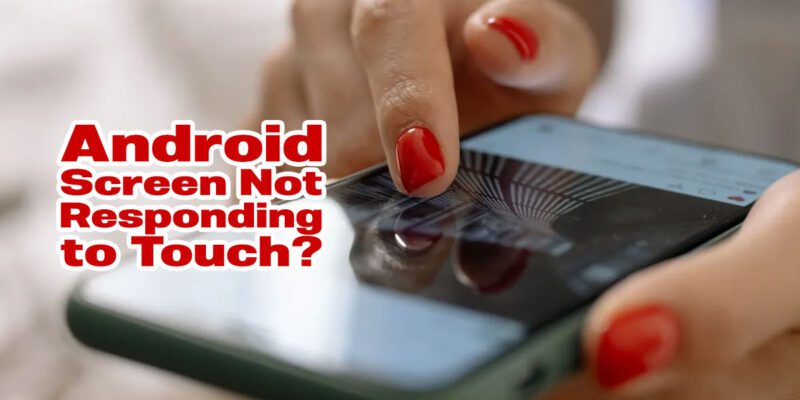
By A touchscreen that doesn’t respond properly makes your smartphone about as useful as a brick. Whether it’s completely unresponsive, registering touches in the wrong place, or only working in some areas, these are the fixes to try before resigning yourself to a repair.
Start With a Restart
A software glitch is often responsible for touch unresponsiveness, especially if it came on suddenly. Force restart the phone by holding Power (or Power + Volume Down on Samsung) for 10 seconds. If the screen becomes responsive after restart, the issue was temporary. If it recurs, a deeper fix is needed.
Check the Screen Protector and Case
A cheap or misaligned screen protector is one of the most common causes of touch problems. Remove the screen protector entirely and test the touchscreen directly. Air bubbles, dust trapped under the protector, or a protector that extends too close to the screen edge can all cause touch registration failures. If touch works fine without the protector, replace it with a higher-quality one.
Clean the Screen Thoroughly
Moisture, oil, or debris on the screen surface can interfere with capacitive touch detection. Power off the phone and wipe the screen with a dry microfiber cloth. If you’ve been using the phone with wet or sweaty hands, moisture interference is likely. Dry hands and a clean screen often restore full touch sensitivity.
Calibrate Touch Sensitivity
Samsung Galaxy phones offer a Touch Sensitivity setting (Settings > Display > Touch Sensitivity) that increases sensitivity to work better with gloves or screen protectors. If your touch screen feels sluggish or misses inputs, enabling higher sensitivity can help. On other Android brands, check under Display settings for similar options.
Check for Software Causing the Issue
Boot into Safe Mode (hold Power, long-press Power Off) to disable third-party apps. If touch works correctly in Safe Mode, a third-party app is interfering with touch input. Some overlay apps (screen recorders, battery monitors, screen filters) register touch events abnormally. Uninstall recent apps to identify the culprit.
Update Android and Check for Display Driver Updates
Touch calibration bugs do sometimes appear in specific software versions and get patched. Check for system updates. Also check if there are pending updates in the manufacturer’s app store — Samsung in particular pushes display-related fixes through Galaxy Store rather than the main system update.
Hardware Diagnosis
If a specific area of the screen consistently fails to respond regardless of software state, or if the screen has been cracked or received a significant impact, the digitizer (the touch-sensing layer under the display) may be damaged. This requires hardware repair. Many repair shops can replace just the digitizer without replacing the full display, which is significantly cheaper.
Views: 77

You may also like

How to Use Your Phone to Stay Financially Organised During a Life Event

How to Use Your Phone to Stay Motivated When You Feel Like Giving Up

How to Use Your Phone to Get More From Your Doctor’s Appointments
More in:Apps

How to Use Your Phone to Find a Therapist or Mental Health Support

How to Keep Kids Safe Online When They’re Using Your Phone

The Best Free Apps That Replace Paid Subscriptions You’re Probably Wasting Money On

TecRounder is a blog that shares New Technology news from around the world (hence the name TecRounder), including the most recent mobile and gadget information: smartphone features, specifications, and more. You can find the latest technology updates here, including the most recent information on smartphones, laptop computers, and other electronic devices.