 By
By Getting a new phone is exciting — until you realize you have to move everything over. Contacts, photos, apps, WhatsApp, text messages, passwords, home screen layout, settings. Done wrong, you’ll spend days reconfiguring things. Done right, the whole process takes about an hour. Here’s how to do it right.
Back Up the Old Phone First
Before doing anything else, back up your old phone. Go to Settings > Accounts and Backup > Backup Data and back up to Google. Make sure Google Photos has backed up all photos (check the status in the Photos app). If you use WhatsApp, go to WhatsApp > Settings > Chats > Chat Backup and run a manual backup to Google Drive. This takes 10–20 minutes but is essential insurance.
Use Android’s Built-In Transfer Tool During Setup
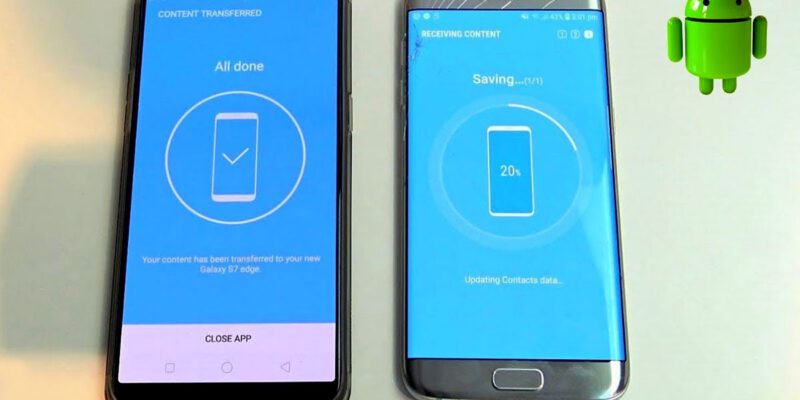
When you turn on your new phone for the first time, the setup wizard offers to copy from your old phone. Select this option. You’ll connect the two phones with a USB-C cable (or use the adapter included with some Samsung phones) and the system copies apps, settings, home screen layout, and accounts directly. This is the fastest and most comprehensive method.
Samsung to Samsung: Use Smart Switch
Samsung’s Smart Switch app (pre-installed on Galaxy phones) offers the most thorough Samsung-to-Samsung transfer. It migrates apps, settings, home screen layout, call logs, text messages, and even some app data. Connect both phones and start the transfer. Expect it to take 20–60 minutes depending on how much data you have.
Restore Apps From Google Play
After signing into your Google account on the new phone, the Play Store will restore your app library. Go to Play Store > Account > Manage Apps and Devices and you can install all your previous apps at once. Some apps retain their data via cloud sync (Google apps, Spotify, banking apps); others will require logging back in.
Move WhatsApp Specifically
WhatsApp requires a specific restoration process. On the new phone, install WhatsApp, verify your number, and when prompted to restore from Google Drive backup, tap Restore. This migrates your full message history. If you’re switching between Samsung phones, Smart Switch can also transfer WhatsApp data more reliably than Drive in some cases.
Migrate Passwords and Authenticator Apps
If you use Google Password Manager, your passwords transfer automatically when you sign into your Google account. If you use a third-party manager like Bitwarden or 1Password, log in on the new phone and sync. For two-factor authentication apps like Google Authenticator, use the Transfer Accounts feature (three dots > Transfer Accounts > Export) before switching.
Final Checks Before Wiping the Old Phone
Spend a day using the new phone before wiping the old one. Check that WhatsApp message history restored completely, that your photos are all present, that banking and payment apps are working, and that your email accounts and calendars are syncing. Only factory reset the old phone once you’re confident everything transferred correctly.
Views: 70

You may also like

How to Use Your Phone to Stay Financially Organised During a Life Event

How to Use Your Phone to Stay Motivated When You Feel Like Giving Up
How to Use Your Phone to Get More From Your Doctor’s Appointments
More in:Apps

How to Use Your Phone to Find a Therapist or Mental Health Support

How to Keep Kids Safe Online When They’re Using Your Phone

The Best Free Apps That Replace Paid Subscriptions You’re Probably Wasting Money On

TecRounder is a blog that shares New Technology news from around the world (hence the name TecRounder), including the most recent mobile and gadget information: smartphone features, specifications, and more. You can find the latest technology updates here, including the most recent information on smartphones, laptop computers, and other electronic devices.