 By
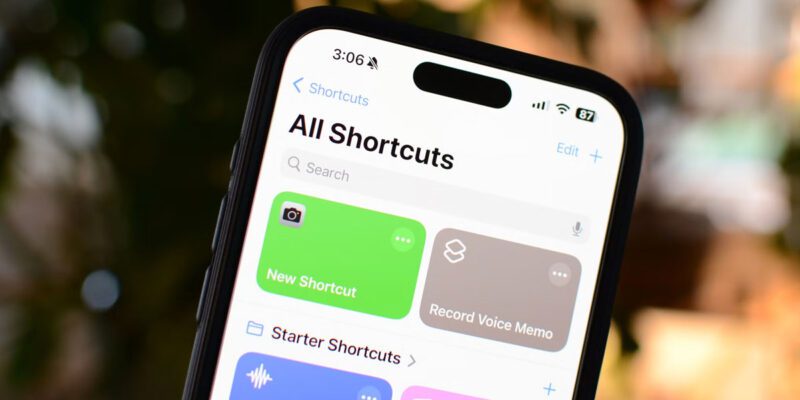
By The iPhone Shortcuts app is one of the most powerful and underused features on iOS. It can automate multi-step actions that you repeat every day — setting up your commute, triggering a morning routine, sending a regular message, or adjusting settings based on location or time. Here’s how to get started with shortcuts that save real time.
Understand the Basics: What a Shortcut Is
A Shortcut is a sequence of actions that runs automatically or with a single tap. It can interact with apps, settings, contacts, calendars, the web, and your phone’s sensors. Think of it as a simple program you create without needing to code. The Shortcuts gallery (in the Shortcuts app) has hundreds of pre-built examples to start from.
Morning Routine Shortcut
Create a shortcut that runs every morning: disables Do Not Disturb, sets brightness to 60%, reads your first calendar event aloud, plays your morning playlist on Spotify, and shows the weather for your location. Add an automation trigger (Shortcuts > Automation tab) to run it when your alarm goes off. This replaces manually doing five things every morning.
Driving Mode Shortcut
Create a shortcut that enables Do Not Disturb While Driving, opens Apple Maps or Waze, sets Bluetooth to connect to your car, and sends a message to your contact saying ‘Heading out now, will message when I arrive.’ Trigger it manually from your home screen or set it to run automatically when your phone connects to your car’s Bluetooth.
Low Battery Shortcut
Create an automation that triggers when battery falls to 20%: reduces brightness to 30%, turns off Wi-Fi if on cellular, enables Low Power Mode, and turns off Background App Refresh. Set it in Shortcuts > Automation > Create Personal Automation > Battery Level. This happens automatically without you having to remember to do it.
Quick Reply Shortcut
Create shortcuts for common text responses — ‘Running 10 minutes late,’ ‘On my way,’ ‘I’ll call you back in 5 minutes.’ Add them to your home screen or as widgets. When you’re in a hurry, tap the shortcut and it sends the message to the last person who texted you, or to a specific contact, without unlocking your phone or opening Messages.
Append to Notes Shortcut
Create a shortcut that accepts input text and appends it to a specific note with the current timestamp. Add it to your share sheet so you can send text from any app directly into your designated capture note. Excellent for quick capture of ideas, meeting notes, or anything you want to save without opening Notes and navigating to the right note.
Find and Install Pre-Built Shortcuts
The Shortcuts Gallery inside the app has hundreds of ready-made shortcuts. The subreddit r/shortcuts and sites like Routinehub.co have community-created shortcuts that do remarkable things. Before building from scratch, search for what you want — someone has likely already built a polished version. You can then customize it for your specific needs.
Views: 105

You may also like
How to Use Your Phone to Learn Basic First Aid You Might Actually Need
How to Use Your Phone to Create a Morning Routine That Actually Works

How to Handle Phone Anxiety and the Constant Pressure to Be Available
More in:Apps

How to Use Your Phone to Build Better Habits That Actually Stick

How to Use Your Phone to Help You Through a Difficult Life Transition

How to Use Your Phone to Manage Your Mental Load and Stop Forgetting Things

TecRounder is a blog that shares New Technology news from around the world (hence the name TecRounder), including the most recent mobile and gadget information: smartphone features, specifications, and more. You can find the latest technology updates here, including the most recent information on smartphones, laptop computers, and other electronic devices.