How to Use Your Phone for Emergency Preparedness
 By
By Most people assume their phone will simply work when they need it in an emergency. Often it does. But there are situations where default phone setup is inadequate — low battery at a critical moment, no signal when you’re in trouble, critical information not accessible when locked. Preparing your phone in advance for emergency situations costs nothing in normal conditions and can be genuinely important when things go wrong.
Medical ID: The Most Important Setup
Both iPhone and Android allow you to store medical information accessible from the lock screen — without needing to unlock the phone. Emergency responders are trained to look for this.
iPhone: Health app > Medical ID > Edit. Fill in: blood type, allergies, current medications, medical conditions, emergency contacts. Enable “Show When Locked.”
Android: Settings > About Phone > Emergency Information (on newer Android) or via the Health Connect app. Some Samsung phones have it under Settings > Privacy > Emergency Information.
This information can be the difference between getting appropriate emergency treatment and getting treatment that’s contraindicated for your conditions.
Emergency SOS
iPhone: press the side button five times rapidly (on iPhone 8 and later) to call emergency services and alert your emergency contacts with your location. Settings > Emergency SOS to configure.
Android: most modern Android phones support a similar rapid button press for Emergency SOS. Samsung: hold power and volume down simultaneously. Pixel: press power button five times rapidly.
Both send your location to your designated emergency contacts when triggered.
Emergency Contacts
Add at least two emergency contacts to your Medical ID (iPhone) or Emergency Contacts (Android settings). These people receive automatic notification if you trigger Emergency SOS, along with your GPS location.
Choose people who will answer quickly and who know your situation well enough to help. Not just people you know — people who can respond effectively in the middle of the night.
Offline Maps
If you’re travelling in areas with variable signal, download offline maps in advance. Google Maps offline download: Profile > Offline Maps > Select Your Own Map. Download the regions you’ll be in.
Offline maps work without any data connection for full navigation. In remote areas or during network disruptions, this can be critical.
Battery Preparation
Your phone is useless in an emergency if the battery is dead. A quality portable battery pack (10,000mAh or larger) in your bag or car keeps your phone charged regardless of access to power outlets. In a prolonged power outage, this matters significantly.
Enable Low Power Mode proactively in extended emergency situations to extend battery life: Settings > Battery > Low Power Mode (iPhone) or similar on Android.
Local Emergency Alerts
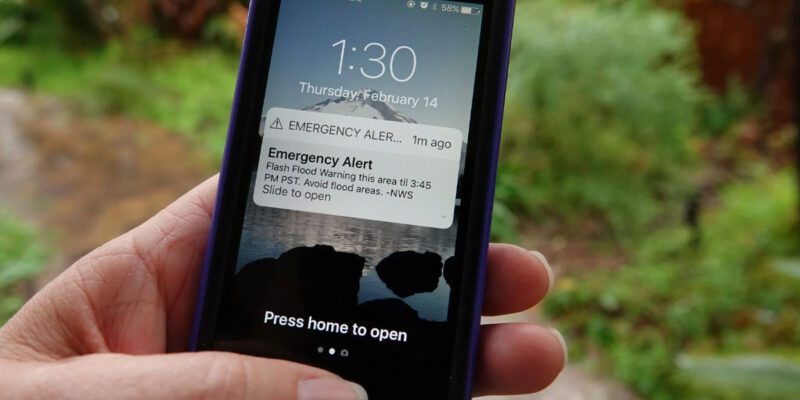
Both iPhone and Android receive government emergency alerts (Wireless Emergency Alerts in the US, Cell Broadcast Alerts in the UK) by default. These cannot be disabled for the most critical categories (extreme threats to life). Make sure your phone’s volume is turned up or alerts are set to bypass DND.
In the US, Wireless Emergency Alerts are configured in Settings > Notifications > Emergency Alerts.
Storing Critical Information Offline
During emergencies, internet access may be unavailable. Store important information in your phone’s native Notes app (not a cloud-only app) where it’s accessible without connection:
– Insurance policy numbers and emergency contact numbers for each policy – Key contacts (especially those not stored in cloud-synced contacts) – Important account numbers – Local emergency services non-emergency numbers – Family meeting point in case phones can’t reach each other – First aid basics
Signal-Free Communication
For areas with no cellular signal, some options still work: – Satellite SOS on iPhone 14 and later (Emergency SOS via Satellite) works without cellular or Wi-Fi – Garmin inReach, SPOT, and similar devices provide two-way satellite messaging (require separate subscription) – Texting often works when voice calls can’t get through — SMS uses less bandwidth than voice calls on congested networks
Test Your Setup
The value of this preparation is zero if it doesn’t work when needed. Once a year, test your Emergency SOS setup, verify your Medical ID is current, confirm emergency contacts are still the right people with current numbers. This takes 10 minutes and confirms that your preparation will actually work.
Views: 39

You may also like

How to Use Your Phone to Stay Financially Organised During a Life Event

How to Use Your Phone to Stay Motivated When You Feel Like Giving Up
How to Use Your Phone to Get More From Your Doctor’s Appointments
More in:Gadgets
How to Use Your Phone to Create and Stick to a Weekly Meal Plan
How to Use Your Phone to Research and Buy a Used Car Safely
How to Use Your Phone to Stay Safe and Informed During Bad Weather

TecRounder is a blog that shares New Technology news from around the world (hence the name TecRounder), including the most recent mobile and gadget information: smartphone features, specifications, and more. You can find the latest technology updates here, including the most recent information on smartphones, laptop computers, and other electronic devices.